 By the NAXTECH team · Published 6 Nov 2026 · Updated 8 Nov 2026 · Hands-on with v1.0
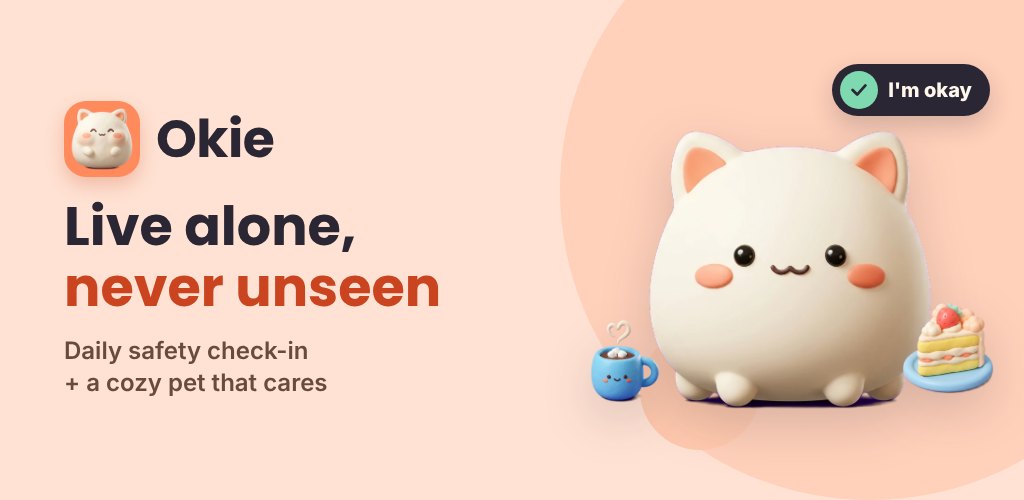
You live alone, and the quiet thought at the back of your mind is simple: if something happened to me today, how long before anyone noticed? Most "emergency" apps answer that with panic buttons you hope you never have to press. Okie takes the opposite approach — a single calm tap each day that says "I'm okay," backed up by a little pet who worries about you before anyone else has to.
Okie is a solo safety check-in app wrapped around a cozy virtual companion: pick a daily deadline, tap in before it passes, and life carries on. Miss it, and a gentle escalation begins — pet first, people only if you stay silent. Everything runs on your device with no account, so it keeps watch even with no signal.
Set a daily deadline (it defaults to 10 PM), choose which days of the week it applies, and pick a grace window of 15, 30, 60 or 120 minutes before anything happens. Each day you open Okie and check in with one tap — or use the home-screen widget to send "I'm okay" without even unlocking into the app. A running streak and an on-time history keep the habit feeling rewarding rather than nagging.
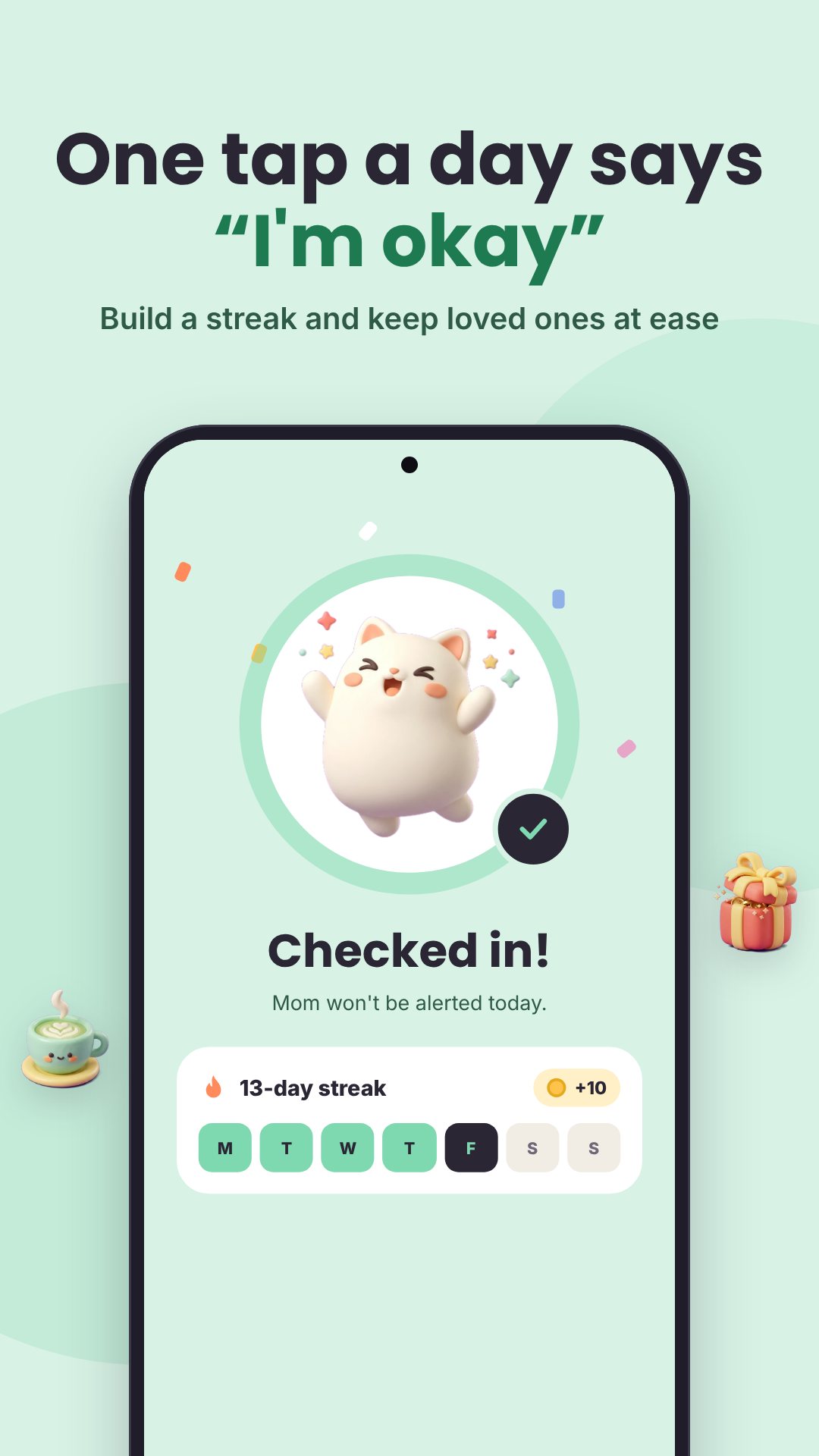
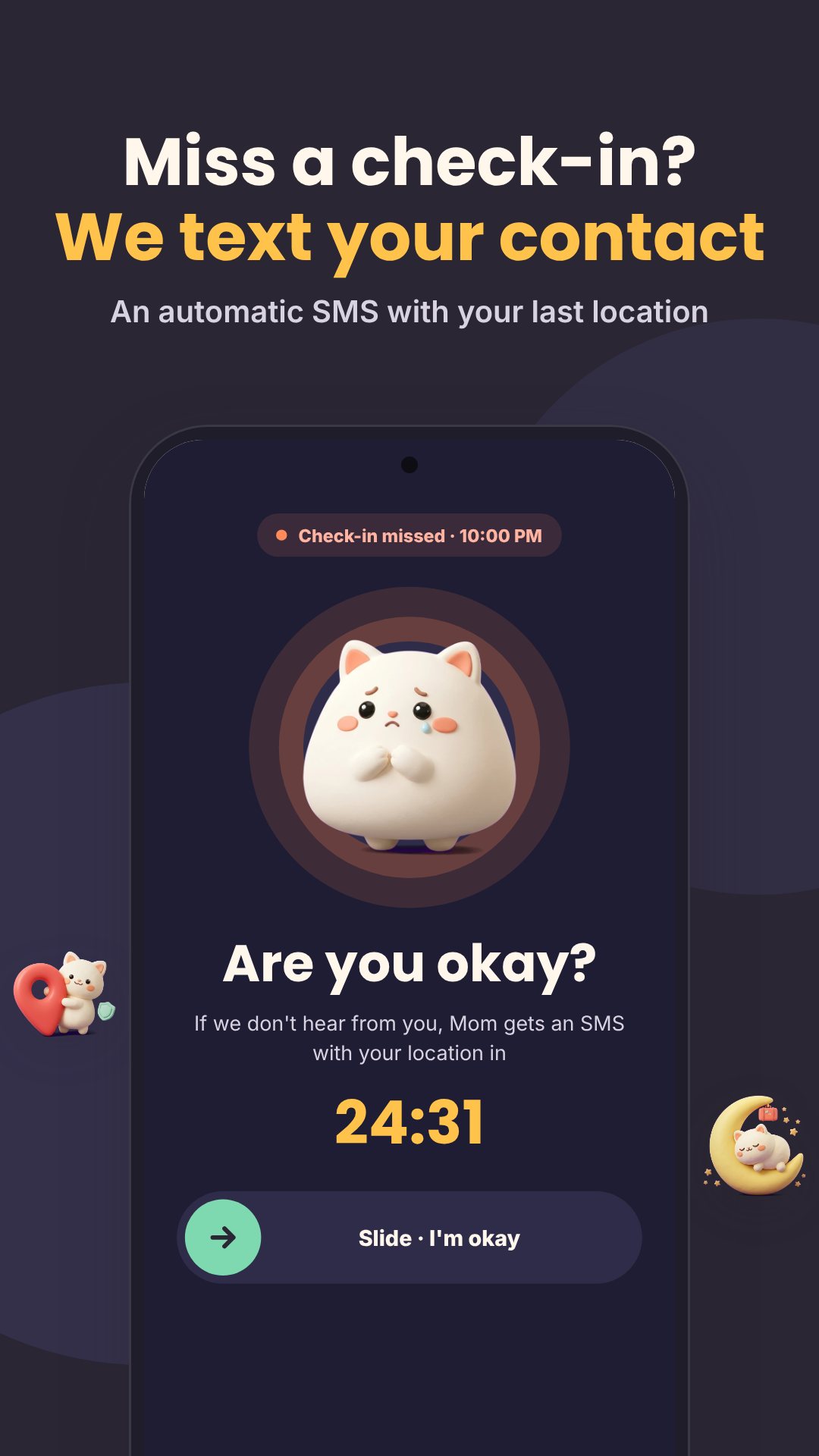
This is where Okie earns its keep. If your deadline and grace window both pass, your pet nudges you first with a notification. Still nothing? Okie opens an "Are you okay?" screen, then a 10-second SOS countdown with a tick each second. If that finishes, Okie drafts a safety message to your emergency contacts — including your last known location as a map link — and hands it to your own SMS app to send. Okie deliberately asks for no SMS-sending permission, and reads location only while the app is open.
Add the people who should hear from you, each tagged by relation — family, friend, partner, neighbour or landlord — and mark one as your primary contact. You can fire a clearly labelled test alert any time so everyone knows what a real one looks like. Travelling, staying at a friend's or in hospital? Away mode pauses check-ins — pick Tonight, Weekend, 5 days or a custom range up to 60 days — and can message your contacts that you'll be out of touch, so nobody gets a false alarm.
Okie ships six companions — Momo the cloud cat, Tofu the mochi bunny, Pudding the puff penguin, Maple the maple fox, Sesame the toast hamster and Peach the peach axolotl — with Momo and Tofu free from the start. Your pet has fullness, happiness and energy, lives in a room you decorate with coins you earn (a moon lamp, cloud bed, strawberry rug, fairy lights), and quietly reacts to whether you've checked in today.
Feeding your pet is also how you check in with yourself. Pick one of eight moods — Joyful, Calm, Okay, Tired, Sad, Stressed, Lonely or Mixed — and your pet eats the matching snack while the feeling drops into your Mood Jar as a marble. Add tags like work, sleep, people or money and a short note. The Insights screen then paints your month as a mood calendar, shows your mood mix, your check-ins-on-time rate, and the tags that most often lift you.
Okie works fully offline with no sign-up. It is a companion and reminder tool, not a medical or emergency-dispatch service — it never calls emergency services for you, and the safety text is only sent when you confirm it in your own SMS app. The interface is available in a dozen languages, and the app is free with ads and optional in-app purchases.
No. If you miss your check-in, Okie drafts the message with your last location and opens your own SMS app — the text only goes out when you send it.
Yes. Check-ins, reminders and your pet all run on the device with no account, so Okie keeps watch even offline.
Momo the cloud cat and Tofu the mochi bunny are free; four more pets are available as optional in-app purchases.
Turn on Away mode (Tonight, Weekend, 5 days or a custom range) to pause check-ins, and optionally let your contacts know you'll be out of touch.
 By the NAXTECH team · Published 4 Nov 2026 · Updated 8 Nov 2026 · Hands-on with v1.0
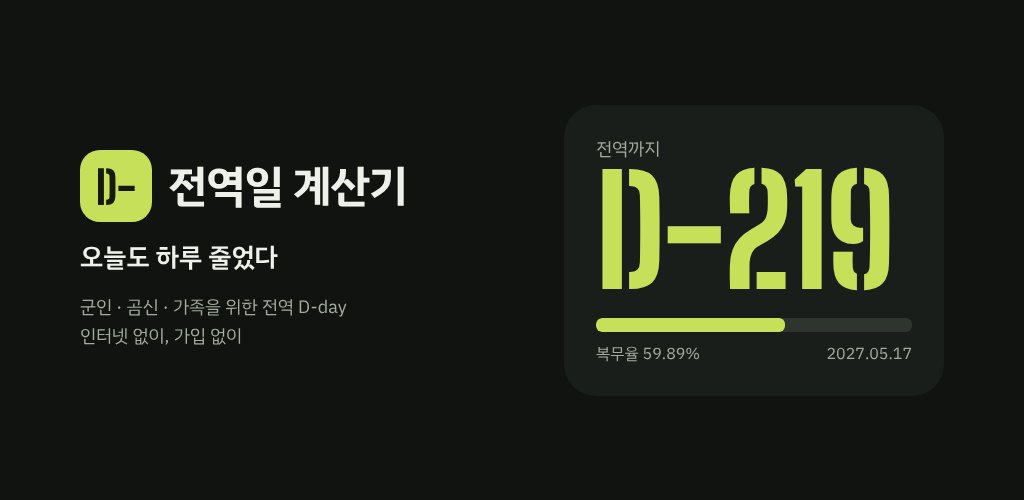
You enlisted, someone handed you a folded uniform, and from that moment every single person asks the same question: how many days left? Doing that sum in your head — months of service, minus the day you started, plus or minus an adjustment, around a promotion schedule you half remember — is the small daily arithmetic that 전역일 계산기 was built to end.
Type in one thing, your enlistment date, and the app works out the rest. It calculates your discharge day as enlistment plus your term in months, minus a day, with room for early-out or extension adjustments, and from there it never stops counting down. Everything runs on the phone itself, so the number is right whether or not you have a signal in the barracks.
Pick your branch and the term fills itself in — 18 months for the Army and Marines, 20 for the Navy, 21 for the Air Force, with presets for reserve (상근예비역) and social-service (사회복무요원) duty, or a custom length you set yourself. The home screen leads with the discharge D-day, the dates you enlisted and get out, your service percentage (복무율, shown to two decimals if you like, the way 59.89% reads sharper than 59.9%), and a progress bar that fills as the days pass. Before enlistment it counts down to the day you report instead.
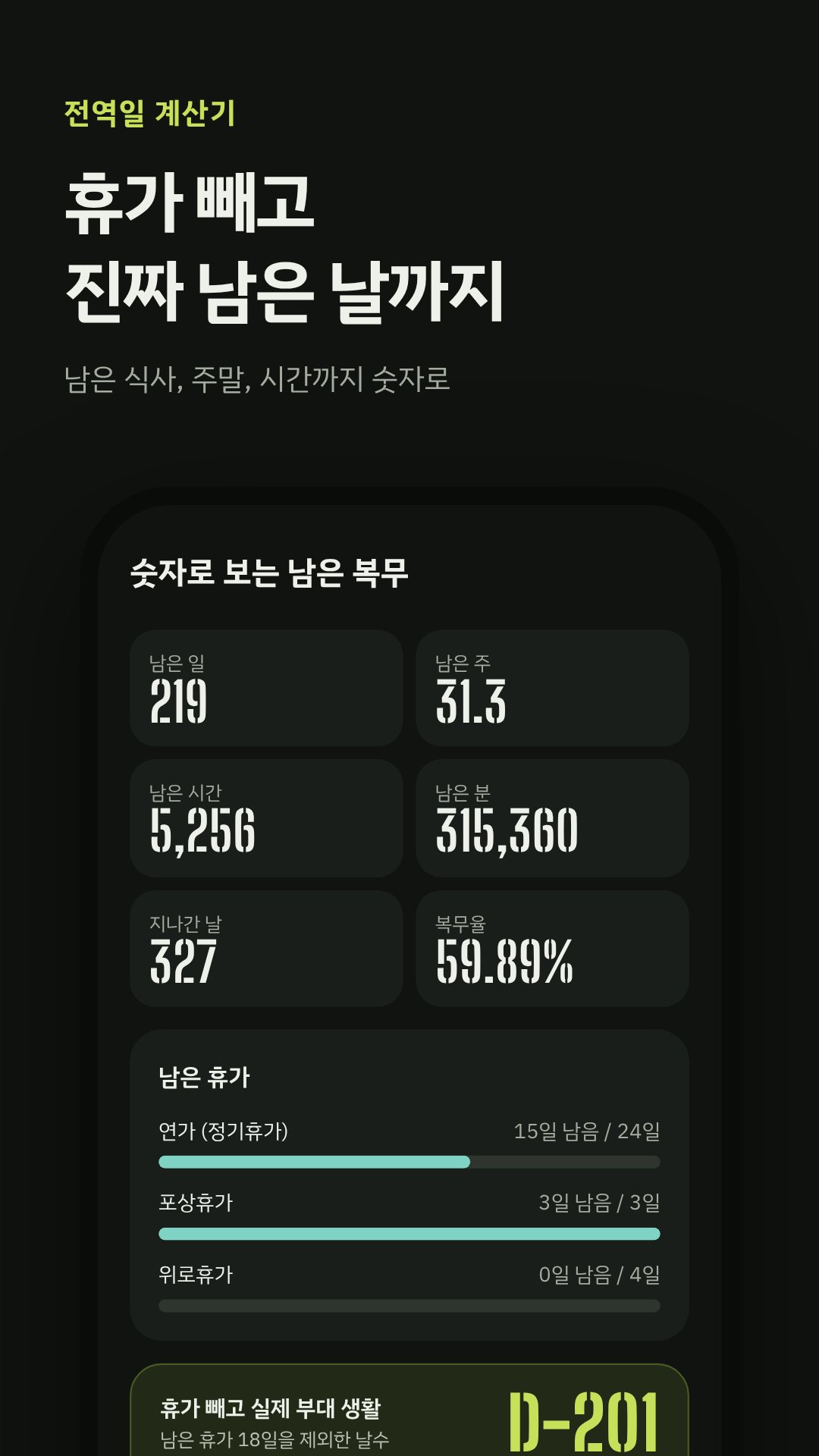
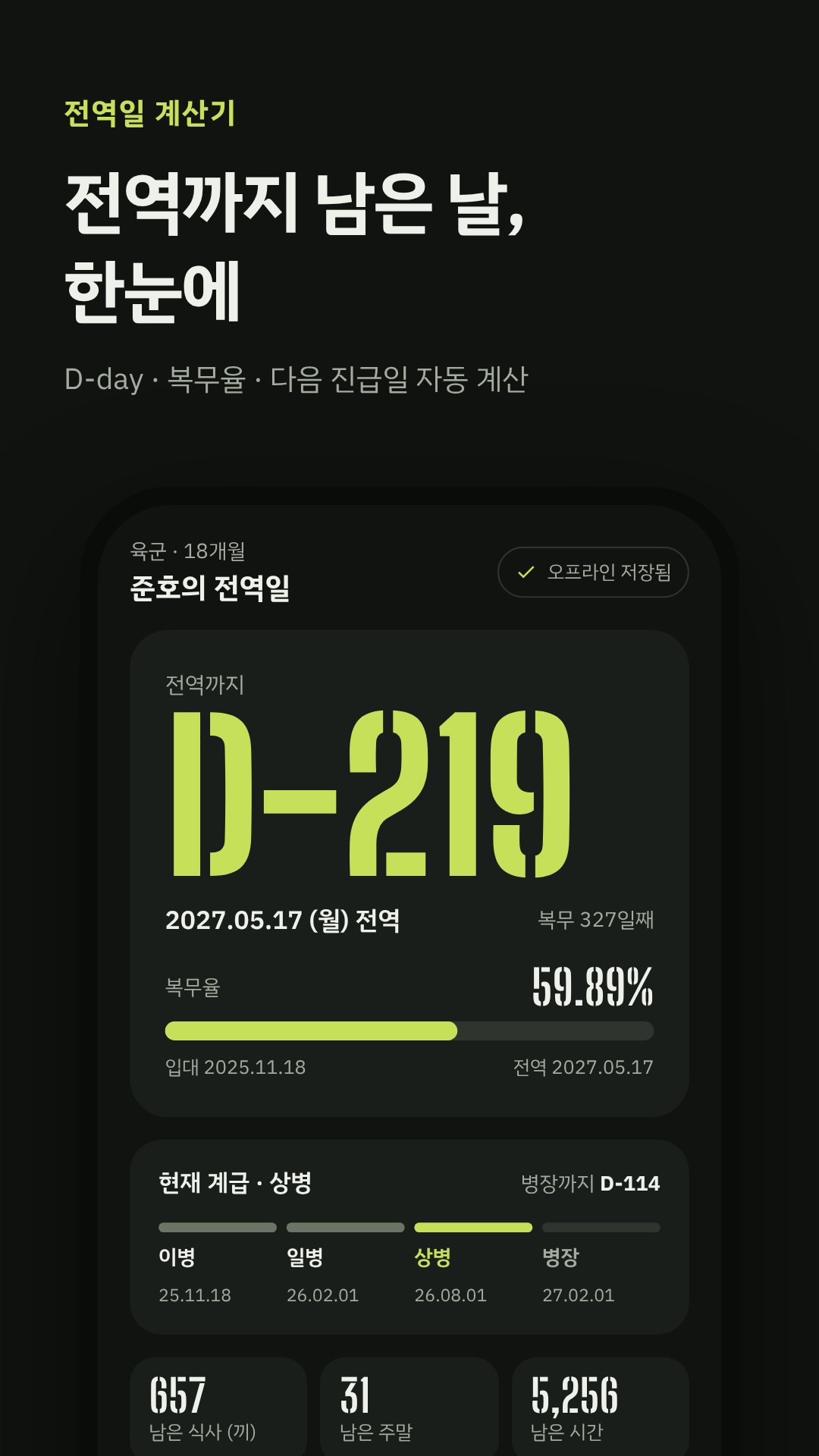
For ranked branches the app lays out your promotion schedule — 이병, 일병, 상병, 병장 — with each promotion landing on the first of the month and a default pattern of 2, 6 and 6 months you can adjust. The home card shows your current rank and a D-day to the next one. Alongside that it tracks the milestones worth marking: day 100, the halfway point, the two-thirds point, D-365, D-200, D-100 and discharge itself, each with its own celebration screen when the day arrives.
The stats tab takes the same remaining time and slices it the way soldiers actually talk about it:
Set the role to 곰신 and the app reframes itself around the partner left behind. A "우리" (Us) tab counts the days until discharge and the days you have been together, keeps the next leave and the next 면회 (visit) in view, and lets you save a single line for the day — 오늘의 한 줄. A shared calendar holds visits, leave, calls and anniversaries, each with an optional day-before or morning-of reminder. There is also a family / friend role for anyone counting down for a son, a brother or a mate.
Turn the current count into a share card in one of four looks — Stencil, Paper, 곰신 and Olive — then save it to your gallery or send it straight out. For the phone's home screen there is a widget in Dark, Light, Clear (transparent) and 곰신 themes, with an option to show rank and the promotion D-day, so you see the number without opening the app at all.
There is no sign-up and no cloud: your service info, leave, schedule and notes live only on the device, and you can export them to a JSON backup file to move or keep. Even the reminders are local — the daily countdown and the milestone alerts fire without a connection and reschedule themselves after a reboot. Ads appear only when you are online, and a one-time purchase removes them.
Just your branch and your enlistment date. The app calculates the discharge day, service percentage and promotion schedule from there.
Yes. The countdown, stats, notifications and widget all run on the device, so nothing depends on a signal in the barracks.
Yes. A 곰신 mode and a family / friend role count the same discharge day, with a shared calendar for visits, leave and anniversaries.
No. You can export everything to a JSON backup file and import it on the new device, since records are stored locally rather than in an account.
 By the NAXTECH team · Published 3 Nov 2026 · Updated 6 Nov 2026 · Hands-on with v2.0

You step off the cable car at 1,487 metres, the cloud rolls in, the Golden Bridge is somewhere to your left — and your phone has one bar of signal that keeps dropping. Ba Na Hills is a sprawling French-village resort stacked up a mountain, and the one moment you need a map and a plan is the moment the network gives up. Banahills Danang was built for exactly that moment.
It is an offline visitor guide: the illustrated park map, every place, the opening hours and the day plans are bundled inside the app, so nothing waits for a signal once you are on the summit. Open it on the bus, lose connection in the gondola, and the guide still works at the top.
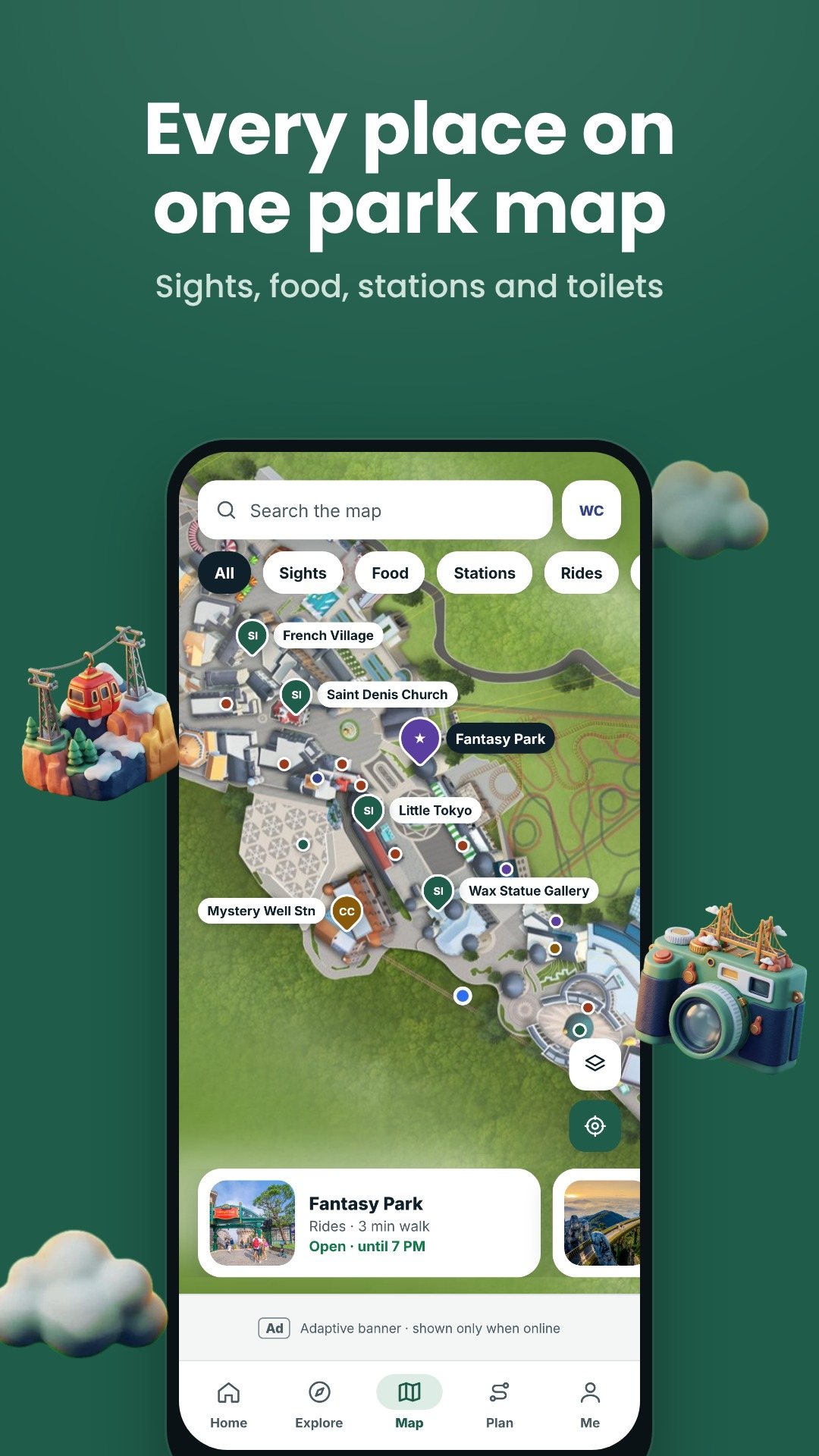
The map is a single hand-drawn layer of the park — no map tiles, no network calls. You pan and pinch across the Peak and Mountain-foot areas, filter the pins by category — sights, food and drink, cable stations, rides, pagodas, hotels, shopping and facilities — and tap any place to read it. Grant location once and a blue dot shows where you are standing against the illustration, with a day-route mode that threads your chosen stops into a walking line.
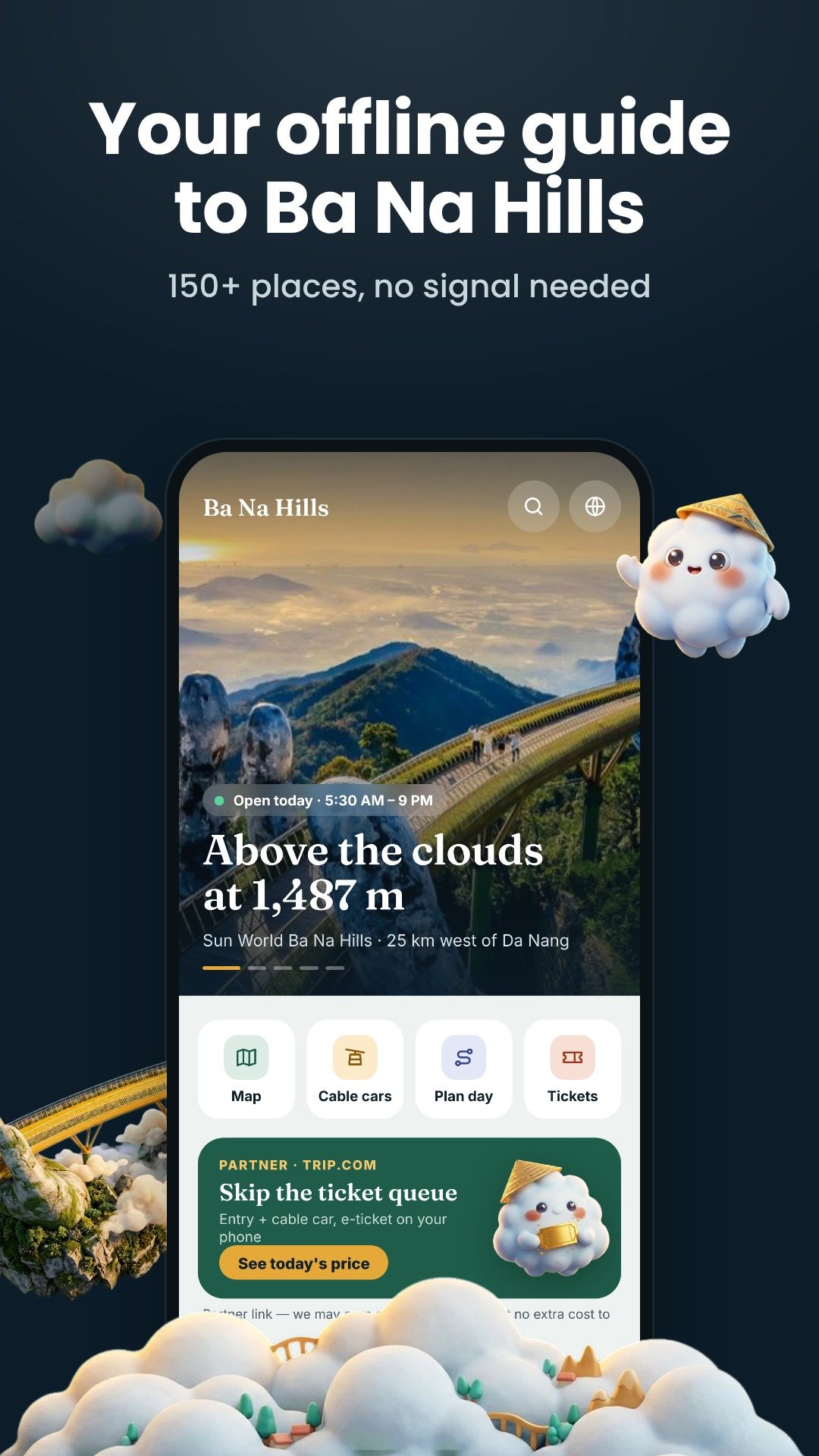
Getting up and down the mountain means picking the right cable car, and the app lays out all four lines with the facts, not guesses. The record-holding Toc Tien – L'Indochine line runs 5,772 m with 86 cabins on 25 towers; Suoi Mo – Ba Na is the original 2009 line at 5,043 m; Hoi An – Marseille (5,261 m, opened 2017) carries up to 2,000 people an hour; and Champa – Taiga (5,864 m, opened 2021) tops out at 3,000. Each line shows its two end stations, length, cabin and tower count, hourly capacity and opening year, so you can choose the quickest way to the Golden Bridge.
The planner ships ready-made itineraries with timed stops. The free Classic full day walks you from Marseille Station to the Golden Bridge for early photos, then Le Jardin d'Amour, Linh Ung Pagoda, the Debay Wine Cellar and lunch before Fantasy Park; a Half-day plan trims it to about four hours. Plus unlocks a kid-friendly route through the Alpine Coaster and the wax gallery, and a sunset plan that ends at the bridge for golden hour. Every stop carries the time and a one-line note on what to do there.
The built-in passport holds eight collectible stamps — the Golden Bridge, French Village, Linh Ung Pagoda, the Debay Wine Cellar, Fantasy Park, Le Jardin d'Amour and the summit. You earn a stamp by physically standing within about 50 metres of the place and checking in, you climb five explorer ranks as the book fills, and you can render the finished passport to an image and share it.
A facilities finder points you to the nearest toilets, ATM, information desk, prayer room, baggage store, ticket counter and parking. A gallery and search let you dig through more than 150 places, each with photos, hours, phone and address. When you are ready to buy, the Tickets tab opens partner offers — park entry, airport transfers, hotels, tours and a travel eSIM — in your browser.
The guide, map and place data are offline; booking links, photos loaded from the web and the partner offers need a connection. Opening hours, prices and timetables are those published for the resort and can change, so treat them as a guide rather than a guarantee. The app is free with ads, and an optional Plus upgrade — a lifetime unlock or a 30-day pass — removes ads and opens the premium plans and passport frames.
Yes. The illustrated map, the 150-plus places, opening hours and the day plans are bundled in the app, so they work on the summit with no signal. Only booking links and web photos need a connection.
No. It is an independent visitor guide made by the NAXTECH team to help you find your way and plan the day; tickets are handled through partner links.
The app lists all four lines with length, capacity and stations so you can compare; the Hoi An – Marseille and Champa – Taiga lines carry the most people per hour.
Yes, it is free to download with ads, and offers an optional Plus upgrade — a lifetime unlock or a 30-day pass — that removes ads and adds the premium plans.
Get Banahills Danang on Google Play →
 By the NAXTECH team · Published 1 Nov 2026 · Updated 5 Nov 2026 · Hands-on with v1.0

It is 12:20 and the Lunchtime draw is forty minutes away — but your bankers are on a torn paper slip, the Fafi meaning for last night's dream is in a WhatsApp forward from a cousin, and the draw time in your head is UK time, not the hour it actually lands where you live. For UK49s and Fafi players, the numbers are never the hard part; keeping them, the times and the slip in one place is. UK49s Banker was built to do exactly that.
UK49s Banker & Fafi MoChina 36 is an offline Android app that gives you a fresh set of Lunchtime and Teatime bankers each day with its Bonus Ball, the full Fafi 1–36 book with partner numbers, a Date Code calculator, and a slip builder that writes out every line for you. Everything is saved on the phone, so it keeps working at the shop counter with no signal.
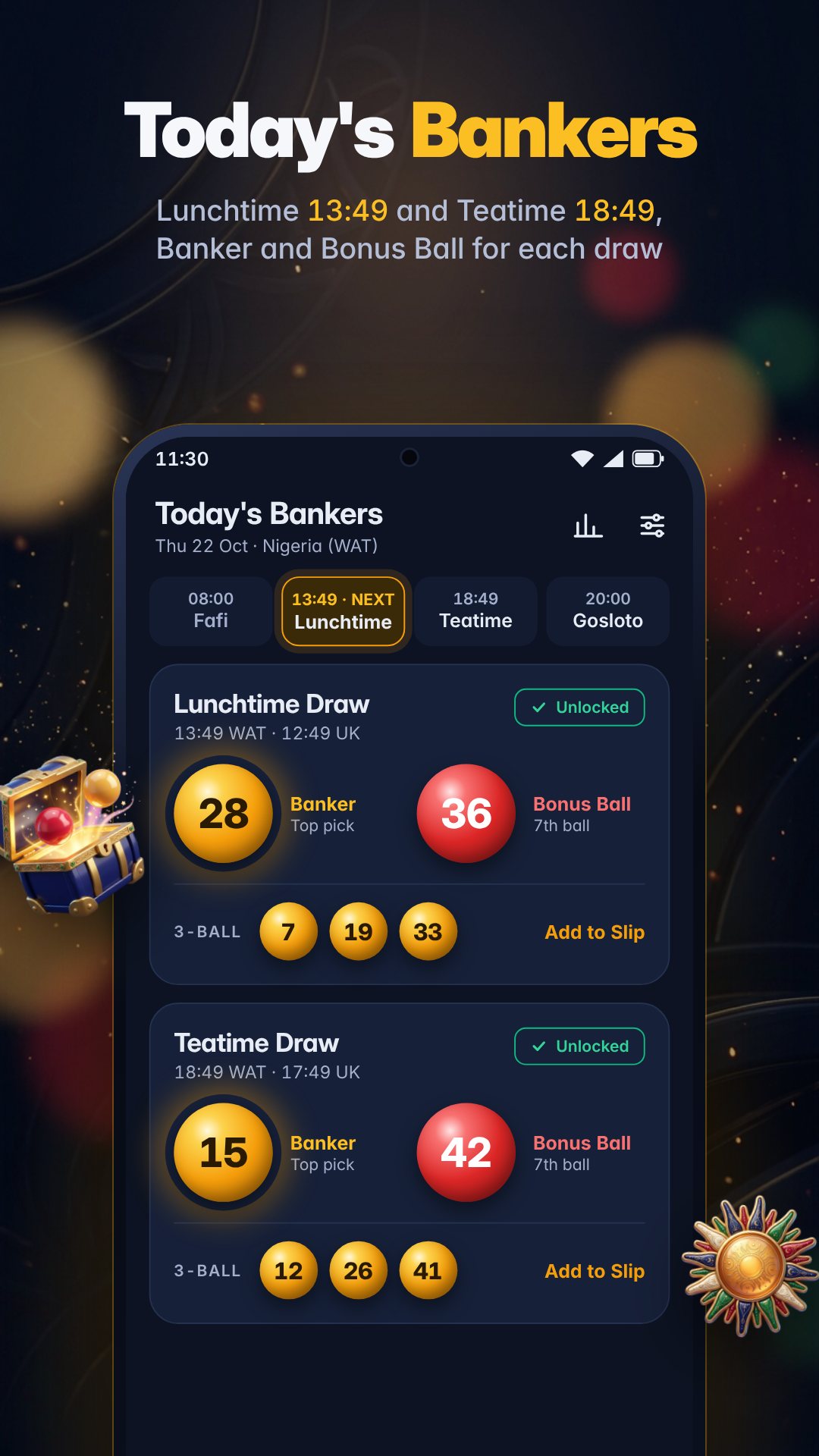
The home tab shows Today's Bankers for your region, with a live countdown to the next of the four daily moments the app tracks: Morning Fafi, UK49s Lunchtime (12:49 UK), UK49s Teatime (17:49 UK) and Gosloto 7/49. Because UK49s is anchored to UK wall-clock time, the app shifts the local hour automatically when Britain moves between GMT and BST, so a player in Johannesburg, Lagos or Harare always sees the right time in their own zone. One short rewarded video unlocks both draws for the day, and the picks stay unlocked until midnight, stored offline.
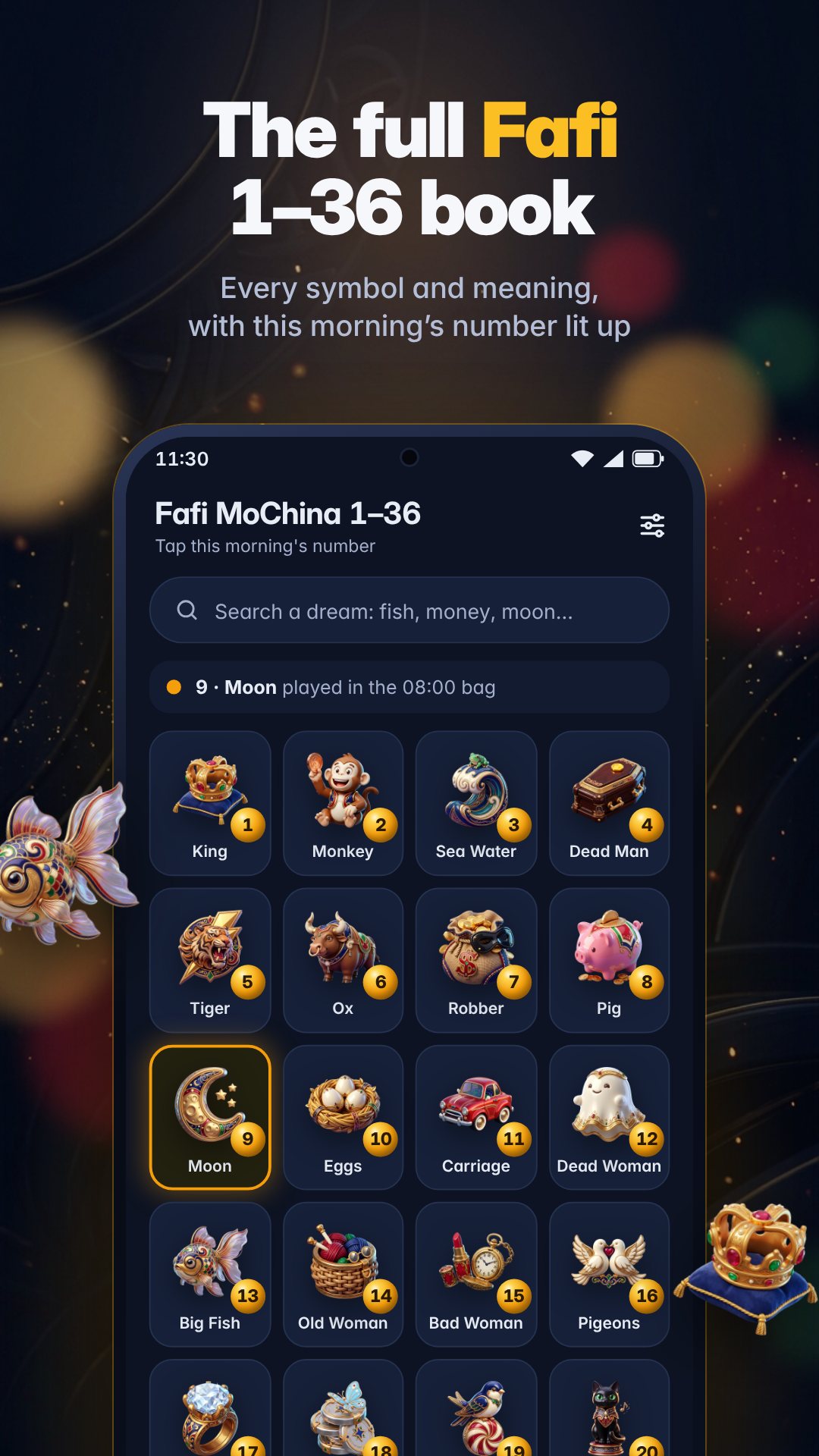
Fafi players will recognise the whole table: all 36 symbols, from 1 King and 2 Monkey to 32 Gold and 36 Shrimp, each with its traditional meanings, its usual partner numbers, and a companion number in the 37–49 range so a Fafi symbol maps cleanly onto a UK49s set. Dreamt of fish, money, a dog or fire? Search by number, by symbol name or by the dream word itself — the app lists the matching symbols and the numbers that go with them, no paper book required.
The Code tab turns the previous draw's Bonus Ball into fresh numbers using five named formulas, each wrapped back into the 1–49 range: Chasing (n + 11), Mirror (50 − n), Bonus (n + 19), Double (2n + 3) and Triplet (n + 7). Switch the formulas you trust on or off, and the app splits the output into bankers and bonus picks and shows the working for each. Alongside it, the Date Code reads the day and month into a number, its sum and its reverse — a quick companion set for the day.
Pick 2 to 6 numbers from 1–49 and the slip builder does the arithmetic: it lists every 2-Ball and every 3-Ball combination, counts the lines, and totals your stake in your local currency — Rand, Pound, Naira or US Dollar. Stuck for numbers? The Lucky Dip drum spins out 4, 5 or 6 at a tap. When the slip is ready, share the whole thing straight to WhatsApp or copy it, then keep it under Saved Slips.
Enter each day's winning six plus the Bonus Ball and the app keeps your own result history. From the last 20 logged draws it works out the hot numbers — the ones that have come up most — and the cold numbers that have not appeared, so you are reading your own record rather than a stranger's. Turn on reminders and the app nudges you 30 minutes before Lunchtime and Teatime; the schedule even survives a reboot.
Pick South Africa, the United Kingdom, Nigeria or Zimbabwe and the app sets your currency, your time zone and the responsible-gambling helpline it shows first. The whole thing runs on device with no account, so your slips and results never leave your phone.
UK49s Banker is a numbers companion for entertainment, strictly 18+. The bankers, Date Code and Fafi sets are pattern tools and lucky-number ideas — no app can predict a lottery draw, and nothing here guarantees a win. The app surfaces the UK National Gambling Helpline (0808 8020 133, 24/7) and South Africa's NRGP line (0800 006 008) in Settings. It is free and contains ads.
Yes. The bankers, Fafi book, Date Code calculator and slip builder all run on your device, and your saved slips and results stay on the phone.
UK49s Lunchtime (12:49 UK) and Teatime (17:49 UK), plus Morning Fafi and Gosloto 7/49, shown in your own time zone and adjusted for GMT/BST.
The full MoChina table of 36 symbols with their meanings and partner numbers, searchable by number, name or dream word, each mapped to a UK49s set.
No. It is an 18+ entertainment tool for organising your numbers and slips; no app can predict a lottery result.
Get UK49s Banker on Google Play →
 By the NAXTECH team · Published 25 Oct 2026 · Updated 11 Nov 2026 · Hands-on with v1.0

You have been meaning to open a savings account, book the haircut and sign the lease — but your grandmother would have asked one question first: is it a good day for it? The paper Tong Shu that answered that question is dense, printed once a year, and easy to misread. Tong Shu Almanac puts the same reasoning in your pocket and does the lookup for you.
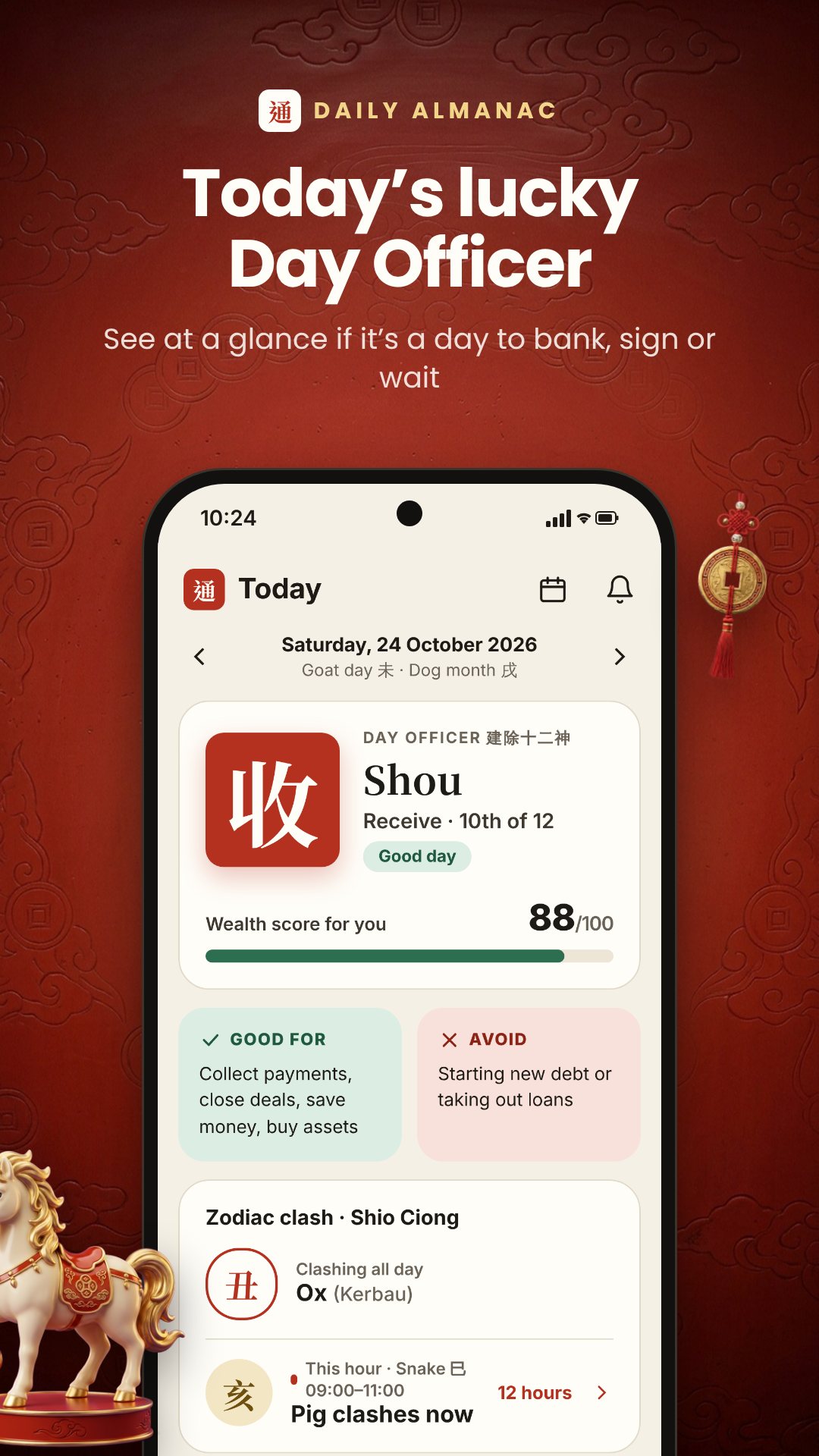
The app opens on today: the ruling Day Officer, a plain-language verdict, and a wealth score out of 100 for the day. Tap back and forth through the days, and everything — the day pillar, the solar month, the officer, the clash — is calculated on your device by the app's own almanac engine, so a reading at the bank counter never waits for a signal.
The heart of the almanac is the cycle of 12 Day Officers (建除十二神) — Jian, Chu, Man, Ping, Ding, Zhi, Po, Wei, Cheng, Shou, Kai and Bi. Tong Shu Almanac names today's officer, shows its Chinese character on a carved seal, and turns it into a status you can read at a glance, from excellent down to danger. A Cheng (成) day scores near the top; a Po (破) or Bi (閉) day is flagged as one to be careful with. A built-in guide explains what each of the twelve officers favours and what it rules out.
Instead of leaving you to interpret the officer yourself, the calendar scores ten real activities — haircut, bank deposit, cutting nails, signing a contract, a grand opening, moving house, a wedding, travel, medical treatment and burial. Pick one and the month lights up with best, good, neutral and avoid days. Open any day for the full reading: what to do, what to strictly avoid, and the clashing zodiac sign for that day.
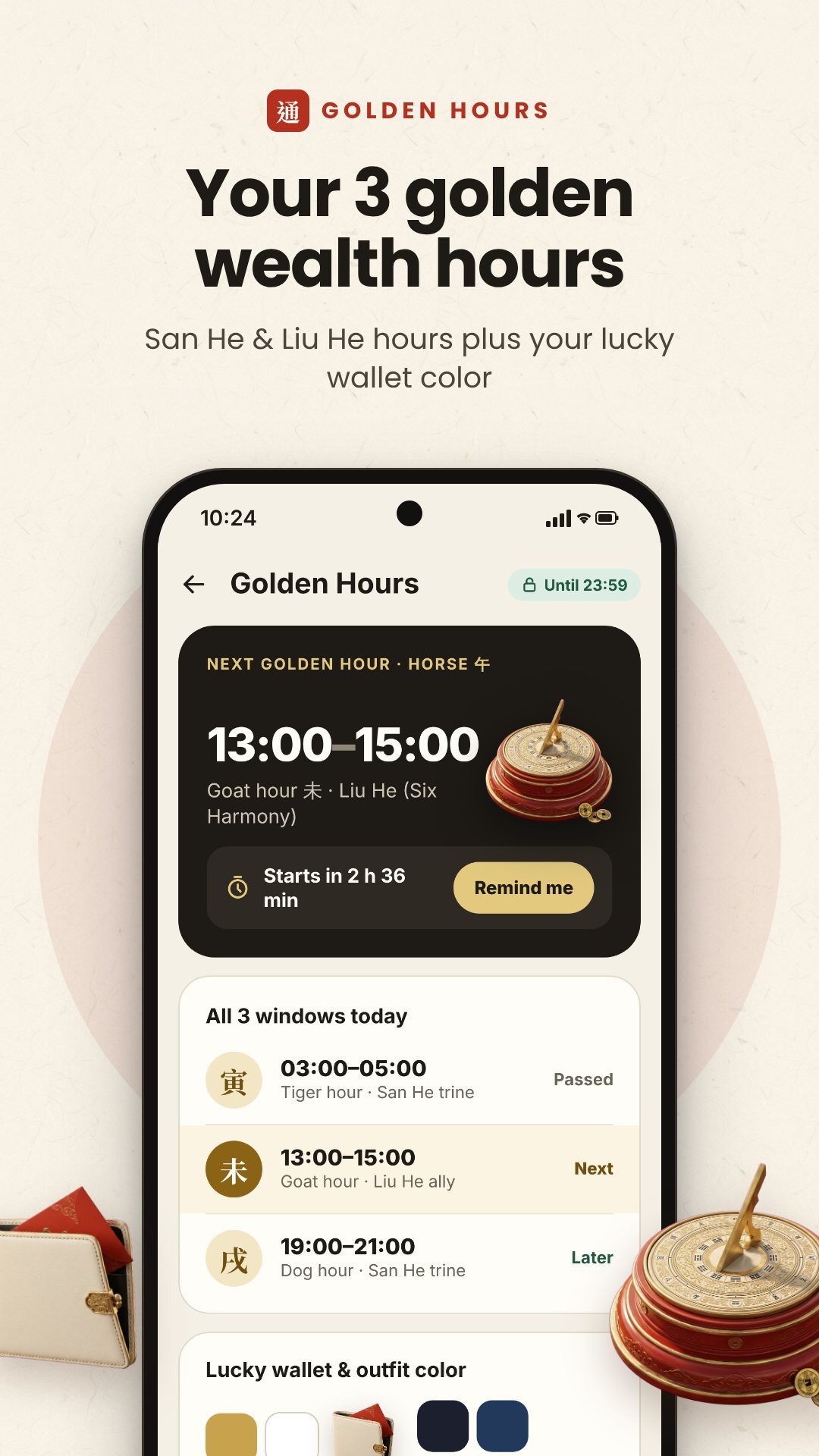
Days have good hours too. From your zodiac sign the app works out your golden wealth hours — three windows built from the San He and Liu He relationships of your sign — and lays the day out as the traditional 12 double-hours (時辰), each with its hourly Shio clash. It even names your wealth element and the element to avoid, so the lucky colours follow from your own chart rather than a generic list.
Tong Shu Almanac follows the almanac convention that the zodiac year turns at Lichun (立春, around 4 February), and its solar months begin on the twelve "jie" solar terms. It presents traditional Chinese metaphysics for cultural, educational and reference use and does not replace professional advice on health, legal, financial or other matters. The app is free with ads and offers an optional Premium upgrade that removes them and unlocks the golden hours.
Yes. The Day Officer, wealth score, golden hours and every calendar reading are computed on your device, so you need no connection and no account.
You set your birth year once; the app finds your Chinese zodiac sign and uses it for clashes, golden hours and compatibility, so a day that clashes with your animal is marked down for you.
Ten: haircut, bank deposit, cutting nails, contracts, a grand opening, moving house, weddings, travel, medical treatment and burial.
Yes, it is free to download with ads, with an optional Premium upgrade that removes ads and unlocks the golden wealth hours.
Get Tong Shu Almanac on Google Play →
 By the NAXTECH team · Published 24 Oct 2026 · Updated 1 Nov 2026 · Hands-on with v2.0
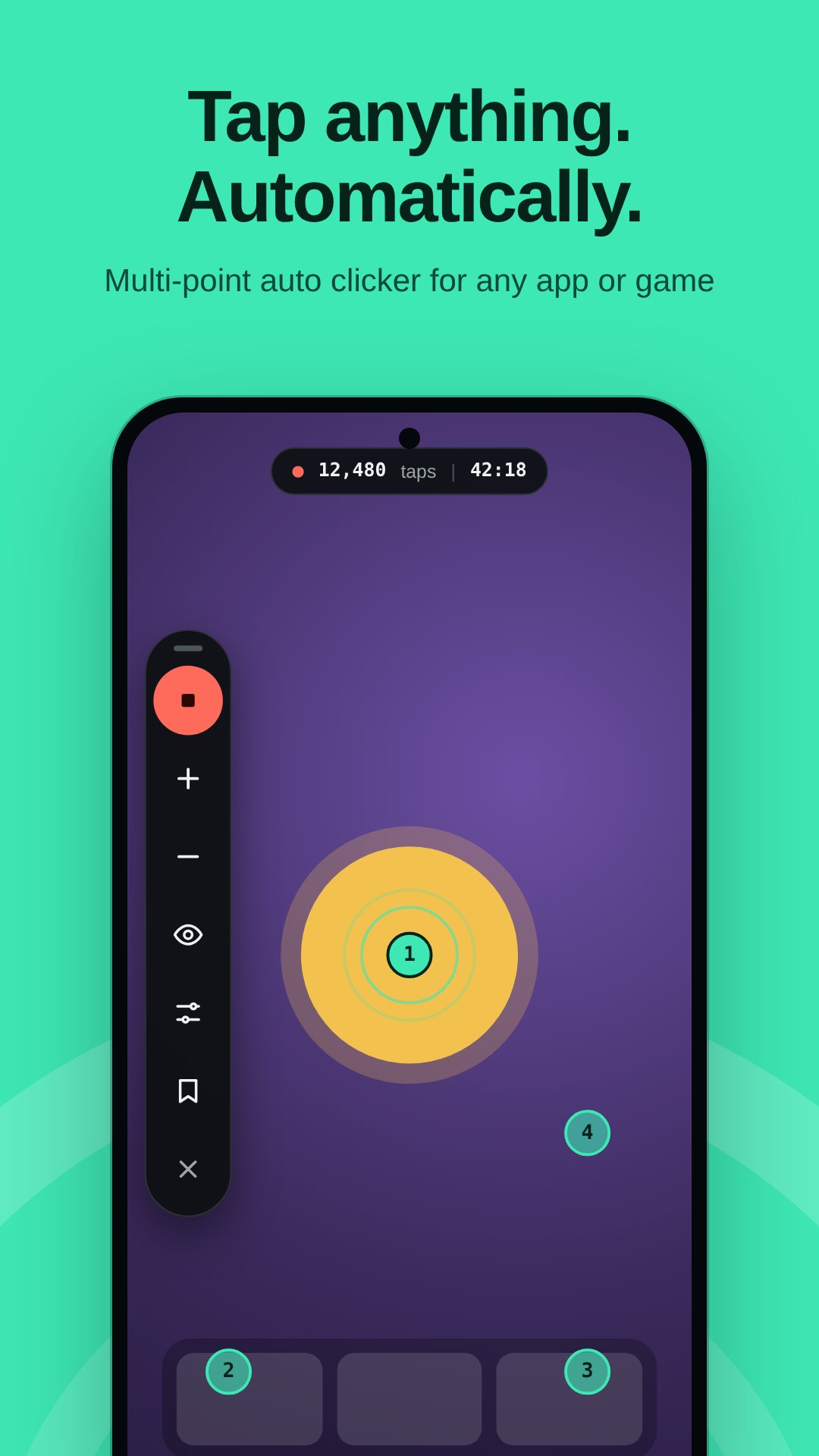
Your thumb is sore, the idle game needs the same button pressed a few hundred more times, and you are starting to wonder why a phone cannot just do this for you. That is the exact chore Auto Clicker takes off your hands. It floats a small widget over whatever app you are in, taps the spots you mark, and keeps going until you tell it to stop.
Auto Clicker is an automatic tap, swipe and record tool for Android. It performs gestures through the system Accessibility service — the only way Android lets an app tap for you — so it works on top of games, forms and menus without needing root. Everything runs on your device, offline, with no sign-in.
The Home screen opens straight onto a mode grid. Multi-point taps a set of targets in order — up to 3 points free, up to 30 with Pro. Single tap hammers one spot as fast as you like, down to a 1 ms interval on Pro (100 ms free). Swipe runs scroll-and-drag paths with a straight or natural curve, so you can auto-scroll a feed or drag across the screen. Record captures your own taps, holds and swipes and replays them exactly.
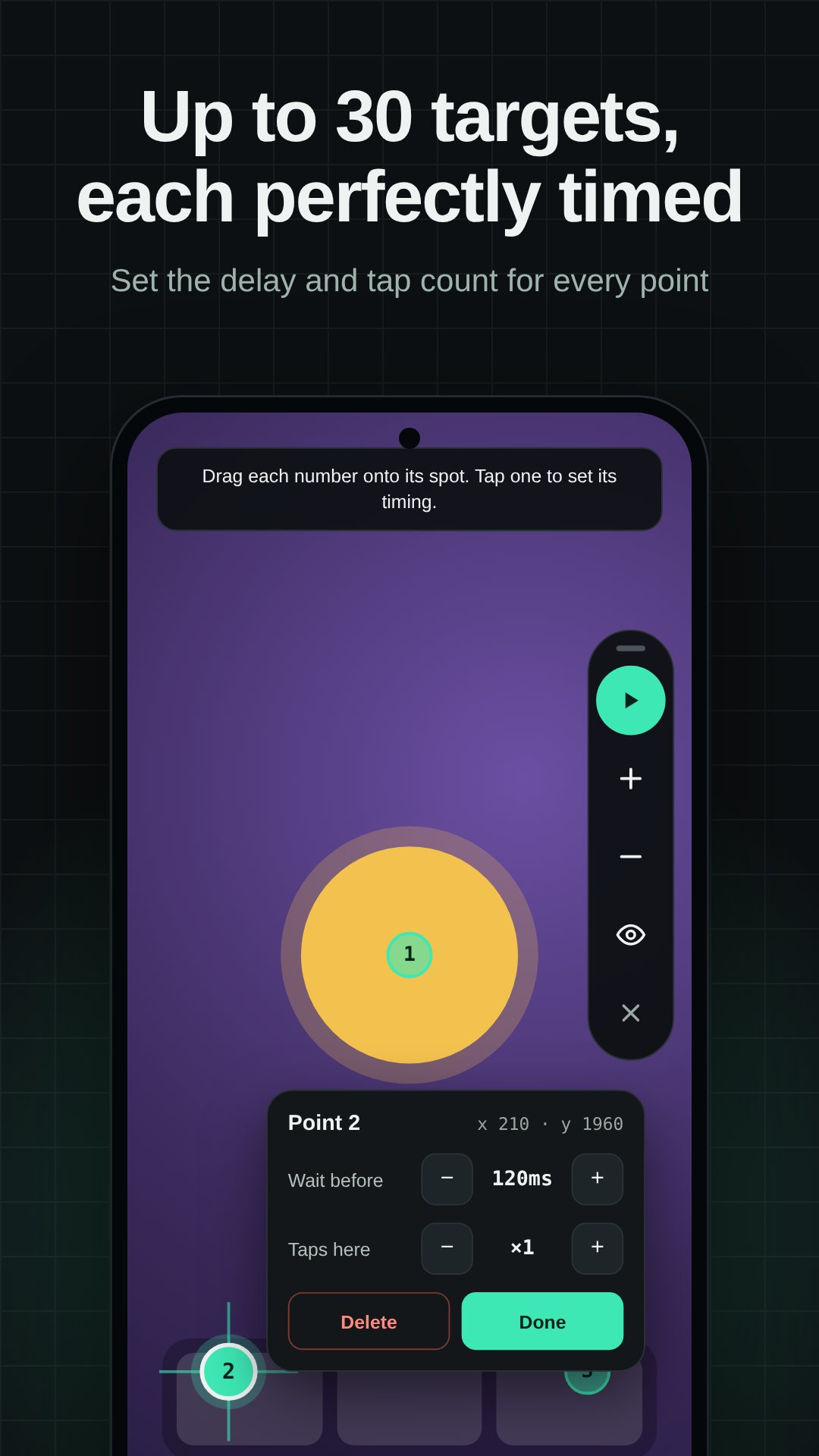
Each script is yours to shape. Set the interval between taps, the hold time each press stays down (raise it to 80–120 ms for stubborn games that ignore quick taps), and a repeat count from 1 to 100,000 or leave it infinite. A stop-after timer ends the session on its own. Per point you can set an individual delay and a number of taps, and two switches change how a run feels: Multitouch fires every point at once, while Humanize adds a small random offset and timing jitter so the taps are not pixel-perfect robots.
Tap Launch widget and a compact control floats over your current app. Drag it by its handle to any edge, and make it smaller or see-through in Settings so it never covers the button you actually need. A short haptic tick confirms when a run starts and stops. When you finish, a summary shows how many taps and swipes ran and for how long.
Android only lets apps tap and swipe for you through an Accessibility service, and Auto Clicker uses it for nothing else: it does not read your screen, and no data is collected or shared. If taps stop after a few minutes, that is your phone sleeping the app — set it to Unrestricted in Battery settings (and allow Autostart on Xiaomi, Oppo and Vivo). The app is free with ads and offers an optional Pro unlock, including short Pro passes, to remove interstitials and open Swipe, Record, bigger point counts and Humanize.
No. It performs every tap and swipe through Android's Accessibility service, so it runs on a normal, unrooted phone.
Some games skip very short presses — raise Hold to about 80–120 ms and set the interval above 0.1 s and they should register.
Yes. Record mode captures your taps, holds and swipes and replays them exactly, as many times as you set.
Yes, it is free with ads, and offers an optional Pro unlock for unlimited points, Swipe, Record, Humanize and no interstitials.
Get Auto Clicker on Google Play →
 By the NAXTECH team · Published 22 Oct 2026 · Updated 5 Nov 2026 · Hands-on with v2.0

Your battery is down to two bars, you pull into a charging bay you found on a generic map, and the only connector on the post is one your car cannot take. Anyone who drives an EV in Thailand knows that sinking feeling: plenty of pins, no way to know which ones will actually charge your car — and no signal to check. สถานีชาร์จรถไฟฟ้า was built to answer the only question that matters at that moment: where is the nearest charger my car can plug into, and how do I get there?
It is a dedicated EV charging map for Thailand. You tell the app which connectors your car uses once, and from then on the map filters itself to stations that can really charge you. Because the station data is bundled into the app, the search keeps working when the mobile signal does not.
The home screen is a live OpenStreetMap map with clustered station markers, so a dense city like Bangkok stays readable and a quiet highway still shows every option. A search bar looks up stations, cities and charging networks, and quick filter chips cut the map down in one tap: Near me, DC 50kW+ for fast charging, AC, and My connectors to hide everything your car cannot use. A "near you" sheet swipes up to list the closest stations with their distance from you.
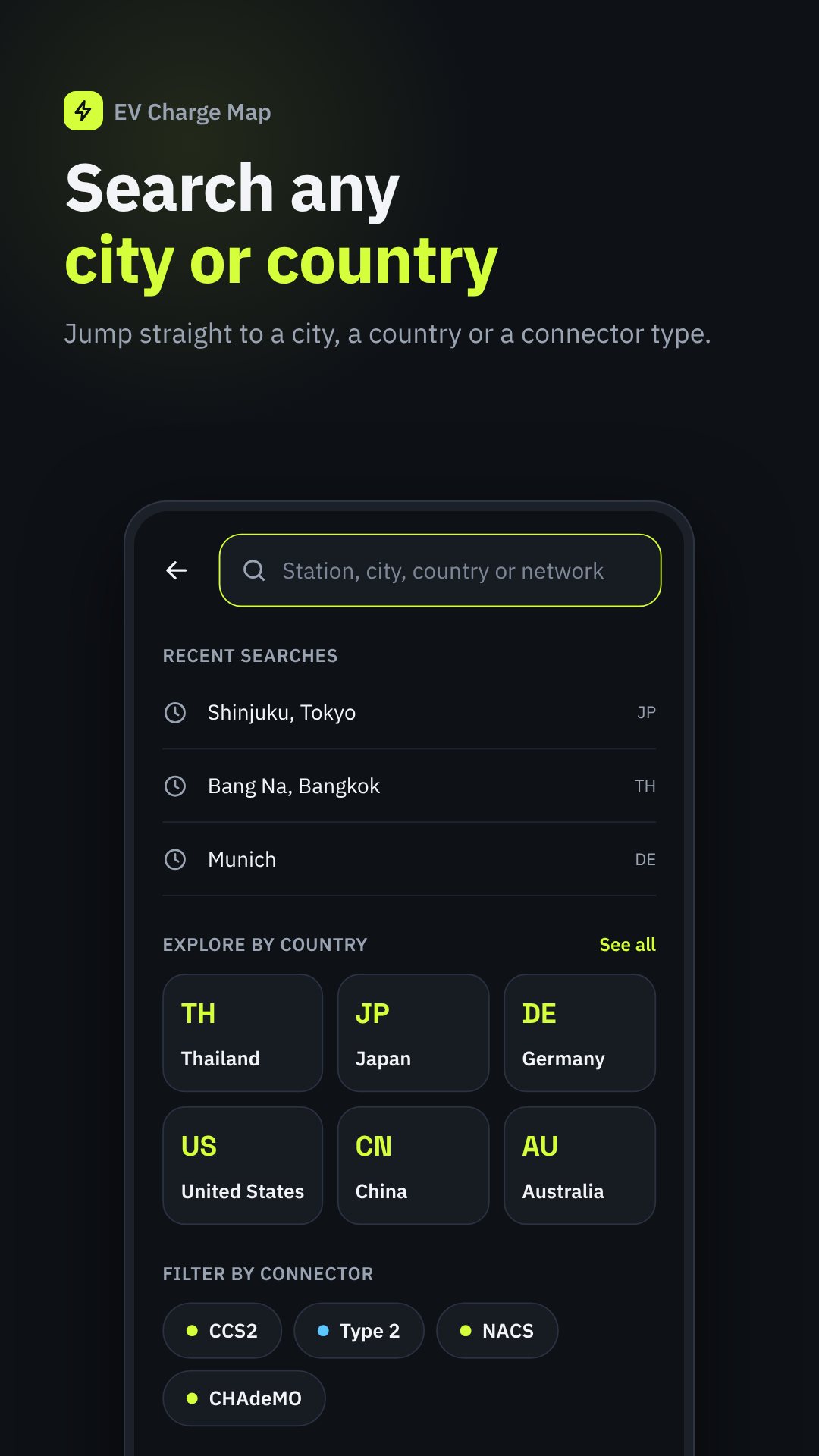
EV connectors are a mess of standards, and the app treats that head-on. It knows CCS2 and Type 2 (the DC and AC standards common across Europe and Asia, including Thailand), plus NACS, CCS1, CHAdeMO (DC, Japan) and GB/T (DC/AC, China). Each station card shows which plugs are on site, how many ports of each, and flags the ones that fit your car, so you are never guessing from an ambiguous icon.
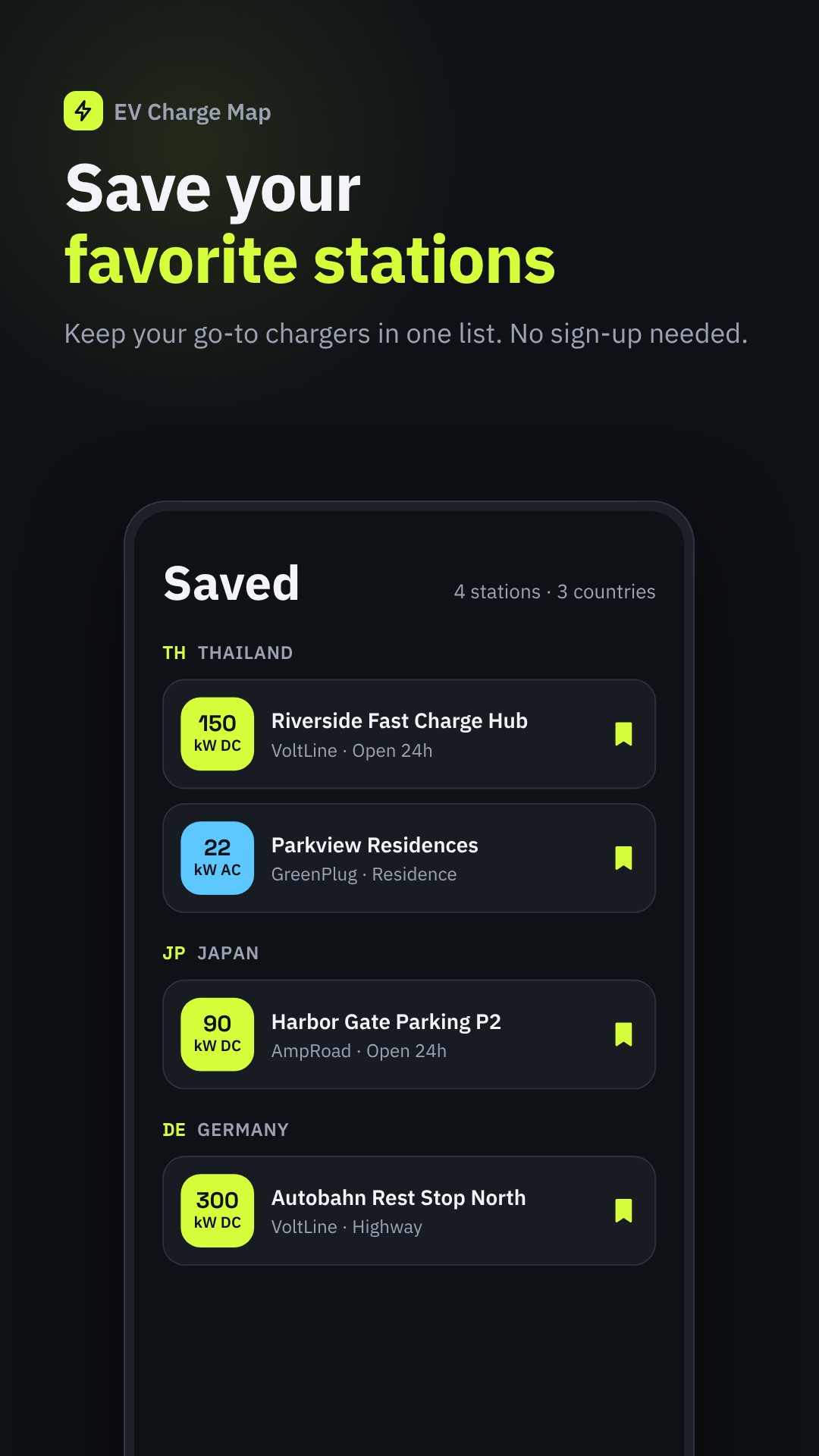
The stations you need most are often on a rural highway with one bar of signal. สถานีชาร์จรถไฟฟ้า ships station data inside the app and lets you manage offline map packs by country, showing how much storage each uses and when an update is available. Your Saved stations, the search and the station details all keep working with no connection — exactly when you need them.
Set your preferred distance unit (km or miles) and currency so prices and distances read the way you expect, and switch the interface between ten languages — Thai, English, Japanese, Chinese, Korean, German, French, Spanish, Indonesian and Vietnamese — which makes it as usable for visitors renting an EV as for locals.
Location access is optional and only used to show nearby stations and your distance from them; you can browse the whole map without it. Pricing and hours come from a community database and can change, which is why the in-app Report wrong info button exists. The app is free and supported by ads.
Yes. Station data is built into the app and you can keep offline map packs, so search, saved stations and station details work with no signal.
Set your connectors under Settings → My car, then tap the "My connectors" filter on the map to hide any station your vehicle cannot plug into.
Yes. Each station has a Navigate button that hands off to Google Maps for turn-by-turn directions, and you can copy or share the address too.
Yes, it is free to download and is supported by ads; no account is required to use it.
Get สถานีชาร์จรถไฟฟ้า on Google Play →
 By the NAXTECH team · Published 21 Oct 2026 · Updated 30 Oct 2026 · Hands-on with v1.0.3
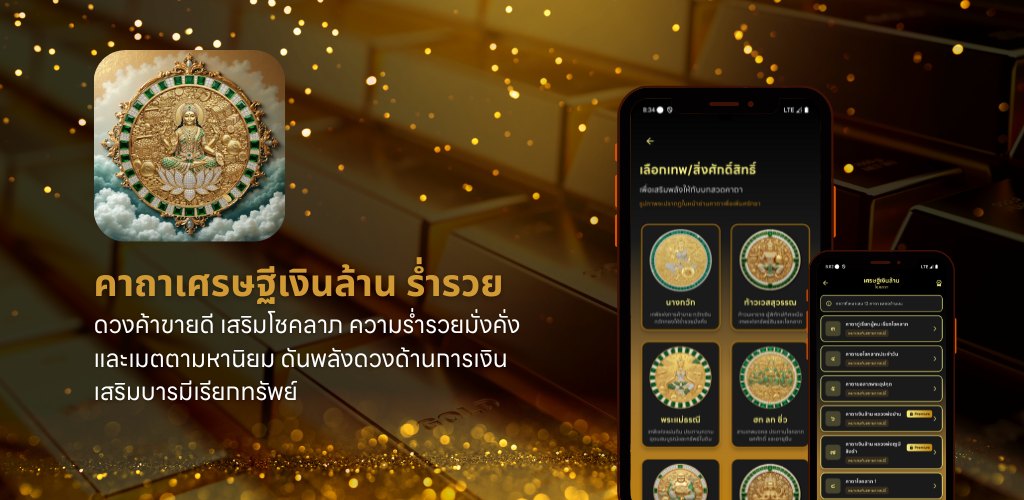
You have heard that a certain khatha brings money, but the wording lives in a blurry Facebook screenshot, a cousin half-remembers it, and nobody agrees on how many times to chant or which deity to face. For anyone drawn to Thai wealth blessings, that scatter is the whole problem — the words matter, and so does the method. Millionaire (เศรษฐีเงินล้าน) was built to put both in one place.
Millionaire is a collection of traditional Thai wealth mantras — the money, trade and loving-kindness khatha that Thai households have passed down — each presented with its worship opening, the full incantation, a step-by-step usage guide, its meaning and the recommended number of repetitions. The mantra texts live on your device, so you can open one at the shop counter or the home shrine without a signal.
The app carries fourteen mantras, each transcribed in full rather than summarised. They include the two famous million-baht khatha — Luang Pho Pan's and Luang Pho Ruesi Ling Dam's คาถาเงินล้าน — alongside Phra Sivali's mantra for drawing fortune, Phra Upakhut's luck khatha, a daily-luck chant, a money-worship khatha, the "great fortune" (maha lap) mantra and a candle-blessing rite. Each entry opens with a worship verse where there is one, then the incantation, then the method.
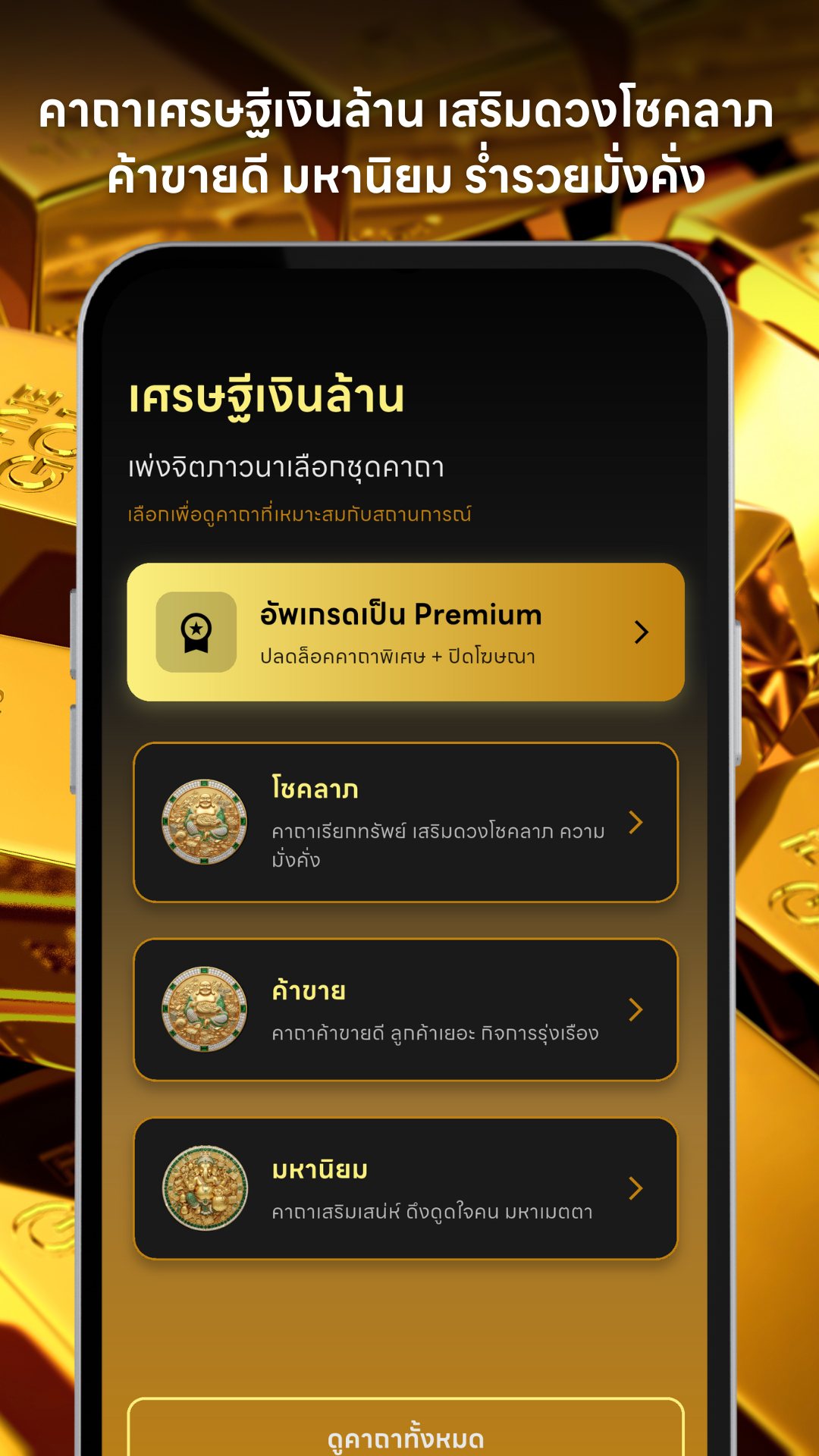
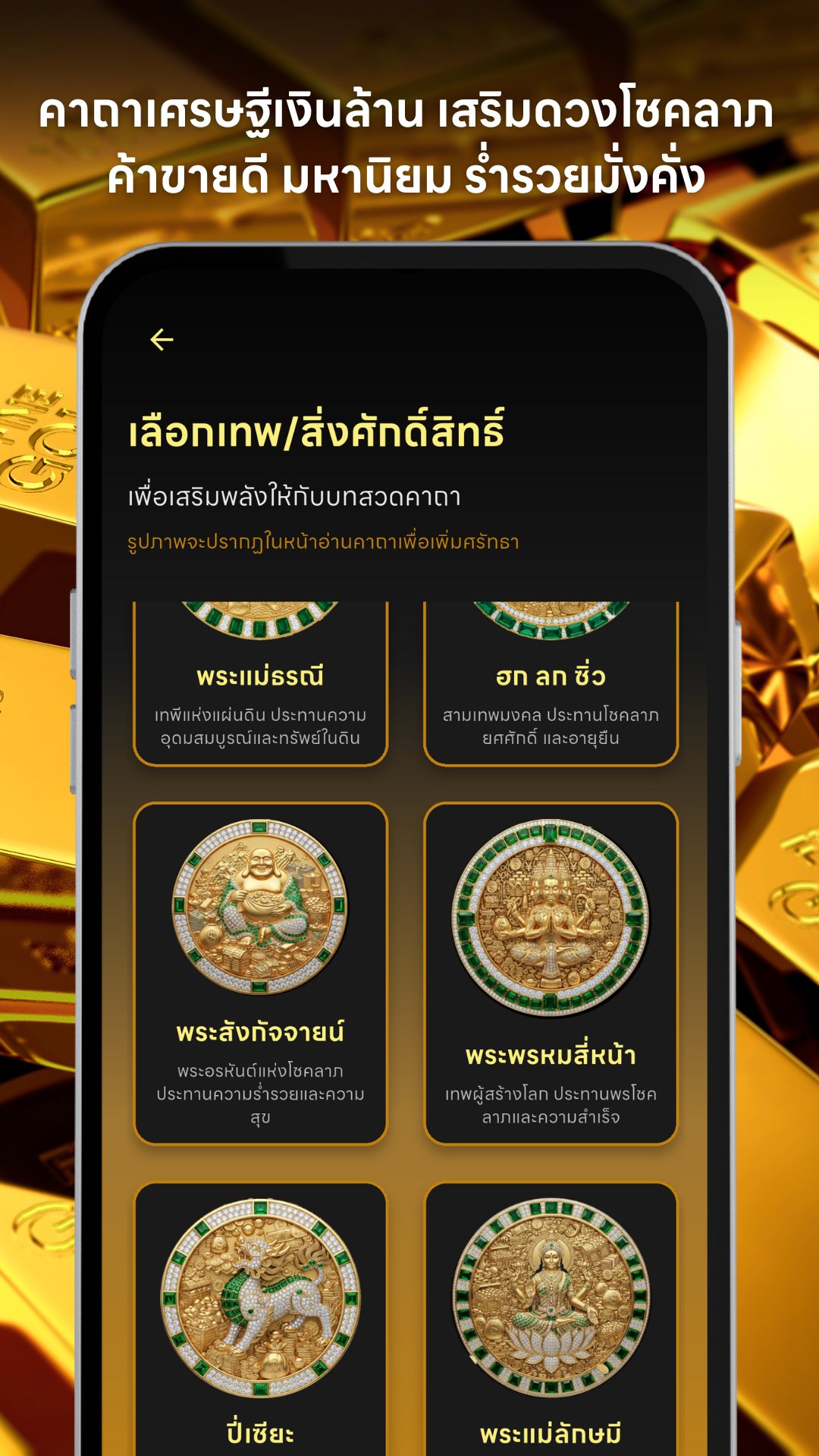
Rather than scroll an undifferentiated list, you begin by choosing one of three intentions: Fortune (โชคลาภ) to call in wealth and luck, Trade (ค้าขาย) for a busy shop and a thriving business, or Charm (มหานิยม) for metta and likeability. The app then floats the mantras that match your intention to the top of the list, so the right khatha is the first thing you see.
Thai wealth practice is personal, so Millionaire lets you pick one of ten sacred figures to centre your chanting on — Nang Kwak the beckoning merchant goddess, Thao Wessuwan, Mae Phra Thorani, the Chinese trio Hok Lok Siu, Phra Sangkajai, the four-faced Brahma, the Pi Yao (Pixiu), Lakshmi, the Chinese god of wealth Cai Shen, and Ganesha. Each is introduced with a line on what it is traditionally asked for.
Reading a khatha correctly matters more than reading it fast. Each mantra screen separates the worship words, the incantation, a detailed usage guide (preparation, place, how to set the mind, the recommended count — some call for 108 repetitions — and cautions) and a meaning note. Because the Thai script is dense, a built-in control resizes the text from 12 up to 32 points, so an elder can read the chant without squinting.
Before the mantras, the app offers a five-step preparation guide: cleanse body and mind, take refuge in the Triple Gem, hold faith and confidence, keep the precepts and a pure heart, and chant with mindfulness and concentration. It is a reminder that in Thai tradition the state of the chanter matters as much as the words.
Millionaire presents traditional Thai folk mantras for cultural, educational and faith-based use; chanting is one part of making merit and does not replace honest effort, and the app makes no promise of a material outcome. It is free to download and supported by ads; a single Premium purchase of 119 THB unlocks the premium mantra and removes ads permanently. The interface and all mantra content are in Thai.
Yes. Every mantra, its worship words, usage guide and meaning are stored in the app, so you can read and chant with no connection. A signal is only used for ads.
Fourteen traditional Thai wealth mantras, sorted into three intentions — Fortune, Trade and Charm — with one premium mantra behind the optional purchase.
A one-time 119 THB payment that unlocks the premium mantra and removes all ads for life; there is no subscription.
No. The mantras are authentic Thai khatha and the interface is in Thai, which keeps the wording true to tradition.
Get Millionaire on Google Play →
 By the NAXTECH team · Published 15 Oct 2026 · Updated 24 Oct 2026 · Hands-on with v1.0
You wake before dawn from a dream so vivid it stays with you, reach for your phone, and the first result is a stranger's guesswork with an ad on top. For a tradition as careful as Arabic dream interpretation, that gap between folk guesses and the classical books is the whole problem. Ibn Sirin Dreams was built to close it.
Ibn Sirin Dreams is an offline dictionary built around the interpretations attributed to the imam Muhammad ibn Sirin, with readings drawn from classical sources such as Muntakhab al-Kalam and Ta'tir al-Anam. Every entry, search and the vision radar run on your device, so a reading at four in the morning never waits for a signal or asks you to sign in.
Arabic words bend around a three-letter root, and a plain text search misses them. Ibn Sirin Dreams normalises what you type — folding hamza and the forms of a letter, dropping the definite article — and strips prefixes and suffixes to find the root, so a conjugated verb like يأكل ("he eats") still lands on the entry for أكل. A live root badge shows the root it has guessed, suggestions appear under the box, and you can search in English too. When nothing matches exactly, it falls back to keyword and partial matches so you rarely hit a dead end.
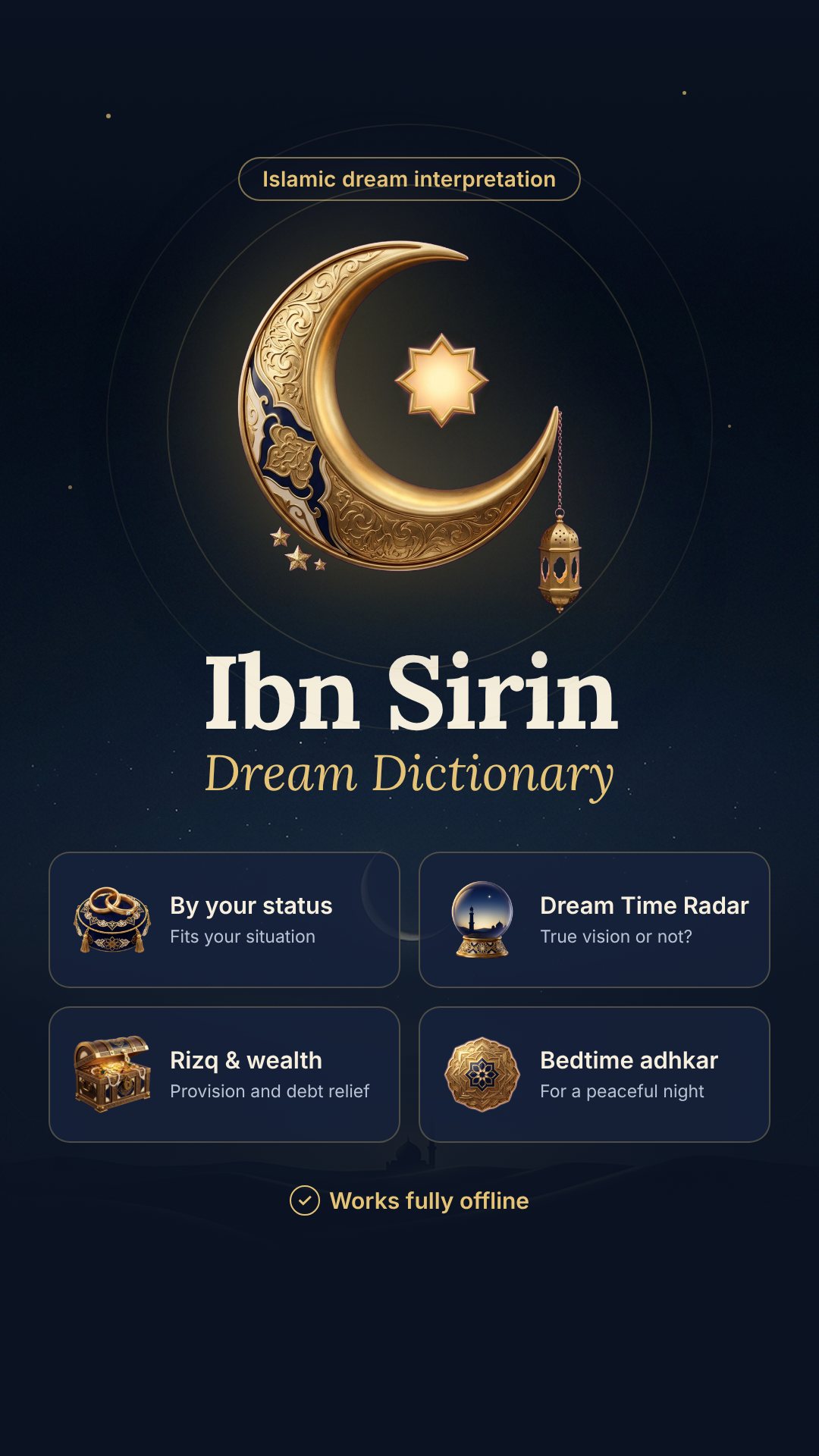
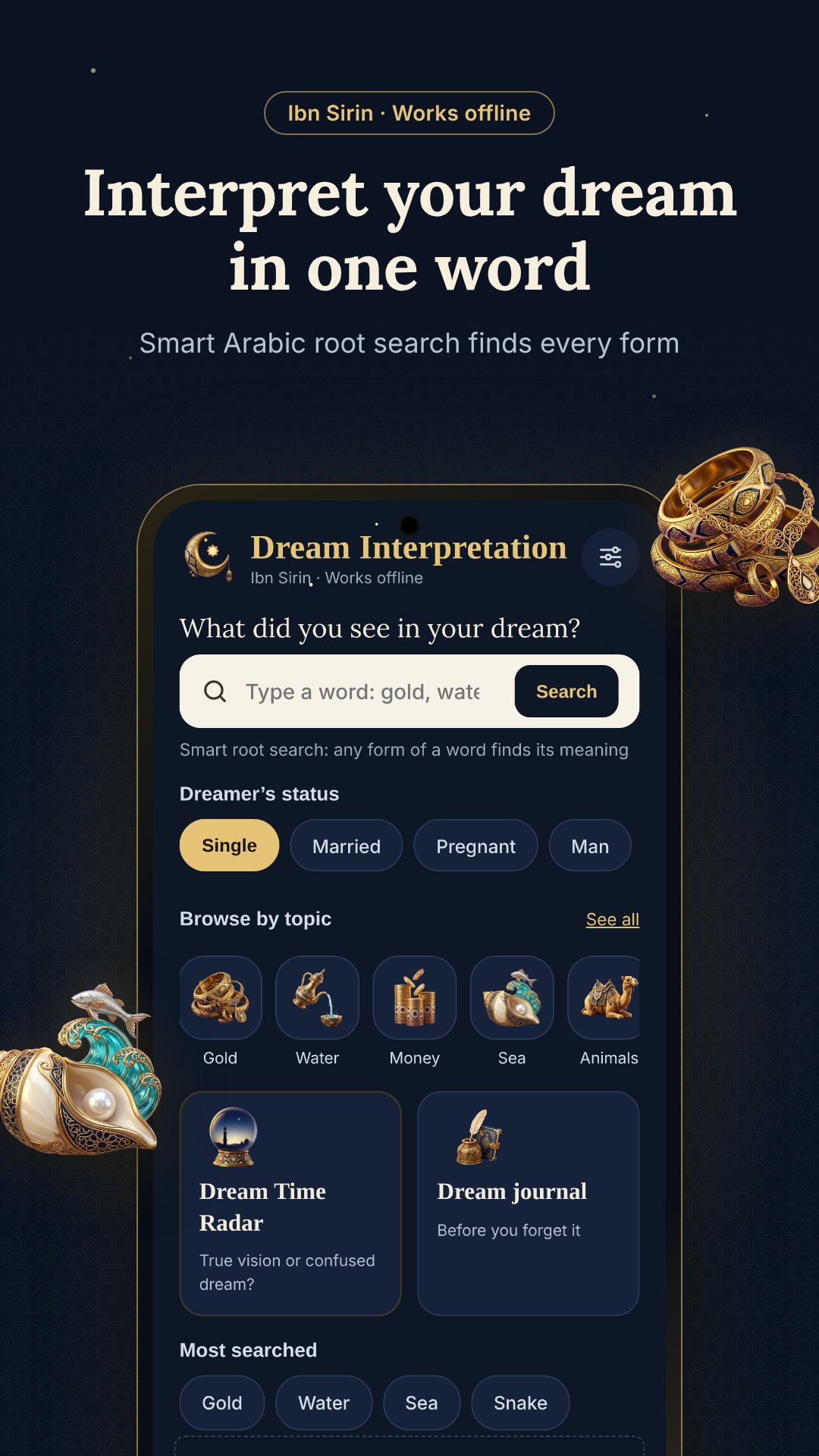
The same symbol does not mean the same thing to everyone, and the classical books say so. Each entry gives a separate interpretation for four cases — an unmarried woman, a married woman, a pregnant woman and a man — so the reading you see is written for your situation. Gold, for example, is adornment and glad tidings for a woman but is read with caution for a man. Below the main reading, a dedicated provision (rizq) note draws out what the symbol says about livelihood, and a Related dreams row links to the entries the classics mention alongside it.
Classical scholars held that the hour you dream matters. The vision radar asks when you woke and sorts the time into six slots across the night; waking in the pre-dawn hours — السحر, from 03:00 to 06:59, before Fajr — is read as a true vision (رؤيا صادقة), while other hours lean toward a jumbled dream or the whisperings of the self. It is a gentle, traditional lens, not a verdict, and it gives your reading a frame the dictionary alone cannot.
Ibn Sirin Dreams presents classical Islamic dream interpretation for cultural, educational and reference use; it is a dictionary, not a fatwa, and it does not replace scholarly or professional advice. The bedtime adhkar carry their hadith references, the first few are free, and the rest unlock with a rewarded ad or the premium purchase. The app contains ads, runs fully offline, and keeps your journal and saved dreams on your own device.
Yes. All 96 interpretations, the search and the vision radar run on your device, with no account and no connection required.
You enter the hour you woke; waking in the pre-dawn hours, from 03:00 to 06:59, is read as a true vision, while other hours lean toward a jumbled dream.
Yes. Each entry gives a separate reading for an unmarried woman, a married woman, a pregnant woman and a man.
Yes, it is free with ads, and offers an optional premium purchase that removes ads and unlocks all of the bedtime adhkar.
Get Ibn Sirin Dreams on Google Play →
 By the NAXTECH team · Published 14 Oct 2026 · Updated 9 Nov 2026 · Hands-on with v1.0

It is 7 a.m., you want to start the day with a small prayer and a lit candle to the archangel of the day — but you are in a rented room, on a work trip, or simply out of matches. The intention is there; the altar is not. 7 Arcángeles was built to close that gap: a complete archangel devotion that lives on your phone and runs entirely offline, so the ritual is always within reach.
The app is organised around the seven archangels of Catholic and esoteric tradition, each tied to a weekday, a flame colour and an area of life. Open it any morning and it already knows whose day it is, draws you a message for the current shift, and lets you light a candle that actually burns down over time.
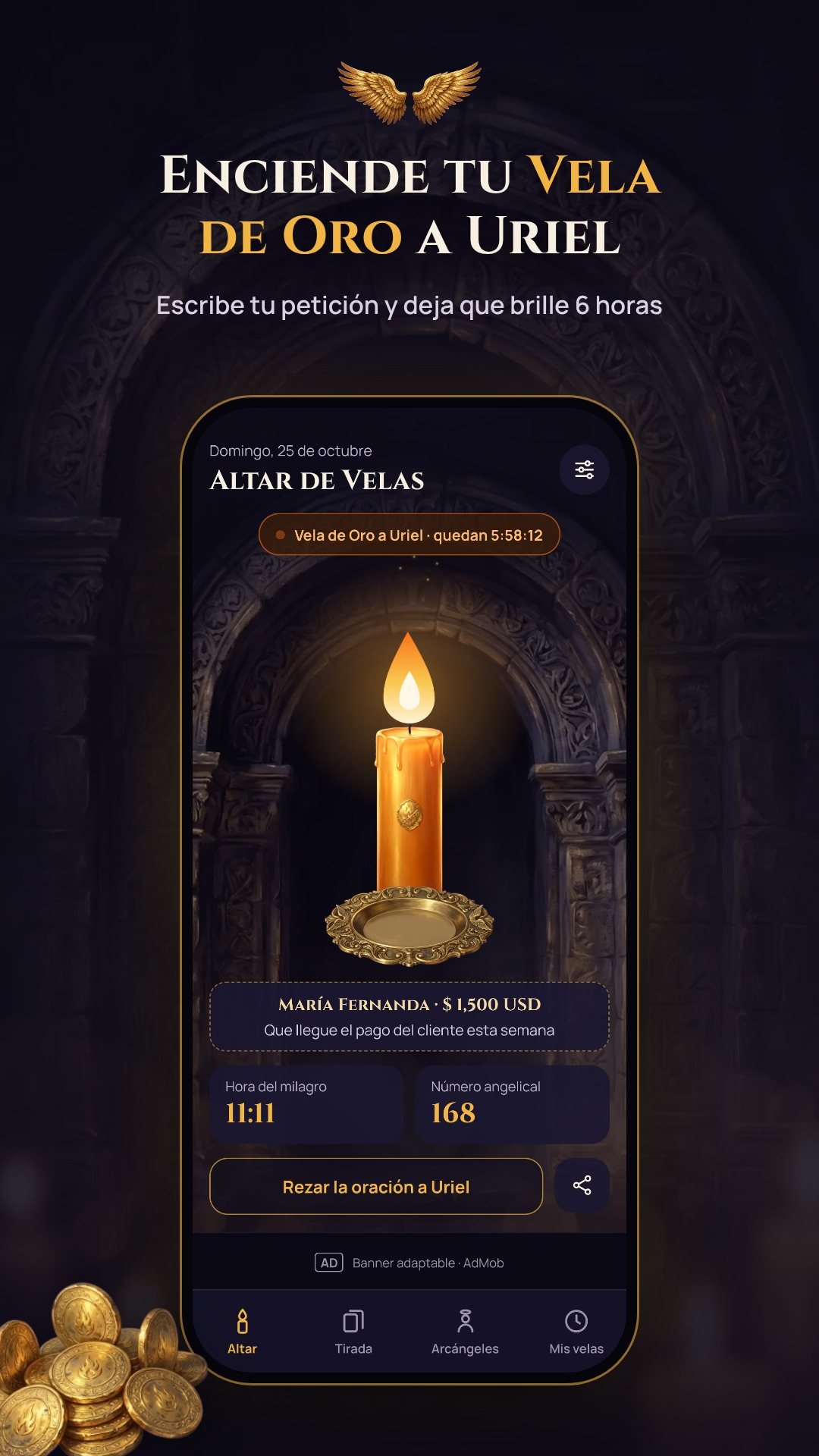
The Altar de Velas is the heart of the app. It reads today's weekday and shows its regent archangel — Jofiel on Monday, Chamuel on Tuesday, Gabriel on Wednesday, Rafael on Thursday, Uriel on Friday, Zadquiel on Saturday and Miguel on Sunday — each with its own flame colour, from Jofiel's golden yellow to Miguel's sapphire blue. You choose the Vela del día for that archangel or the gold Vela de Oro a Uriel for urgent provision, write a short petition with your name and wish, breathe through a brief centring ritual, and light the candle. From there it burns for a real six hours, with an animated flame that leans and flickers as you tilt the phone, because it reads the accelerometer. When the time is up the candle stays on screen for a three-hour "consumed" window, and a notification lets you know it has burned out.
The Tirada (card draw) splits the day into three turnos — morning (06:00–12:00), afternoon (12:00–18:00) and night (18:00–06:00). Each shift lays out seven face-down cards, and the archangel hidden behind each card is shuffled fresh every turno, so an afternoon pull is never the same spread as the morning. Flip a card for a 3-D reveal and you get a direct message in three areas — work, love and a decision — written for that archangel and that moment. Finish the draw and the app shows you a mirror hour (an HH:11 time to watch for) and an angelic number to keep in mind for the rest of the shift.
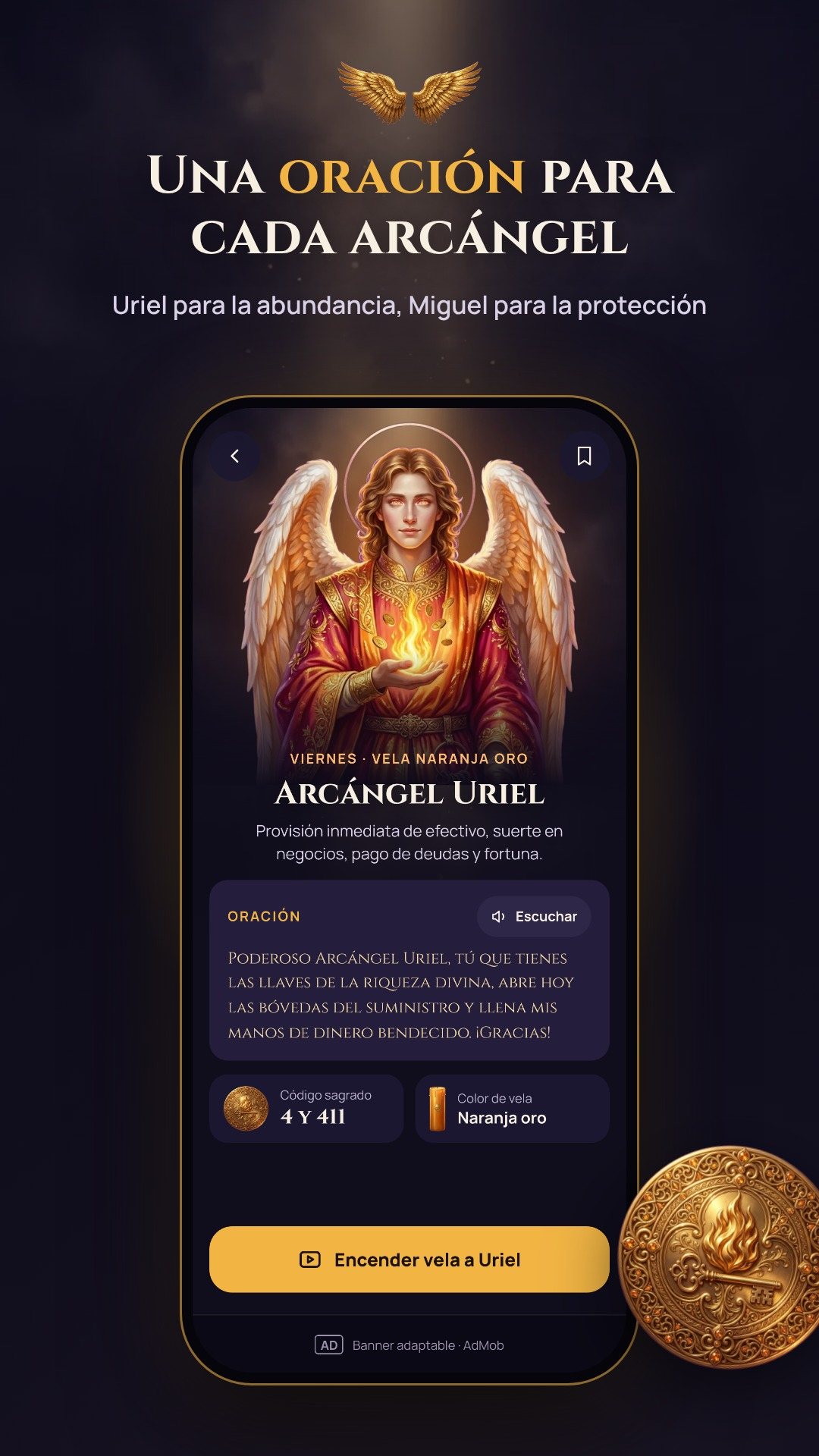
The Arcángeles tab is a small reference library. Tap any of the seven and you reach a detail screen with its title and domain — Jofiel for mental clarity and ideas, Chamuel for love and loyal clients, Gabriel for good news, Rafael for health and finances, Uriel for abundance, Zadquiel for transmuting debts, Miguel for protection — plus a written prayer and its sacred Agesta code (Jofiel 521, Chamuel 725, Gabriel 881, and so on). A "Listen" (Escuchar) button reads the prayer aloud with your device's text-to-speech, and you can light that archangel's candle straight from the profile.
A dedicated prayer mode keeps the screen awake while you repeat an "Amén" up to seven times, counting each one so you can keep your eyes closed. The Mis velas tab tracks your streak, your candles this week and a full history, you can share a candle as a story image, and an Android home-screen widget shows your current candle and its countdown without opening the app. Three gentle daily reminders — one per shift — keep the routine alive.
7 Arcángeles is offline by design: every archangel, prayer, draw and candle lives on the device, with no account and no personal data leaving your phone. The spiritual content is offered as inspiration and entertainment, not as medical, legal or financial advice, and the app keeps that disclaimer in its settings. It is free and supported by ads — lighting a candle plays a short rewarded video, and the candle lights anyway if no ad is available.
Yes. All seven archangels, their prayers, the card draws and the candles run on your device, with no account or connection required.
The app assigns one archangel to each weekday — Jofiel on Monday through Miguel on Sunday — and opens on that day's regent automatically.
Each candle burns for six hours with an animated flame, then stays on screen in a three-hour "consumed" window before the altar resets.
Yes, it is free with ads. Lighting a candle plays a short rewarded video, and it lights anyway if no ad is available.