Black Screen: a true black curtain that keeps your audio, video and games running
 By the NAXTECH team · Published 22 Jan 2026 · Updated 2 Aug 2026 · Hands-on with v1.0
Black Screen at a glance
- What it is
- An overlay that turns the screen pitch black while your app keeps playing.
- Platform
- Android · the curtain runs on your device, nothing leaves your phone.
- Price
- Free, with ads; VIP extras unlock by watching one video.
- Two modes
- Pocket lock (blocks every touch) · Game pass-through (taps reach your game).
- VIP extras
- AMOLED clock on the curtain · Sleep timer (15 / 30 / 60 min).
- Best for
- Podcast and video listeners, idle-game and auto-clicker players, AMOLED owners.
You put a two-hour video on, slide the phone into your pocket, and the screen either burns battery at full brightness or locks and pauses the whole thing. Pressing the power button stops playback; leaving the screen on cooks the battery and your leg. That gap — a screen that is off to look at but on to keep working — is exactly what Black Screen fills.
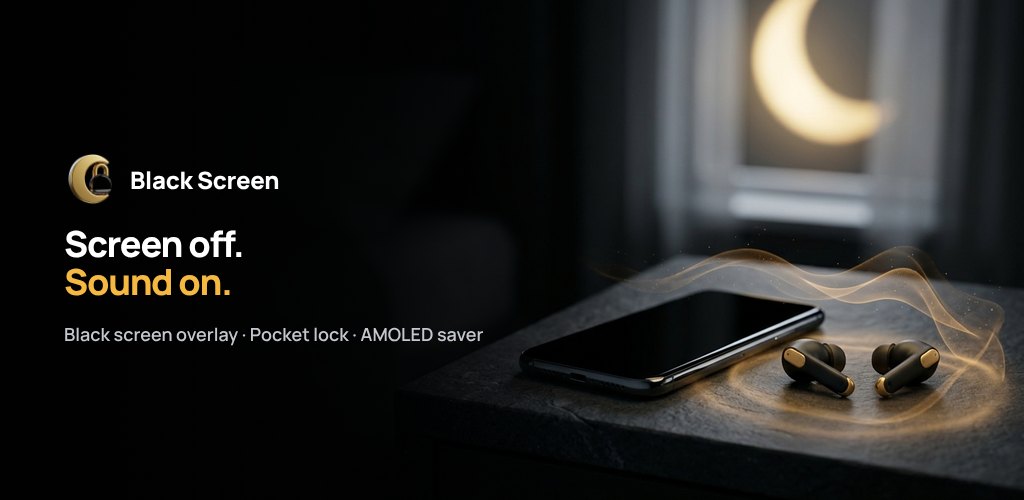
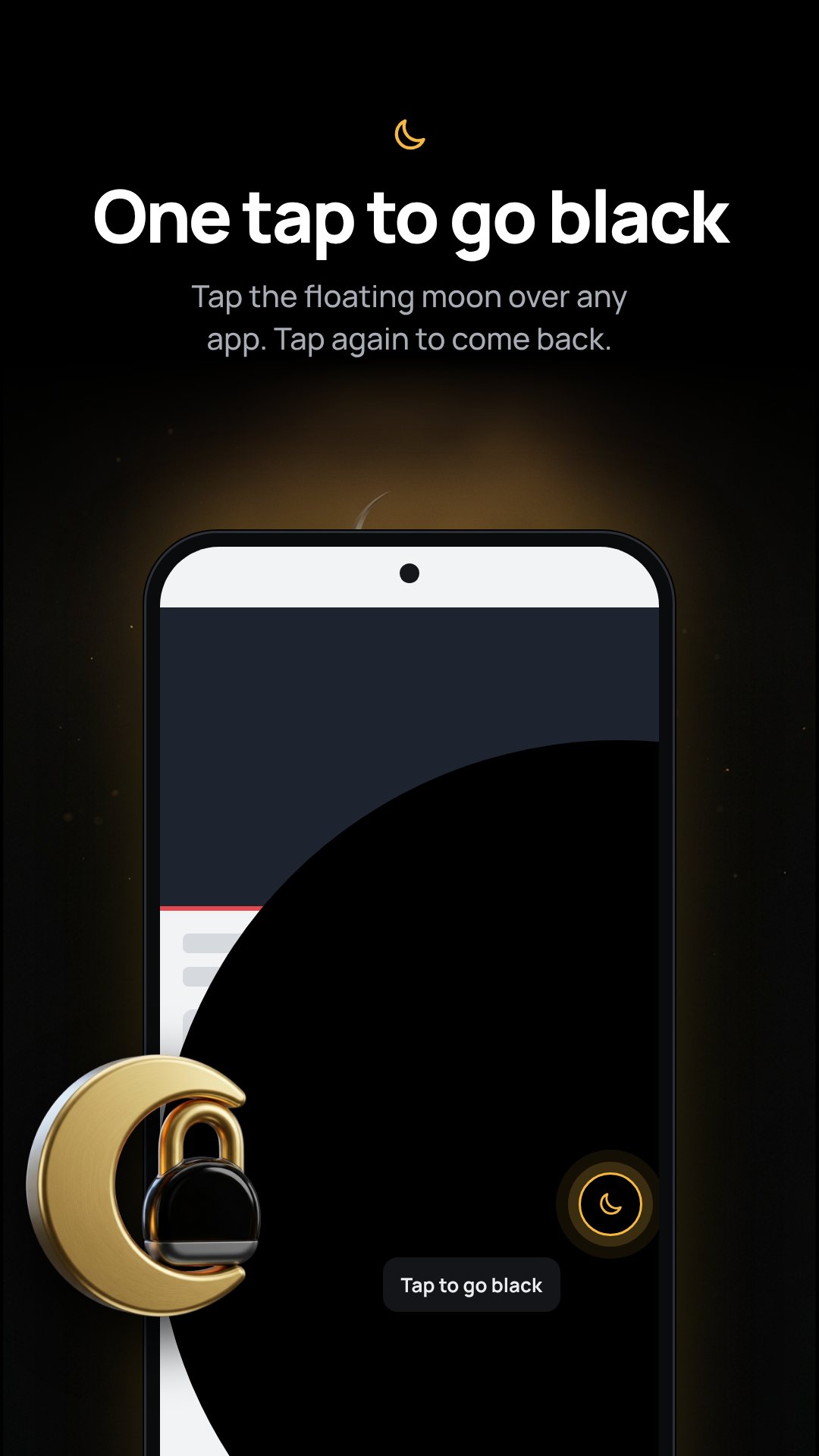
Black Screen puts a pitch-black curtain over whatever is on screen and keeps your app in the foreground, so audio, video and games keep running while the panel looks switched off. A small floating moon bubble stays on top as your handle to go dark and to unlock, and everything runs locally — the curtain draws over other apps and nothing leaves your phone.
Two modes for two very different habits
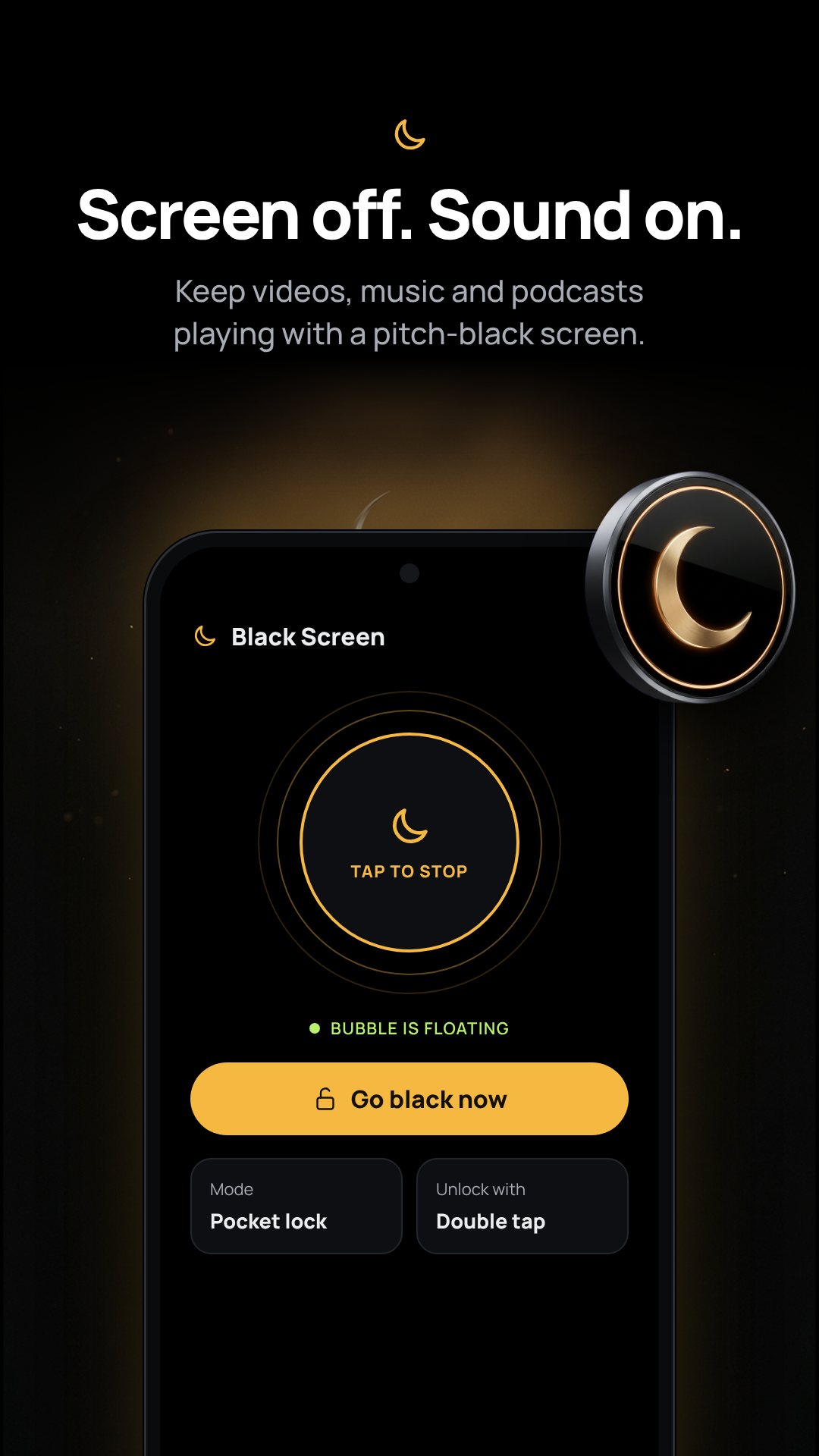
The curtain comes in two modes because listening and gaming need opposite things. Pocket lock blocks every touch, so a video or podcast keeps playing in your pocket and nothing gets paused or skipped by an accidental tap. Game pass-through turns the screen black but lets taps fall through to the app beneath — so an idle game or an auto clicker keeps clicking while the panel stays dark and cool. On Android 12 and newer, pass-through uses the Accessibility service to route those taps.
Unlocks that ignore a stray touch
A black screen is useless if a single pocket brush wakes it. Black Screen lets you choose how the curtain lifts — Double tap, Slide, or Either — and a single accidental touch never unlocks. You can set the phone to vibrate on lock and unlock so you know the gesture registered without looking.
A floating bubble you can tune
The moon bubble is adjustable so it never gets in the way. Set its opacity to 40, 70, 85 or 100%, pick a size of 44, 48 or 56 dp, and preview the result right in Settings. You can also have the curtain cover the status and navigation bars so every pixel is black with nothing to tap by accident, and have the bubble return automatically after a restart.
Real battery savings on AMOLED and OLED
On AMOLED and OLED screens, pure black pixels are switched fully off — that means less heat, less battery drain, and no burn-in from a paused frame sitting on screen. On an LCD panel the backlight can't turn off, so Black Screen drops brightness to the minimum instead. The optional AMOLED clock rides on the curtain and shifts its pixels every 60 seconds so even that stays burn-in safe.
A sleep timer that really stops things
Fall asleep to a video and the Sleep timer cleans up after you. Pick 15, 30 or 60 minutes; the audio fades out over the last 10 seconds, and when time is up the phone either locks (stopping video, via the Accessibility service) or jumps to the home screen, which pauses most video apps with no extra permission. The AMOLED clock and Sleep timer are the VIP extras, unlocked for the day by watching a single rewarded video.
How to go black while your audio keeps playing
- Tap the big Start button and grant the overlay permission so the bubble can float.
- Open your video, podcast or game and start playback as usual.
- Pick your mode — Pocket lock to block touches, or Game pass-through to let taps reach the game.
- Tap the floating moon bubble to draw the black curtain over the screen.
- Double tap or slide (your choice) to lift the curtain when you're done.
What the permissions are actually for
Black Screen asks for a display-over-other-apps permission to draw the bubble and curtain, and runs a quiet foreground-service notification so the system keeps the curtain alive. The Accessibility service is used only to lock the screen when the Sleep timer ends and to let taps pass through in Game mode — it does not read, collect or share screen content, what you type, or any personal data, and you can turn it off anytime. Setting battery usage to Unrestricted stops the system closing the service overnight. The app is free with ads, and the only internet use is serving them.
Frequently asked questions
Why not just press the power button?
Most video apps pause when the phone locks. The black curtain keeps the app in the foreground, so sound and bots keep running while the screen looks off.
My auto clicker stopped tapping — how do I fix it?
Switch Mode to Game pass-through in Settings. On Android 12 and newer, also turn on the Accessibility service so taps can reach your game through the black screen.
Does it really save battery?
On AMOLED and OLED screens, pure black pixels are switched off, which cuts drain and heat. On LCD screens the backlight stays on, so the app lowers brightness to the minimum instead.
The bubble disappeared overnight — why?
Your phone stopped the service to save power. Set battery usage for this app to Unrestricted in Permissions, and turn on "Start bubble after restart."