 By the NAXTECH team · Published 6 May 2026 · Updated 8 Sept 2026 · Hands-on with v2.0
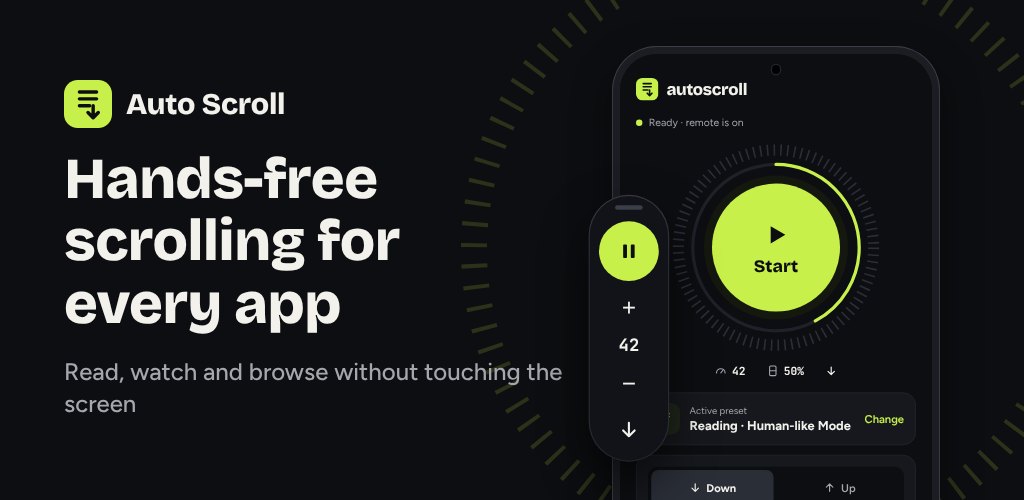
Your hands are covered in flour, the recipe is three screens long, and every time you reach up to flick the page you leave a smudge on the glass. Or you are twenty minutes into a webtoon and your thumb has started to ache from the same tiny swipe, over and over. That small, repetitive gesture is the whole problem Auto Scroll was built to take off your hands.
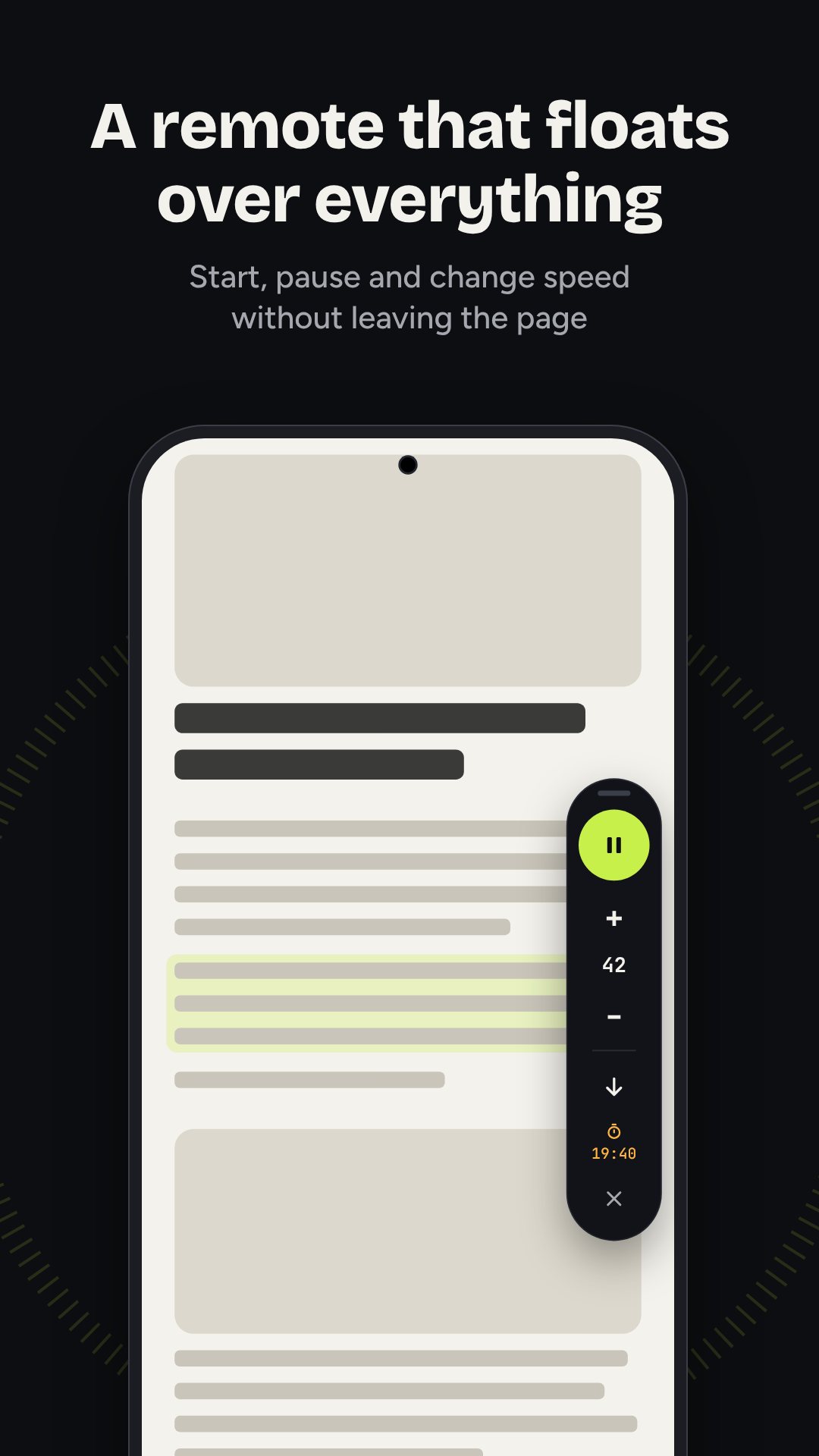
Auto Scroll runs the screen for you through an Android accessibility service, so it can scroll or swipe inside the app you are already reading — your browser, a reading app, a comic, a feed — not just its own window. A compact floating remote sits on top, and you tap it only when you want to change something.
Auto Scroll works two ways. Scroll mode is a continuous reading crawl: it drifts the page down (or up) at a speed you set on a 1–100 dial, with a live “≈ screens per minute” readout so you can match it to how fast you actually read. Swipe mode is for short-video feeds — it waits a set interval, then performs one full swipe to the next clip, hands-free.
Because the speed and step size are explicit — the step is a share of the screen height, from a nudge of 5% to a full screen — you can tune a slow, careful crawl for dense text or a brisk sweep for a timeline, and save each as its own preset.
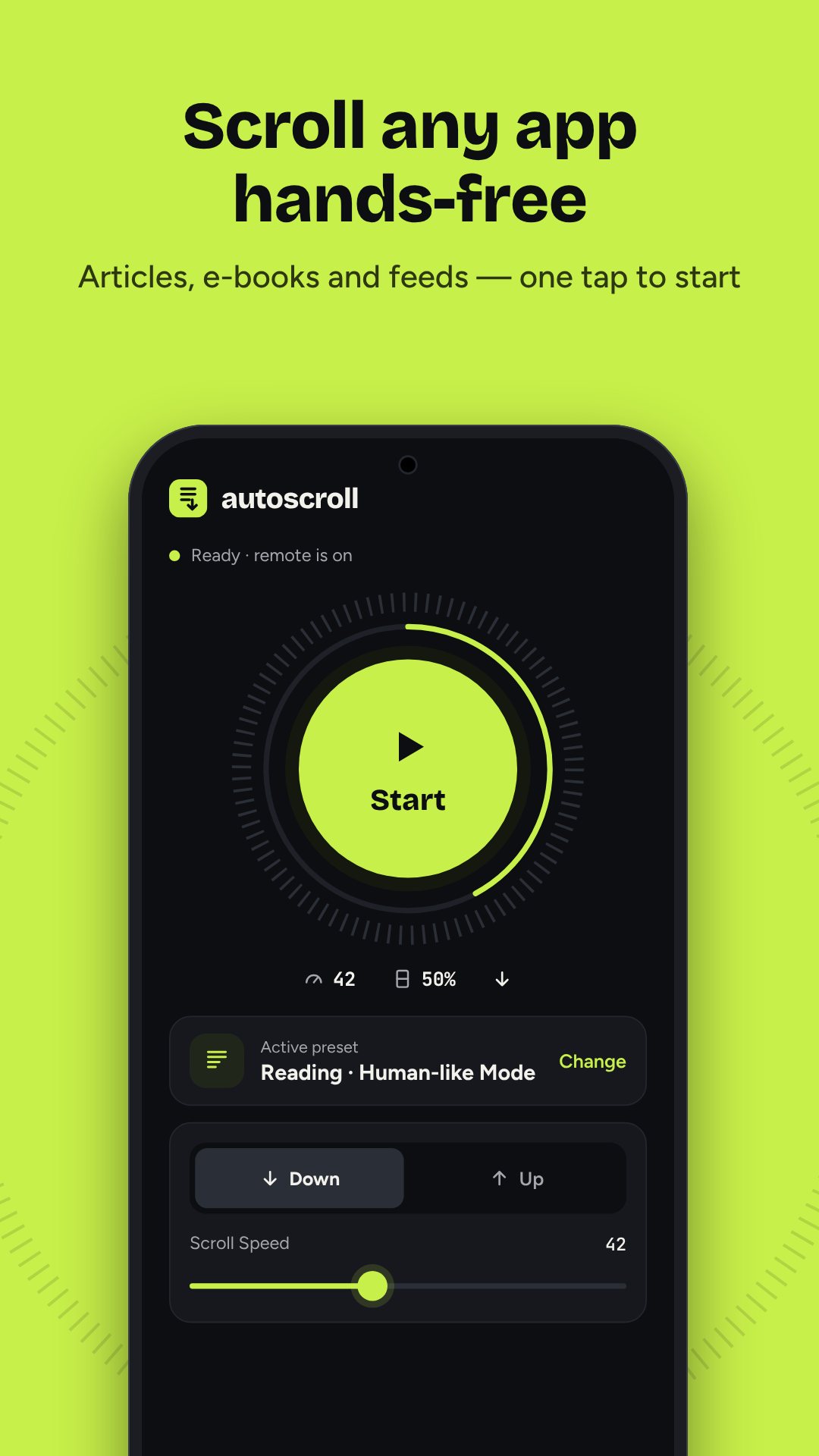
A dead-constant scroll is easy to make and horrible to read. Auto Scroll’s human-like engine adds the small irregularities a real reader produces: speed and distance vary stroke to stroke, random pauses drop in (you set how often and how long), and there are tiny micro-movements between strokes. You can pick the motion curve, too — linear, ease-in-out, natural or reading — so a long article feels paced rather than mechanical.
There is also a back-and-forth layer that mimics how eyes really move over a page: a quick glance ahead, a re-read of the last paragraph, a small overshoot that corrects itself. The built-in Reading preset turns these on for you; the Steady preset leaves them off for a plain, even crawl.
Duplicate any preset, rename it and adjust every value in the editor to build your own. There is also a “Try it here” practice area — a long sample article and a mock video feed inside the app — so you can test a preset safely before you turn it loose on a real screen.
Once a session starts, the app can minimise itself so you are back on what you were reading, leaving only the floating remote — sized small, medium or large, and set to fade when idle so it stays out of the way. From it you pause, nudge the speed or stop. Sessions can auto-stop at the end of a page, keep the screen awake while they run, start on a short countdown, and — on Pro — shut off after a sleep timer. Auto-swipe adds its own stop rules: after 50 or 100 clips, after 30 minutes, or never. Afterwards a session summary shows how many screens were scrolled, strokes performed, pauses and re-reads — the swipes you didn’t have to do yourself.
There is a bonus for anyone who speaks to camera: a built-in teleprompter. Paste a script, set the words-per-minute (60–260) and the font size, and it scrolls your lines back at a steady reading pace with a running time estimate.
Auto Scroll needs Android’s accessibility permission because that is the only way it can move another app’s screen; it does not read, collect or send your on-screen content. It asks for no camera or location access. The app is free with ads, and a Pro upgrade unlocks the Pro presets, per-app profiles and the sleep timer.
Yes. Through the accessibility service it scrolls or swipes the app you are actually reading, controlled from a small floating remote on top.
That permission is what lets the app move another app’s screen for you; without it, Auto Scroll could only scroll its own window.
Yes. The human-like engine adds varied speed, random pauses, micro-movements and re-reads, and you can choose the motion curve and save it as a preset.
Yes, it is free with ads. An optional Pro upgrade adds the Pro presets, per-app profiles and a sleep timer.