 By the NAXTECH team · Published 27 Sept 2026 · Updated 7 Nov 2026 · Hands-on with v2.0
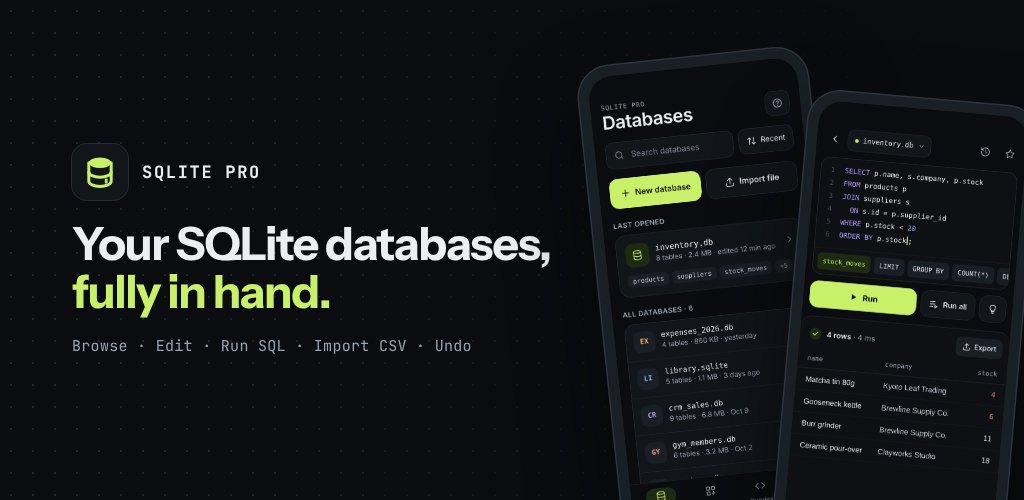
You pull a .db file off a device or out of an app's backup, and now you need to actually see what is inside it — but the only tools that do the job properly live on a laptop. On a phone you are usually stuck with a viewer that lists tables and little else. SQLite Pro was built to close that gap: a database manager that opens the file, shows you the rows, and lets you run real SQL, all on the handset in your hand.
It is a careful tool, not a toy. SQLite Pro opens .db, .sqlite, .sqlite3 and .db3 files, browses and edits every table, and runs statements the way a desktop client would. Nothing is uploaded — the app needs no account and no storage permission, and every file stays on your device.
The query editor is the centrepiece. It highlights SQL as you type and offers autocomplete for your own tables and columns alongside the full language — window functions like row_number, rank, lag and lead, the json_extract / json_object family, common table expressions with WITH RECURSIVE, and RETURNING. You can run a single statement to inspect one result, or choose Run all to execute a whole script in a single transaction that rolls back automatically if any statement fails, so a half-finished migration never leaves the database in a broken state.
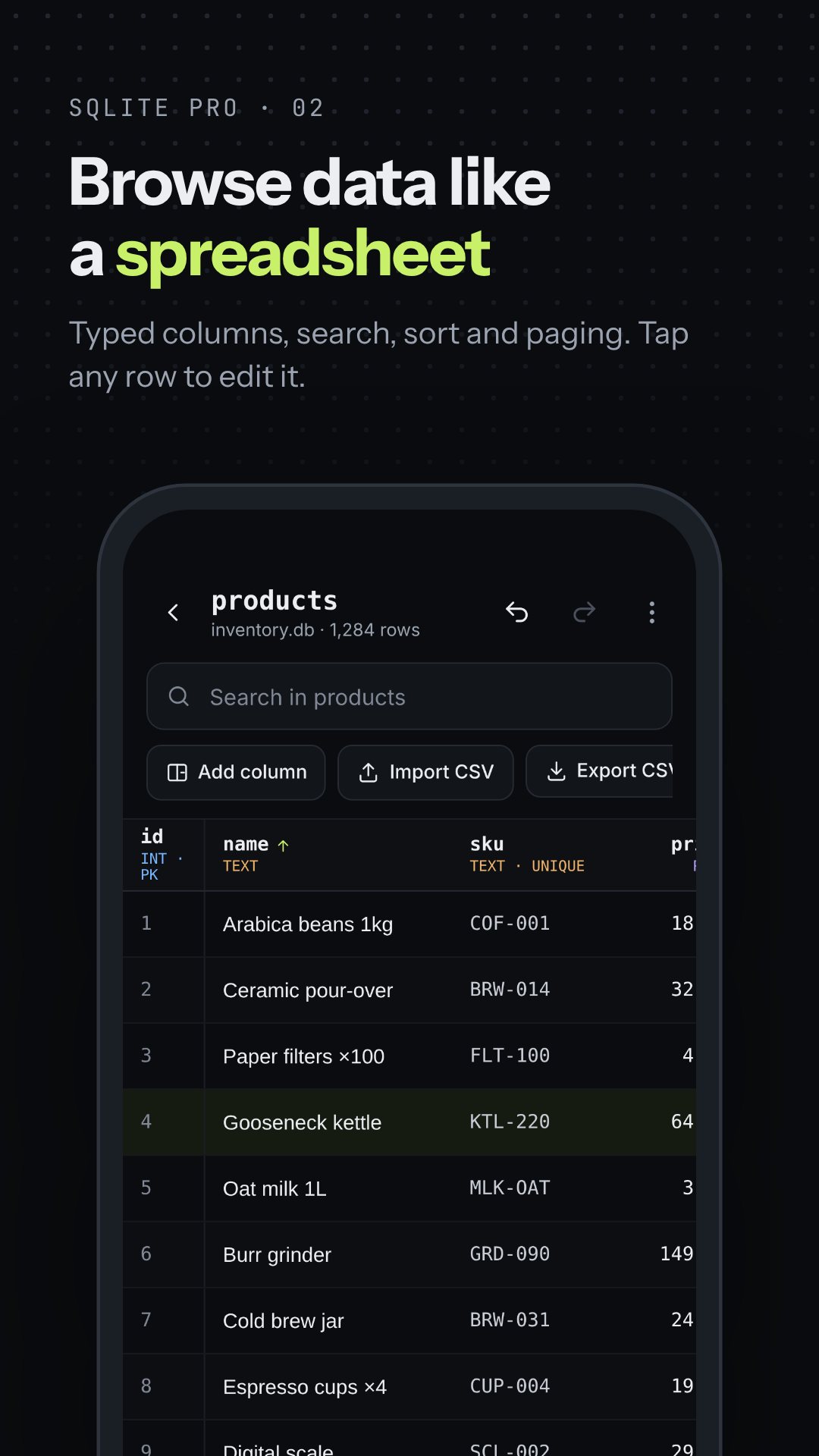
Query results and table contents appear in the same spreadsheet-style grid: a sticky header that shows each column's name and declared type, zebra rows, a row-number gutter, numbers right-aligned, and NULL shown explicitly rather than as an empty cell. Tap a column header to sort, and binary columns read as BLOB with their size instead of a wall of bytes. Tap any row to open the row editor and change values in place.
Editing a real database is nerve-wracking, so SQLite Pro keeps a safety net. Every table session has its own undo and redo history, up to 30 steps deep, and each change is labelled — "Row deleted", "Column dropped" — with a detail line in the toast so you know exactly what reversed. Anything permanent asks first, and before you rename or drop a table the app lists the views and other objects that depend on it.
SQLite Pro imports a CSV file straight into a table: it detects the header and delimiter, lets you map columns, and returns a report of how many rows were inserted, how many were skipped, and the exact row number of every issue — with a cancel button for long files. Going the other way, it exports any table or query result to CSV, JSON or TSV, handing the file to Android's "Save as" dialog, the share sheet, or the clipboard. Because saving goes through the Storage Access Framework, the app never asks for broad storage access.
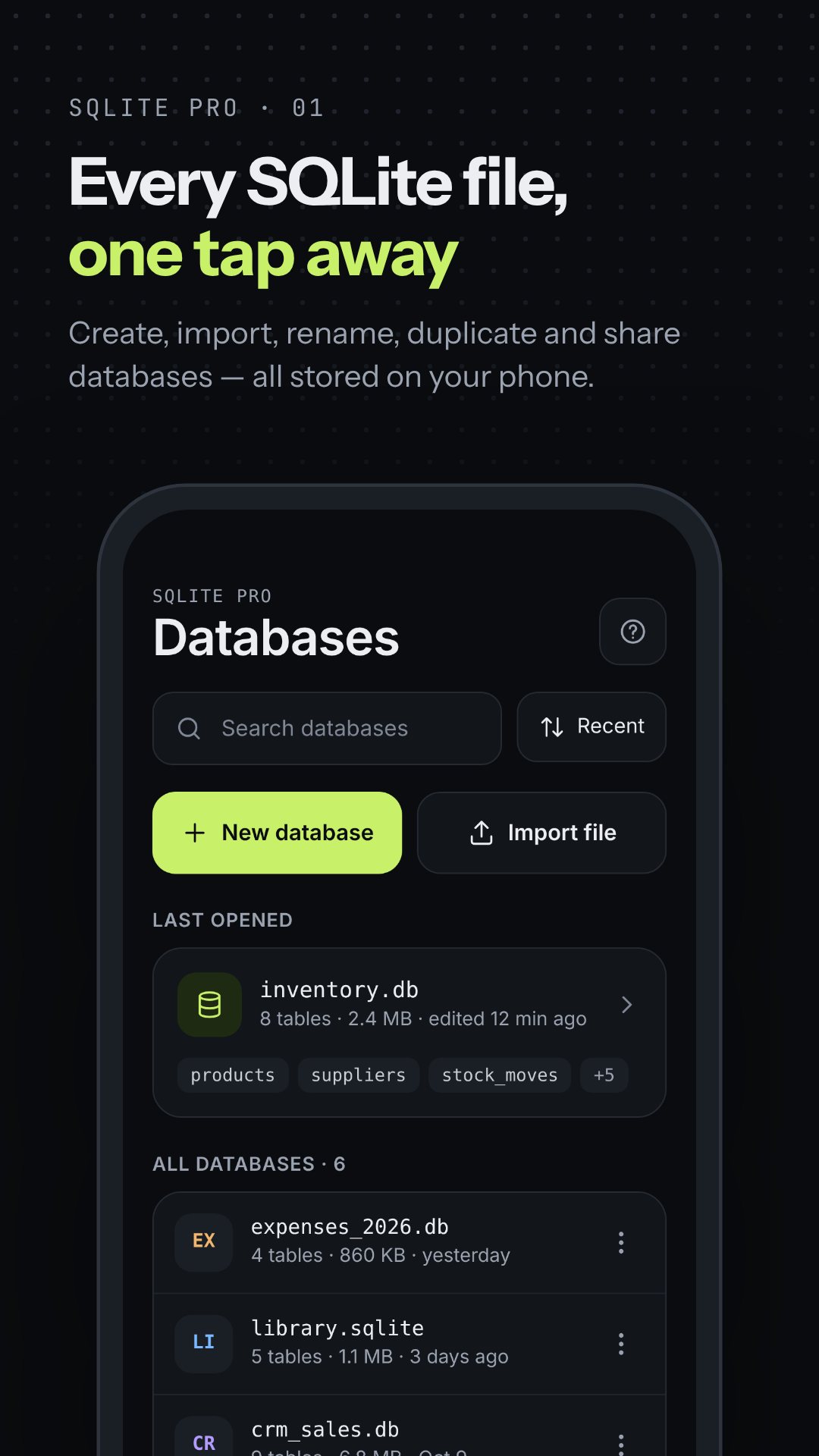
If you are learning SQL or prototyping an idea, the app ships 30 ready-made templates sorted into Business, Personal, Health and Learning — from a point-of-sale and inventory system to an expense tracker, a recipe book, a gym membership roster and a student records database. Each one previews its tables and columns and inserts sample rows, so you have a working database with real data to query in seconds. You can also create tables and views by hand, duplicate an existing database (structure only if you prefer), or import a .db file you already have.
SQLite Pro works entirely offline and keeps your files on the device; the only permission it declares is internet access, used during development. The built-in guide collects short how-tos with copyable SQL examples and a "things that catch new users out" topic, and a local crash-log screen lets you see and share diagnostics if something goes wrong — nothing is sent automatically.
It opens .db, .sqlite, .sqlite3 and .db3 files, and can also import a database file or create a brand-new one.
You can run full SQL, including joins, CTEs, window functions and JSON functions — either one statement at a time or a whole script in a single transaction.
Yes. SQLite Pro runs fully offline with no account, and every database stays on your device.
Any table or query result exports to CSV, JSON or TSV through Save as, the share sheet, or the clipboard.
Get SQLite Pro on Google Play →
 By the NAXTECH team · Published 15 Sept 2026 · Updated 11 Oct 2026 · Hands-on with v1.0
Production is misbehaving, you are nowhere near your laptop, and the only thing between you and a bad night is one small data fix. On a phone that usually means squinting at an SSH session, or a desktop tool that was never built for a 360 px screen. Rowcraft was made for exactly this moment: a real database client that behaves like a native Android app and makes it genuinely hard to break something by accident.
Rowcraft connects directly to your servers — there is no Rowcraft backend in the middle. Your hosts, passwords and queries never leave the phone, credentials live in the operating system's secure storage, and there is no account to create and no analytics.
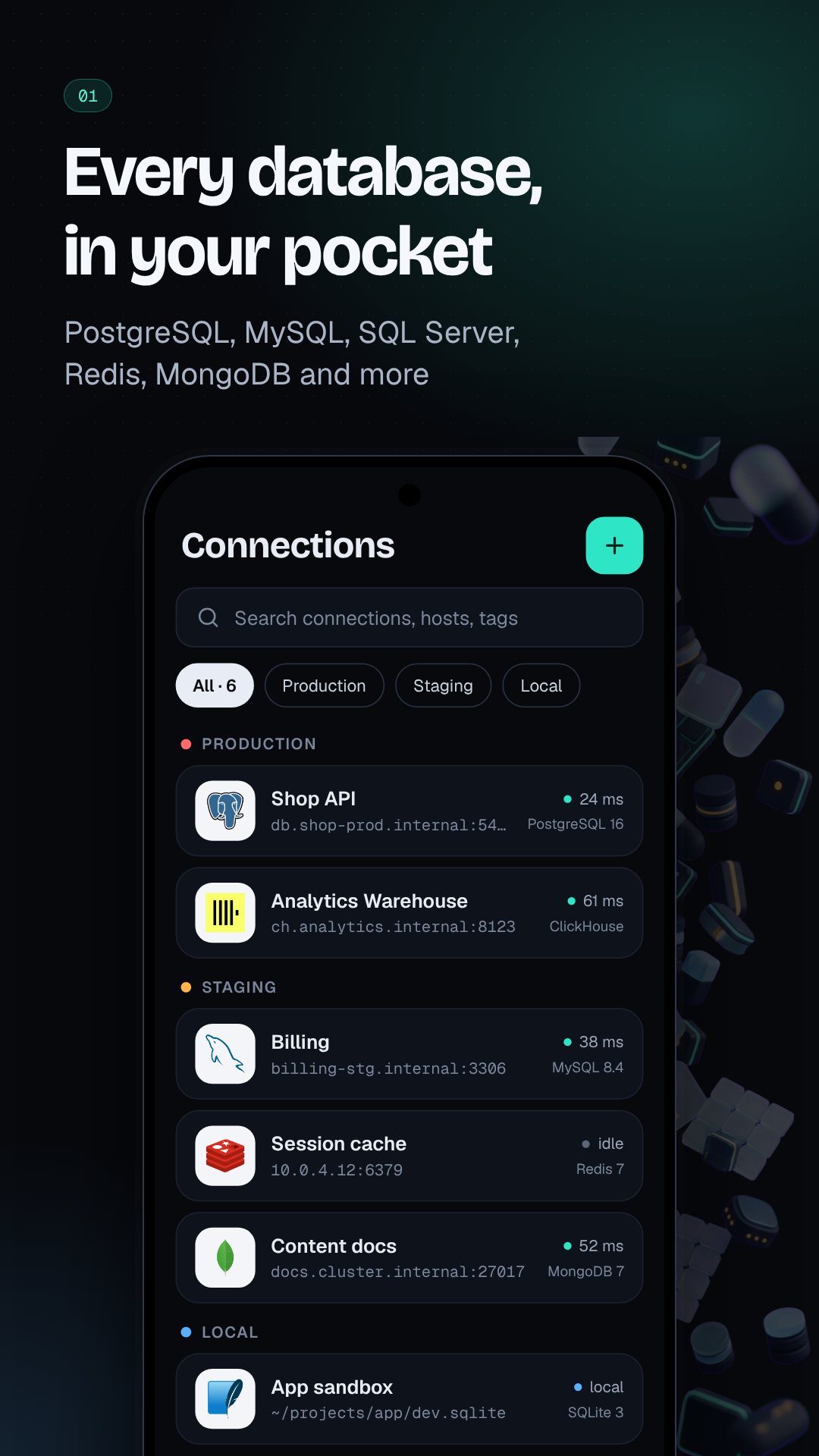
Rowcraft speaks to the SQL databases you already run — PostgreSQL, MySQL, MariaDB, CockroachDB, ClickHouse and SQLite — and reaches beyond SQL to Redis, MongoDB and Cassandra. The free tier covers PostgreSQL, MySQL and a built-in Sample DB so you can try every screen with realistic data first, and an SSH tunnel gets you safely through to a private server when you are away from the office.
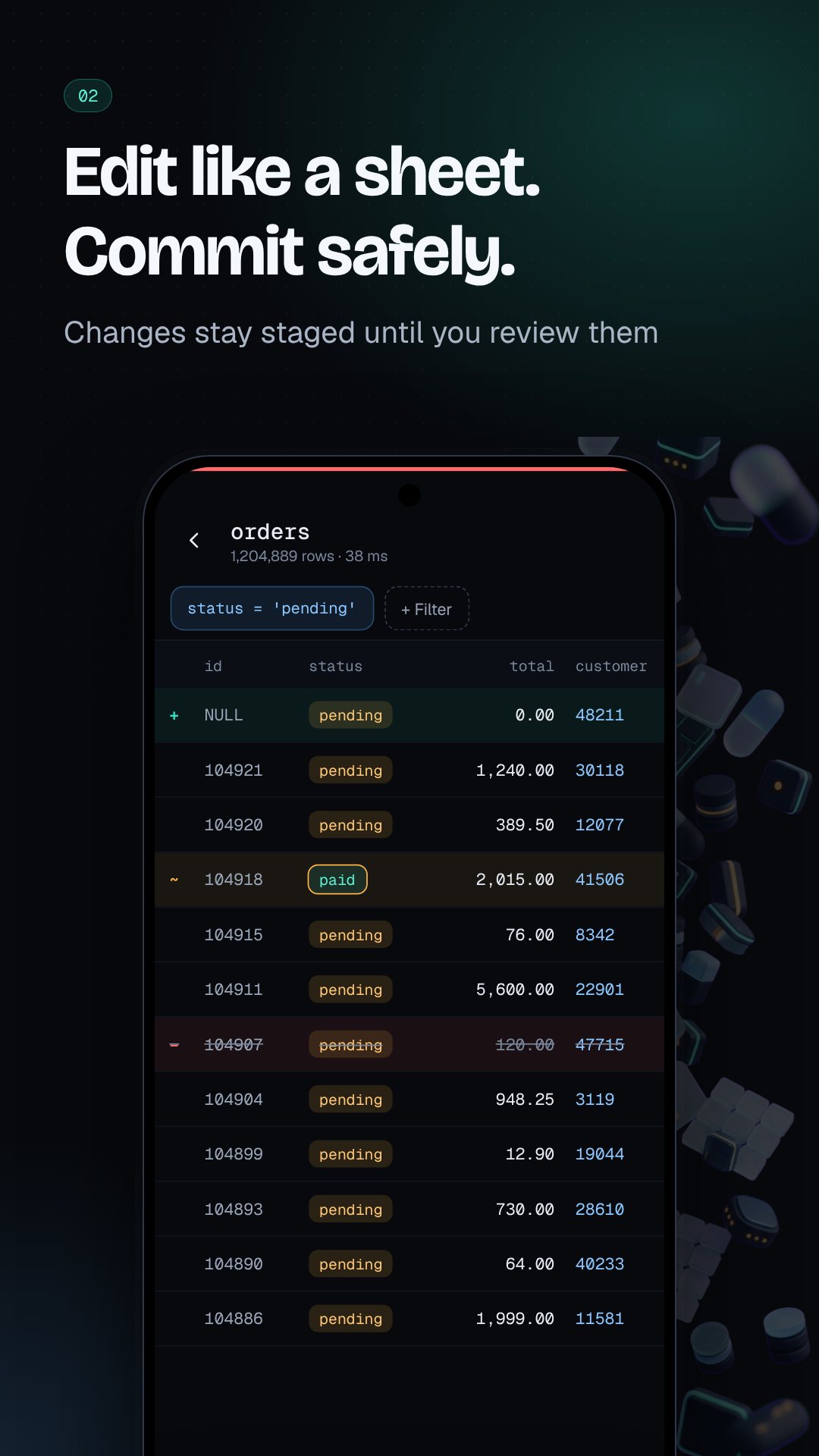
The data grid is where Rowcraft earns its name. Changes are staged, never instant: tap a cell to edit it, insert a row, or mark one for deletion, and each change is flagged with a colour and a glyph you can read at a glance — ~ modified, + inserted, − deleted. Nothing touches the database until you open Review & Commit, where Rowcraft shows the exact SQL it is about to run. Open a database marked as production and a red stripe follows you across every screen, with an extra confirmation before any write lands.
Write and run SQL with syntax highlighting, reusable snippets and per-connection history. A built-in query guard reads each statement first and stops to warn you before the dangerous ones — a DELETE or UPDATE with no WHERE, a DROP, a TRUNCATE, a destructive ALTER, or a GRANT. Results open in a fast, virtualised table you can export, or hand to the chart builder to see a quick bar or line graph without leaving the app.
Stuck on a join? The AI assistant turns a plain-English request into one ready-to-run SQL statement with a short explanation. It is bring-your-own-key — OpenAI, Anthropic, Gemini or a custom endpoint — and requests go straight from your phone to the provider you chose. By default it shares only your table and column names, never the rows inside.
No. Rowcraft has no backend, so your hosts, passwords and queries stay on the device, with credentials kept in the operating system's secure storage.
PostgreSQL, MySQL, MariaDB, CockroachDB, ClickHouse and SQLite, plus Redis, MongoDB and Cassandra; the free tier covers PostgreSQL, MySQL and a built-in Sample DB.
Yes. You bring your own OpenAI, Anthropic, Gemini or custom key, and by default only table and column names are shared with your provider, never the data in your rows.
Edits are staged and applied only at a Review & Commit step, and a query guard warns before a DELETE or UPDATE with no WHERE, a DROP, a TRUNCATE or other destructive statements.