SQLite Pro: a SQLite database editor that behaves like a desktop tool on Android
 By the NAXTECH team · Published 27 Sept 2026 · Updated 7 Nov 2026 · Hands-on with v2.0
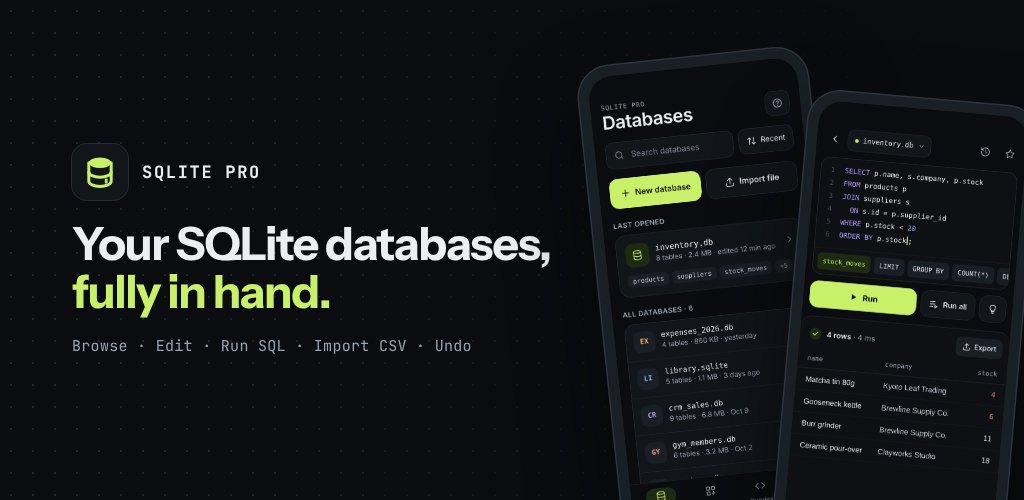
SQLite Pro at a glance
- What it is
- A SQLite database manager for browsing, editing and querying .db files.
- Platform
- Android · works fully offline, no account needed — everything stays on the device.
- Opens
- .db, .sqlite, .sqlite3 and .db3 files.
- Export
- CSV, JSON or TSV — via Save as, the share sheet, or the clipboard.
- Templates
- 30 ready-made schemas across Business, Personal, Health and Learning.
- Best for
- Developers, students and anyone who needs to look inside a SQLite file.
You pull a .db file off a device or out of an app's backup, and now you need to actually see what is inside it — but the only tools that do the job properly live on a laptop. On a phone you are usually stuck with a viewer that lists tables and little else. SQLite Pro was built to close that gap: a database manager that opens the file, shows you the rows, and lets you run real SQL, all on the handset in your hand.
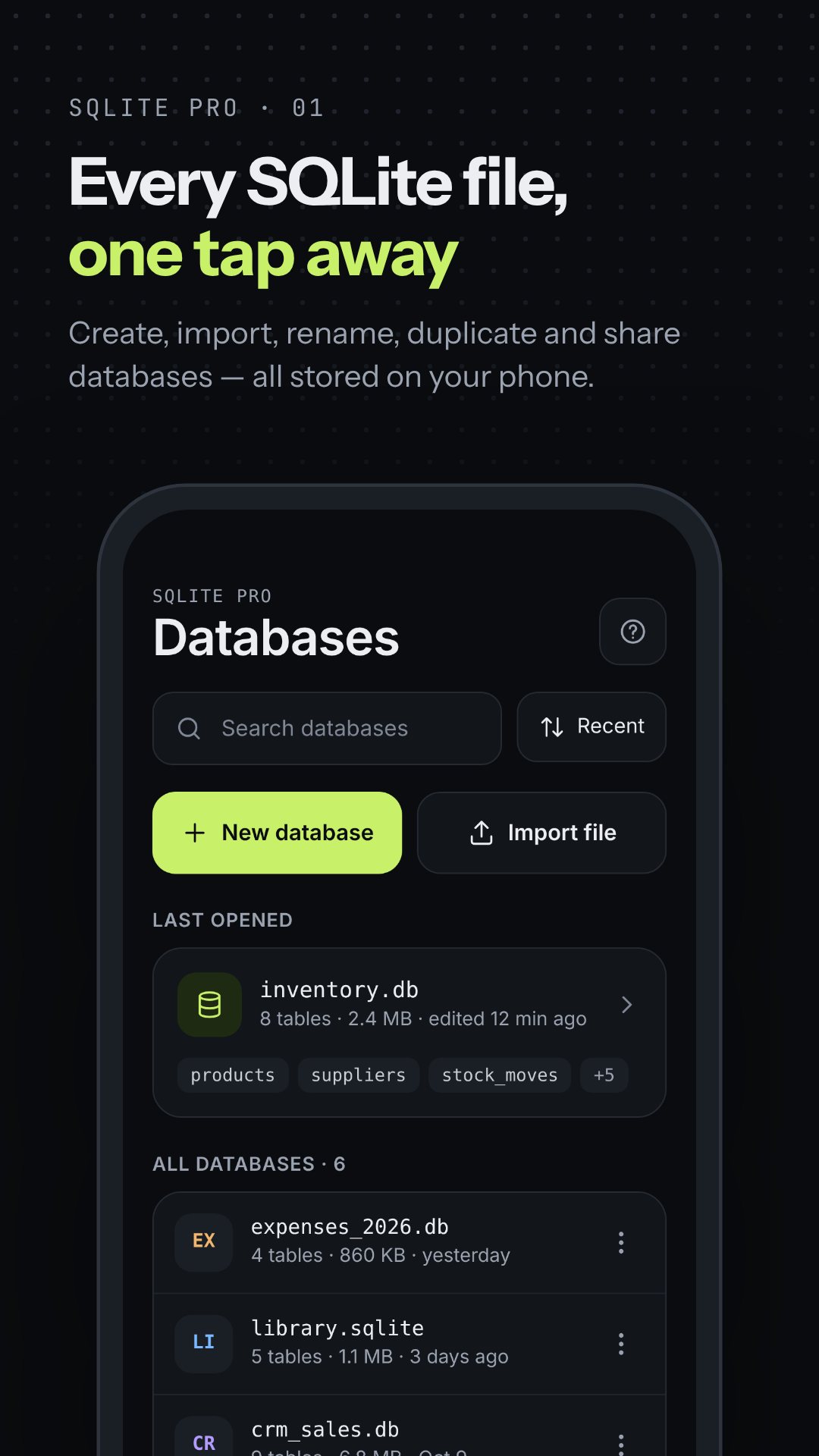
It is a careful tool, not a toy. SQLite Pro opens .db, .sqlite, .sqlite3 and .db3 files, browses and edits every table, and runs statements the way a desktop client would. Nothing is uploaded — the app needs no account and no storage permission, and every file stays on your device.
A SQL editor that understands your database
The query editor is the centrepiece. It highlights SQL as you type and offers autocomplete for your own tables and columns alongside the full language — window functions like row_number, rank, lag and lead, the json_extract / json_object family, common table expressions with WITH RECURSIVE, and RETURNING. You can run a single statement to inspect one result, or choose Run all to execute a whole script in a single transaction that rolls back automatically if any statement fails, so a half-finished migration never leaves the database in a broken state.
A data grid that reads like a spreadsheet
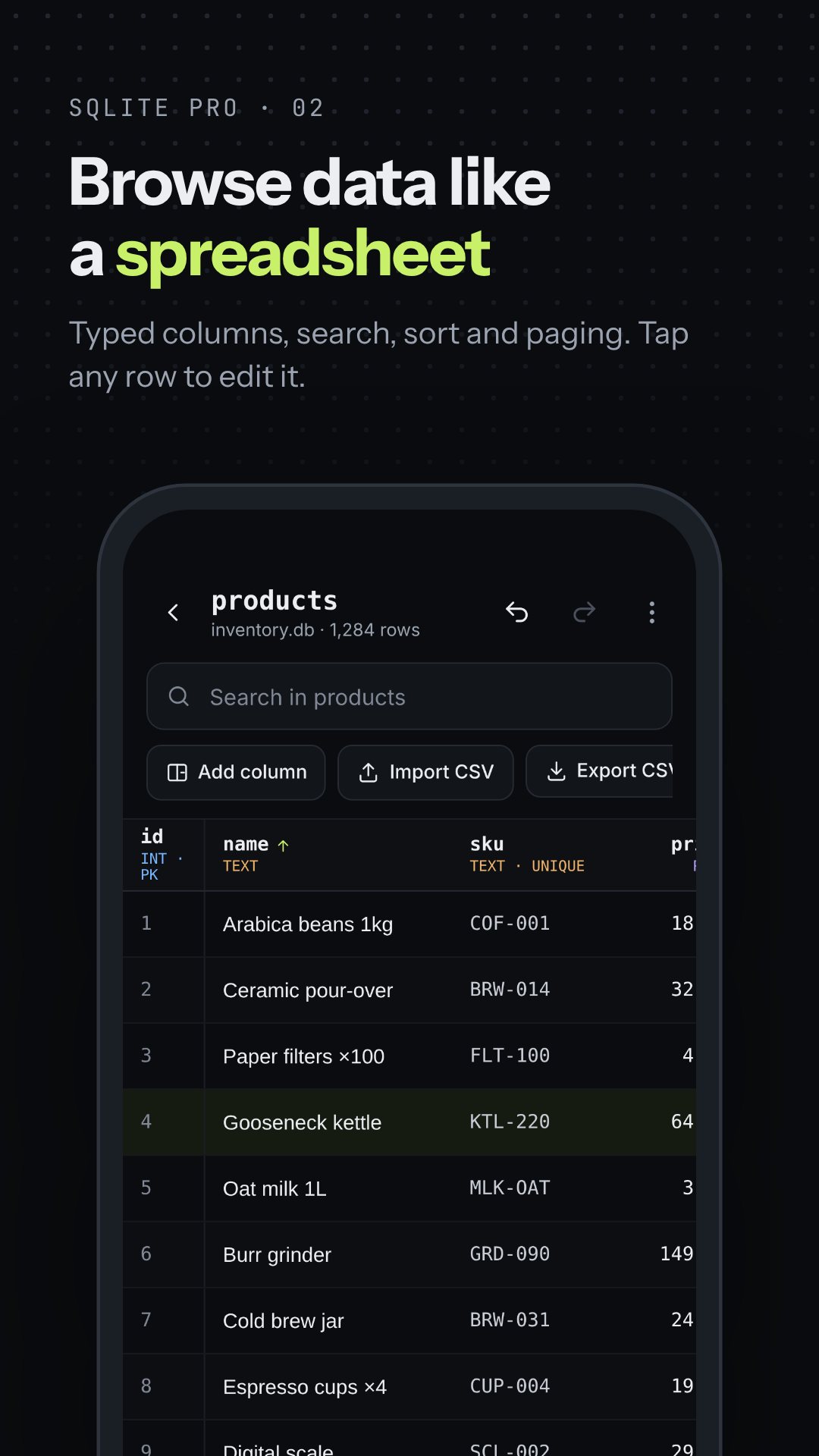
Query results and table contents appear in the same spreadsheet-style grid: a sticky header that shows each column's name and declared type, zebra rows, a row-number gutter, numbers right-aligned, and NULL shown explicitly rather than as an empty cell. Tap a column header to sort, and binary columns read as BLOB with their size instead of a wall of bytes. Tap any row to open the row editor and change values in place.
Change things without fear
Editing a real database is nerve-wracking, so SQLite Pro keeps a safety net. Every table session has its own undo and redo history, up to 30 steps deep, and each change is labelled — "Row deleted", "Column dropped" — with a detail line in the toast so you know exactly what reversed. Anything permanent asks first, and before you rename or drop a table the app lists the views and other objects that depend on it.
Import and export without leaving the app
SQLite Pro imports a CSV file straight into a table: it detects the header and delimiter, lets you map columns, and returns a report of how many rows were inserted, how many were skipped, and the exact row number of every issue — with a cancel button for long files. Going the other way, it exports any table or query result to CSV, JSON or TSV, handing the file to Android's "Save as" dialog, the share sheet, or the clipboard. Because saving goes through the Storage Access Framework, the app never asks for broad storage access.
Start from a template, or build from scratch
If you are learning SQL or prototyping an idea, the app ships 30 ready-made templates sorted into Business, Personal, Health and Learning — from a point-of-sale and inventory system to an expense tracker, a recipe book, a gym membership roster and a student records database. Each one previews its tables and columns and inserts sample rows, so you have a working database with real data to query in seconds. You can also create tables and views by hand, duplicate an existing database (structure only if you prefer), or import a .db file you already have.
How to run your first query in SQLite Pro
- Open the Databases tab and import a .db file, or create a new one from a Template.
- Tap a table to browse its rows in the grid, then switch to the Queries tab.
- Start typing SQL — accept the autocomplete suggestions for your table and column names.
- Tap Run for one statement, or Run all to execute a script as a single transaction.
- Read the results in the grid, then export them to CSV, JSON or TSV.
Good to know
SQLite Pro works entirely offline and keeps your files on the device; the only permission it declares is internet access, used during development. The built-in guide collects short how-tos with copyable SQL examples and a "things that catch new users out" topic, and a local crash-log screen lets you see and share diagnostics if something goes wrong — nothing is sent automatically.
Frequently asked questions
Which file types can SQLite Pro open?
It opens .db, .sqlite, .sqlite3 and .db3 files, and can also import a database file or create a brand-new one.
Can I run real SQL, or only browse tables?
You can run full SQL, including joins, CTEs, window functions and JSON functions — either one statement at a time or a whole script in a single transaction.
Will my data stay private?
Yes. SQLite Pro runs fully offline with no account, and every database stays on your device.
Can I get my data out again?
Any table or query result exports to CSV, JSON or TSV through Save as, the share sheet, or the clipboard.