Private Photo Vault Pro: hide your photos behind a working calculator
 By the NAXTECH team · Published 3 Apr 2026 · Updated 8 Aug 2026 · Hands-on with v4.0
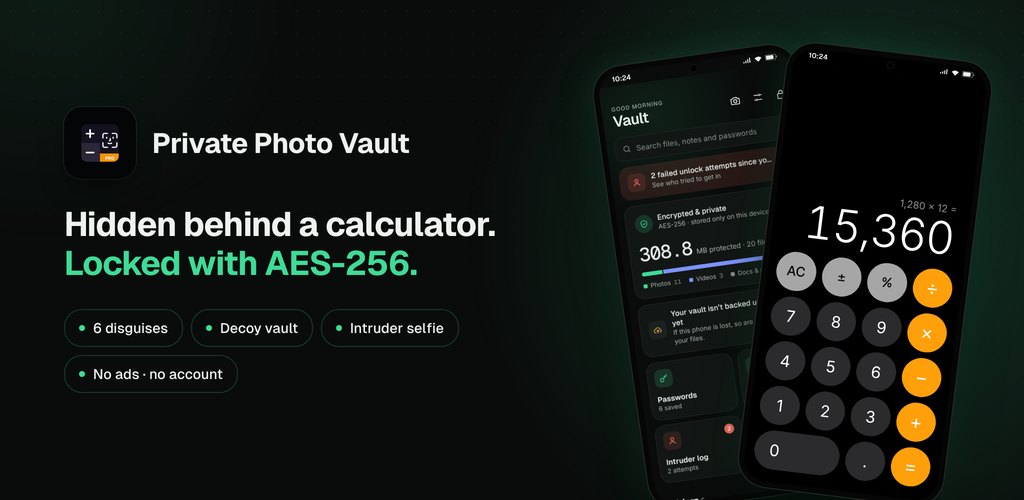
Private Photo Vault Pro at a glance
- What it is
- A hidden, encrypted vault for photos, videos, notes and passwords that opens from a disguise app.
- Platform
- Android · encryption and files stay on your device.
- Price
- Free to download, with an optional Pro upgrade.
- Encryption
- AES-256-GCM, with the master key kept in Android Keystore-backed secure storage.
- Disguises
- Calculator, Weather, Clock, Notes, Utilities or Converter.
- Best for
- Anyone who shares or hands over their phone and wants private media to stay private.
A friend asks to see one holiday photo, so you unlock your phone and pass it over — and now your whole camera roll is one careless swipe away. That small, everyday moment is the problem Private Photo Vault Pro was built around. Hiding sensitive photos is not about having something to be ashamed of; it is about the ordinary fact that the gallery app shows everything to whoever is holding the screen.
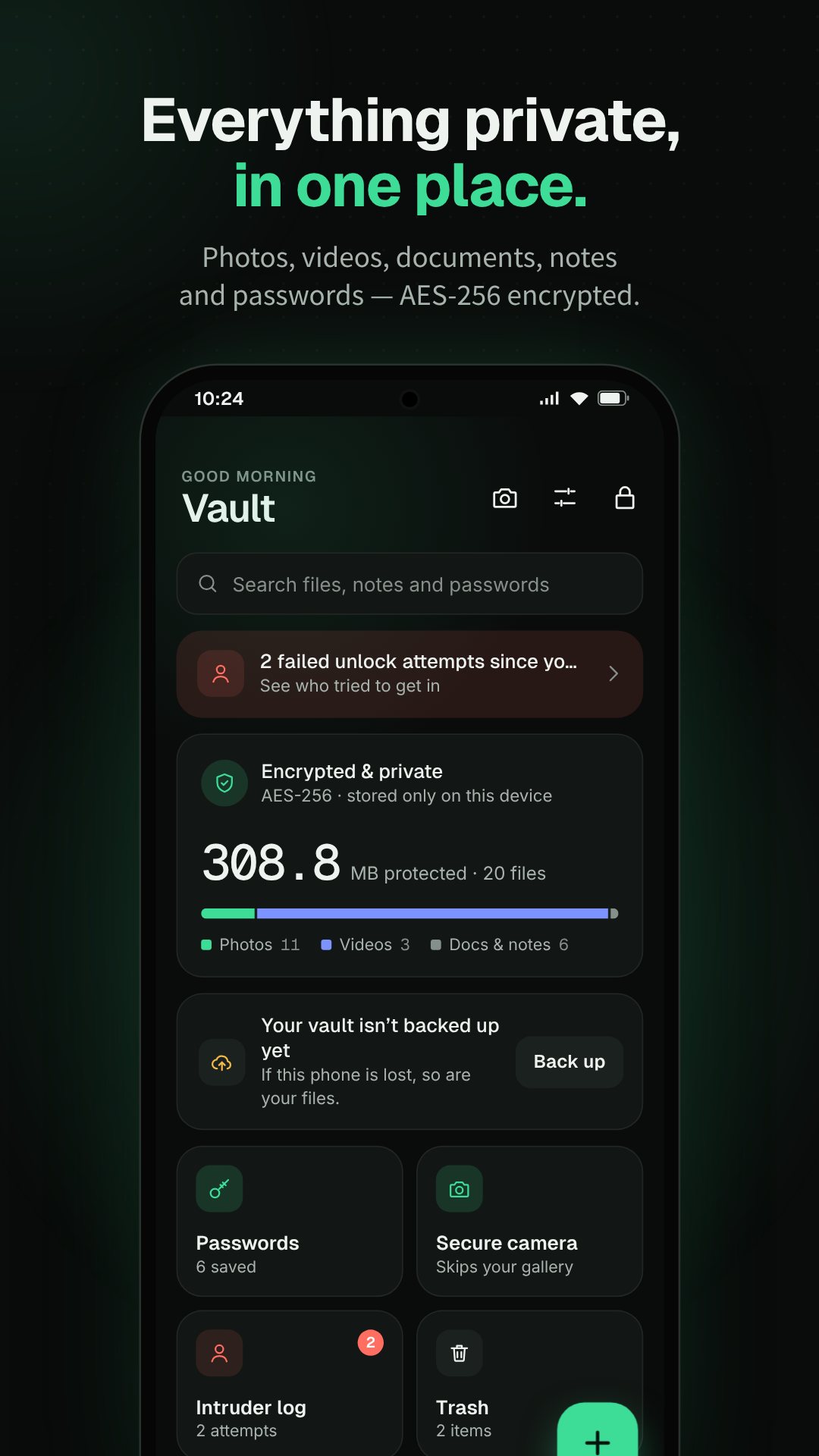
Private Photo Vault Pro solves it in two parts. First, it moves your private photos, videos, notes and passwords into an encrypted vault that the system gallery can no longer see. Second, it hides the vault itself behind an app that looks and works like something harmless — a calculator by default — so there is nothing on your home screen that invites a second look.
A disguise that actually works
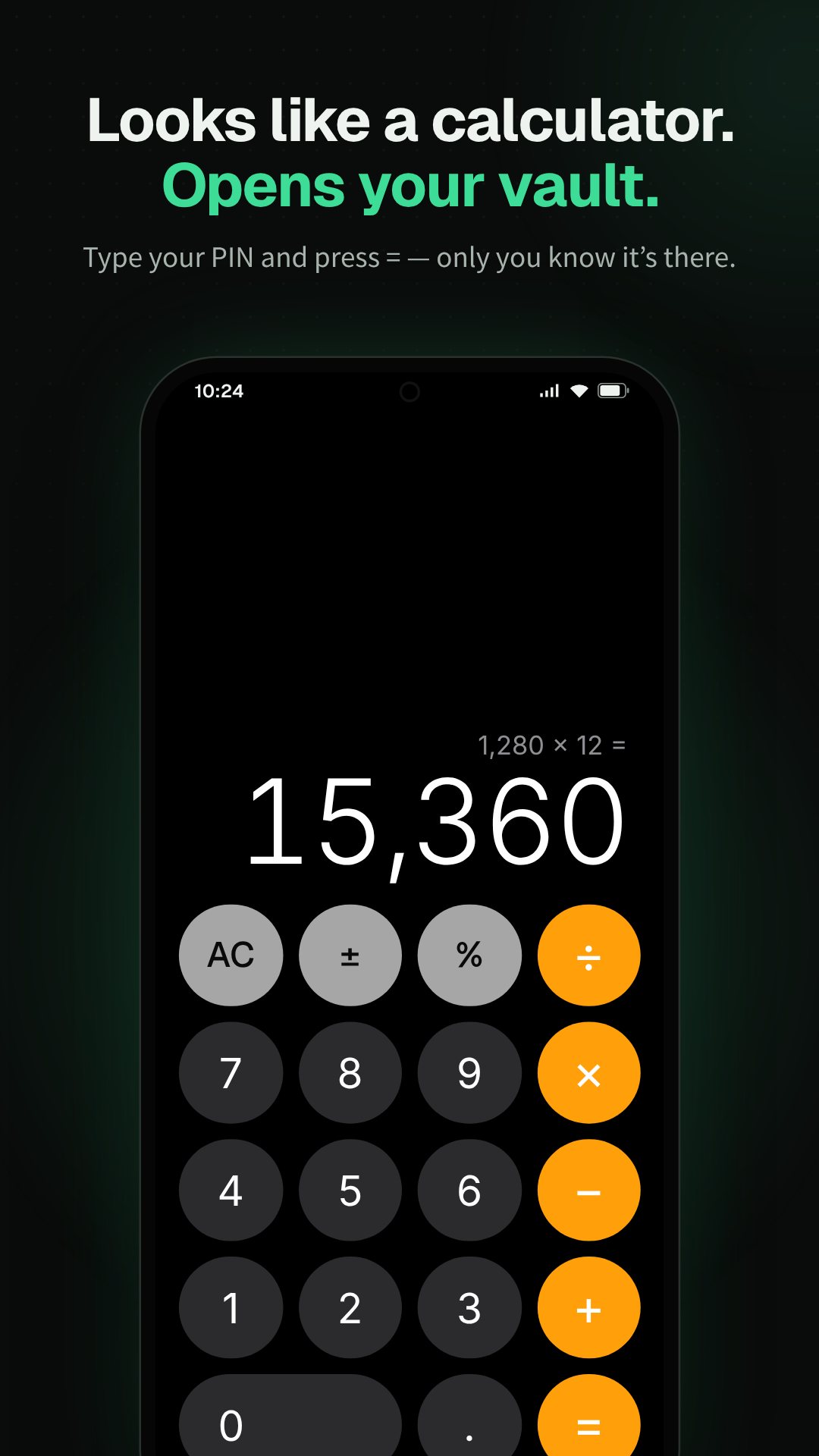
Open the app and you get a fully functional calculator. It adds, subtracts and behaves exactly as expected, so a glance over your shoulder reveals nothing. Your real vault only appears when you enter your secret PIN on the keypad. If a calculator feels out of place on your phone, you can switch the disguise to a Weather, Clock, Notes, Utilities or Converter screen instead — six covers in total, each a working mini-app rather than an obvious fake.
Real encryption, done on the device
Hiding files is only half the job; the files themselves are encrypted. Private Photo Vault Pro uses AES-256 in GCM mode, encrypting large media in 1 MiB chunks streamed in a background thread, so importing a long video never stalls the app or loads the whole file into memory. Each chunk is authenticated, so tampering or truncation is detected rather than silently passed through. The master key lives in Android Keystore-backed secure storage, and all of this happens on your phone — your photos are never uploaded to a server to be protected.
Catch whoever goes snooping
Set a threshold — three wrong attempts by default, adjustable up to ten — and the intruder selfie quietly takes a front-camera photo of anyone who fails to guess your PIN, encrypts it, and files it in an intruder log with the time. Push the threshold further and a break-in alarm can sound after repeated failures. Because the guard lives behind the disguise, a snoop never realises they tripped it.
Two more tricks for real-world pressure
Sometimes you are made to open the app. For that, you can set a decoy PIN that unlocks a separate, harmless vault — show it and the pressure is off, while your real vault stays sealed. For a worst case, an emergency PIN wipes the vault's data the moment it is entered. Both sit alongside your normal unlock, so only you know which code does what.
More than a photo locker
- Secure in-app camera — shoot photos and video that encrypt straight into the vault; nothing is ever written to the phone gallery.
- Password manager — keep logins with username, email and website, all searchable.
- Private notes — a built-in encrypted note editor for the things you would never leave in a plain notes app.
- Recycle bin — deleted items wait 30 days before they are erased for good, so a slip is recoverable.
- Encrypted backup — export a password-protected
.pvaultfile to Downloads or share it, and restore it later. - Screenshot blocking & biometric unlock — screenshots of the vault are blocked by default, and fingerprint unlock is supported.
How to hide your first photos
- Open the app, set your secret PIN (4 to 8 digits) and choose a disguise — Calculator is the default.
- From the disguise screen, enter your PIN to open the vault.
- Tap Add and import photos or videos from your gallery, or shoot new ones with the secure camera.
- Delete the originals from your normal gallery so the only copy lives inside the encrypted vault.
- In Settings, turn on the intruder selfie and, if you like, set a decoy PIN for the times you are asked to unlock.
Good to know
Your PIN is the only way into the vault, so there is no cloud account to reset it from — keep an encrypted backup and remember your code. The emergency PIN is permanent by design: once it wipes, the data is gone. Private Photo Vault Pro keeps your files encrypted on the device; it is a privacy tool, not a cloud sync service.
Frequently asked questions
Can someone tell it is a vault and not a real calculator?
No. The disguise is a working calculator with no hidden buttons or badges, and the vault only opens when your secret PIN is typed on the keypad.
Are my photos uploaded anywhere?
No. Files are encrypted with AES-256 and stored on your device, and the encryption key stays in Android's secure storage.
What happens if someone keeps guessing my PIN?
After the number of wrong tries you set, the app silently takes a front-camera intruder selfie and logs it, and can sound a break-in alarm.
What is the decoy PIN for?
It opens a separate, harmless vault so you can safely show "inside" the app under pressure while your real vault stays hidden.