MAVLink Inspector: a drone telemetry analyzer that fits in your pocket
 By the NAXTECH team · Published 5 Sept 2026 · Updated 9 Oct 2026 · Hands-on with v1.0

MAVLink Inspector at a glance
- What it is
- A pocket MAVLink telemetry inspector, plotter, recorder and router for drones and robotics.
- Platform
- Android · connects over UDP, TCP, USB serial and Bluetooth.
- Price
- Free with a banner ad; one-time Pro unlock, no pop-up ads ever.
- Transports
- UDP · TCP · USB serial (SiK, FTDI, CP210x) · Bluetooth SPP (HC-05).
- Works with
- ArduPilot & PX4, SITL, Mission Planner and QGroundControl .tlog files.
- Best for
- Drone builders, flight-test engineers and robotics developers.
The vehicle will not arm, the ground station laptop is back in the car, and all you have at the flight line is your phone. Somewhere in the MAVLink stream is the pre-arm check that is blocking you — but a generic serial terminal just shows you raw bytes. MAVLink Inspector was built for exactly that moment: a real telemetry analyzer that lives in your pocket.
Connect over UDP, TCP, USB serial or Bluetooth and the app decodes every MAVLink v1 and v2 message as it arrives, showing live rates, packet loss and CRC errors for each system and component. It reads the official ArduPilot and common dialects out of the box, and you can import your own XML when your autopilot speaks a custom one.
Every byte, decoded
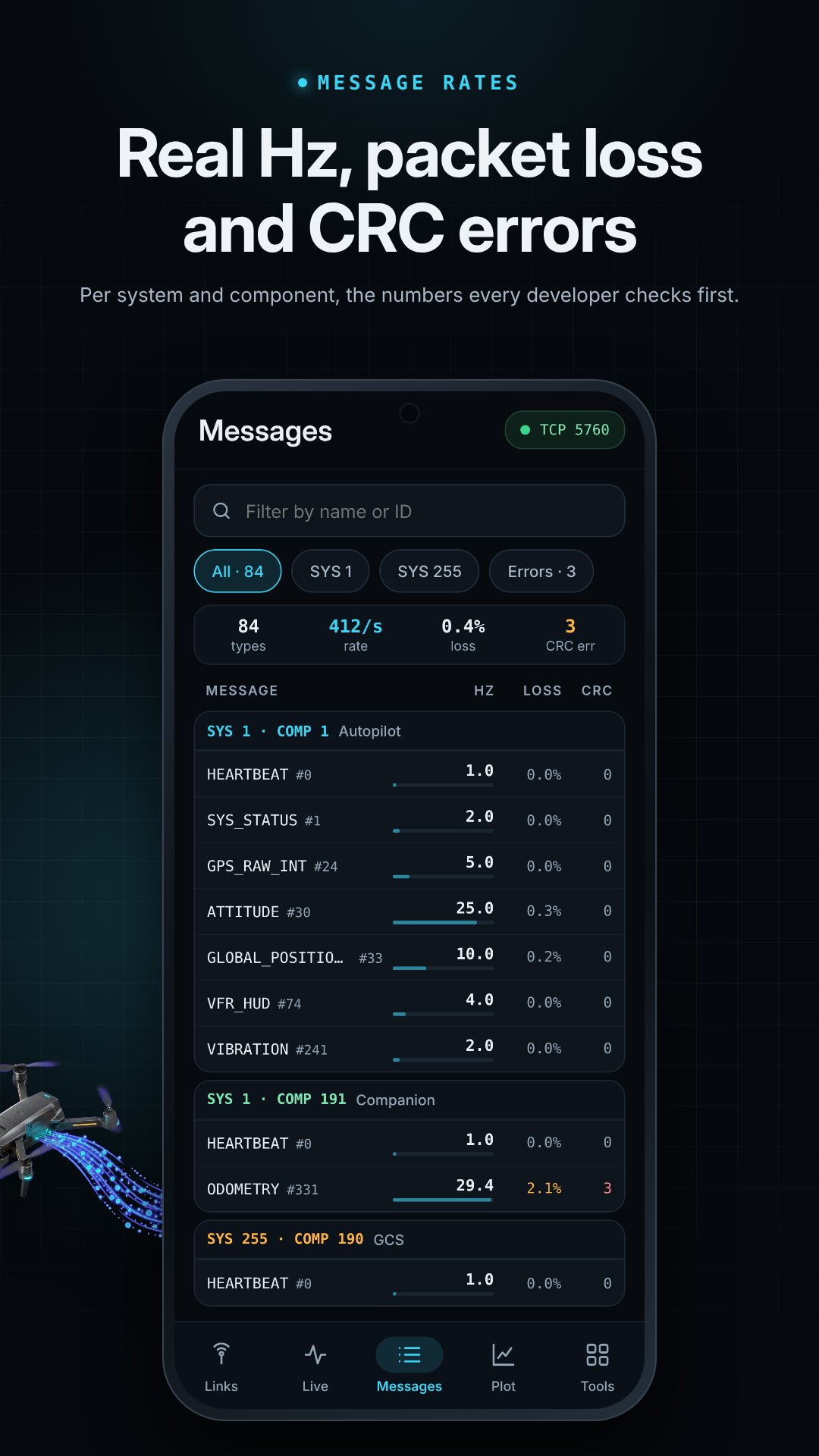
The Messages screen lists each message type with its live Hz rate, loss and CRC error count, filterable by name or ID or down to a single system. Tap a message and the hex inspector breaks the frame apart byte by byte: header, payload and checksum, the message version, whether it is signed or unsigned, and the CRC_EXTRA used to validate it. Tap any byte and the app tells you which field it belongs to — and offers to plot it.
Live telemetry, the way the flight line needs it
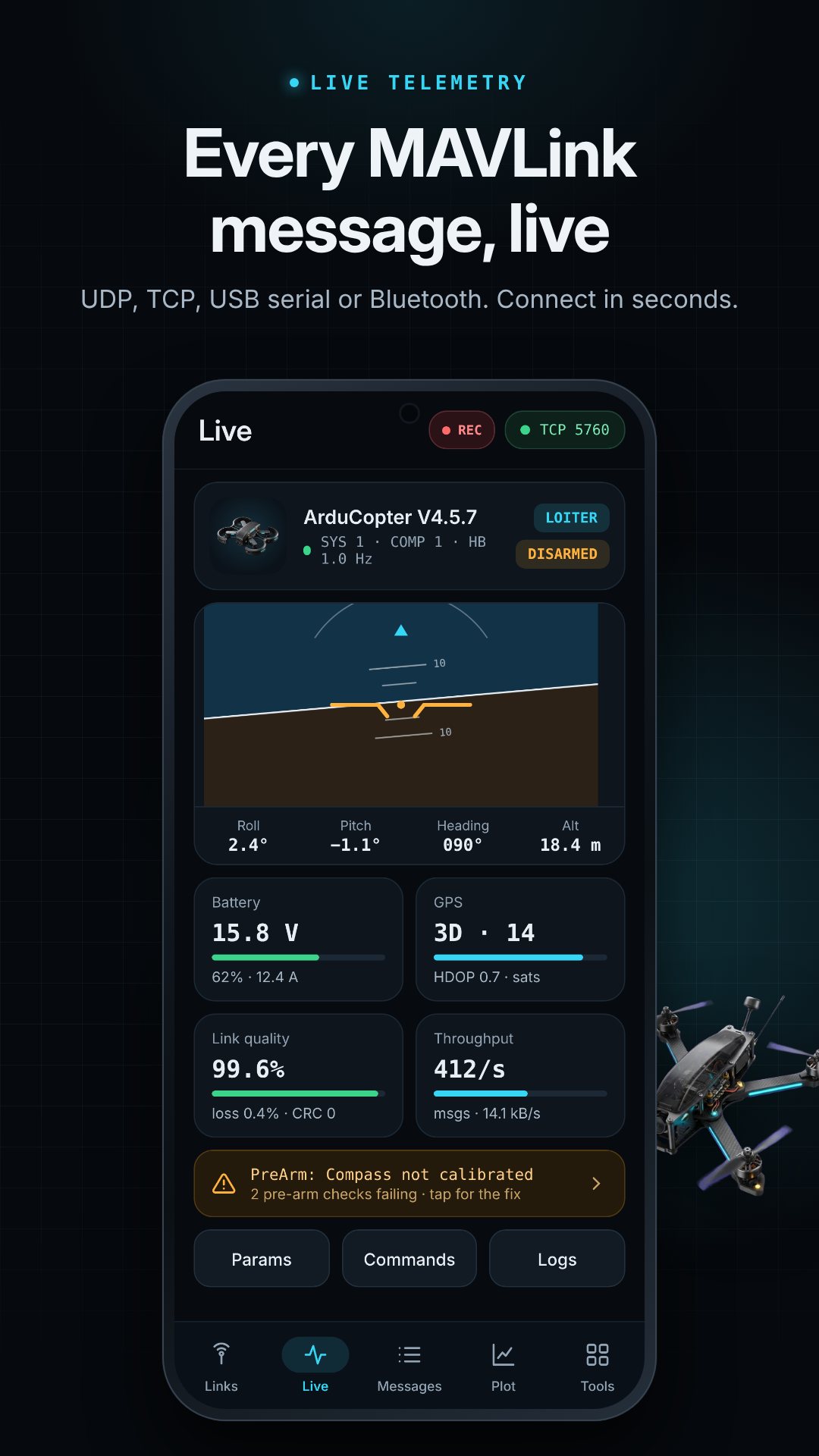
The Live screen reads the autopilot HEARTBEAT and lays out roll, pitch and heading, altitude, battery voltage, current and percentage, GPS fix, satellite count and HDOP, plus link quality and throughput — per vehicle, with multiple systems and components on one link. When a pre-arm check fails, the STATUSTEXT screen does not just show the raw message: it explains what checks like compass calibration, GPS fix, RC calibration, fence or battery-low actually mean, and how to fix them.
Plot, record and replay
Add a field such as ATTITUDE.roll to the real-time plot and watch it over a rolling 10, 30 or 60 second window; Pro overlays up to six fields at once, so you can line up vibration or variance channels side by side. Record the whole session to a .tlog file that Mission Planner and QGroundControl can open, then replay it later with a speed control and a HOME-relative distance, altitude and speed read-out.
One radio, the whole team
Plug a SiK radio into your phone over USB OTG and the router fans that one telemetry link out over Wi-Fi to every laptop running a ground station — point each output at a host and UDP port and you are bridging in seconds. An MQTT forward pipes the same stream to your broker, and a built-in simulator generates a fake vehicle on a local UDP port so you can test a dashboard or a pipeline with no hardware at all.
More tools for builders
- Parameters — read, search and export the full parameter set to a
.paramfile. - Param diff — compare the live vehicle against a saved
.paramfile to spot what changed. - Send command — issue a MAV_CMD and watch the COMMAND_ACK log with per-command latency.
- Custom dialects — import MAVLink XML (ardupilotmega, common, development, standard, minimal).
- Simulator — a fake vehicle streaming over UDP for testing without a drone.
How to inspect a live link
- On Links, pick a transport — Quick listen on UDP, SITL on TCP :5760, a USB serial radio, or a paired Bluetooth module.
- Tap Save & connect and open Live to confirm the HEARTBEAT, attitude, battery and GPS.
- Open Messages to see every type with its rate, loss and CRC errors, and filter to the one you care about.
- Tap a message to open the hex inspector, then tap a byte to identify its field.
- Add that field to the Plot, or hit Record .tlog to capture the session for replay.
Built for the flight line
There are no interstitial or pop-up ads, ever — a single banner shows only on the Links, Flight logs and Dialects screens, and disappears entirely while a link is live. Arm, takeoff, motor test and reboot always go through a confirmation checklist with a three-second hold, so a fat-fingered tap never spins a propeller. The screen stays awake while a link is active, and the one-time Pro unlock turns on USB and Bluetooth, custom dialects, record and replay, multi-field plotting, the router, MQTT and the simulator.
Good to know before you connect
MAVLink Inspector is a telemetry viewer and developer tool: parameters are read-only by design, so it inspects, exports and diffs but never writes a value back to the vehicle. MAVLink 2 signing is detected and shown but not verified. Treat the arming and motor-test commands with the same care you would at a full ground station — they command real hardware.
Frequently asked questions
Which connections does MAVLink Inspector support?
UDP, TCP, USB serial (SiK, FTDI and CP210x radios over OTG) and Bluetooth SPP modules such as the HC-05, including a Quick listen mode and SITL over TCP.
Can it open my Mission Planner or QGroundControl logs?
Yes. It records and replays standard .tlog files, so logs are interchangeable with Mission Planner and QGroundControl.
Does it work with a custom MAVLink dialect?
Yes. The official dialects are built in, and you can import your own MAVLink XML to decode custom messages.
Is MAVLink Inspector free?
Yes, it is free with a single banner ad and no pop-ups; an optional one-time Pro purchase unlocks USB, Bluetooth, recording, multi-field plots, the router, MQTT and the simulator.