Image Converter: turn JPG, PNG, WebP and AVIF into the format you actually need
 By the NAXTECH team · Published 11 Mar 2026 · Updated 19 Oct 2026 · Hands-on with v1.0
Image Converter at a glance
- What it is
- A batch image converter and compressor for Android.
- Reads
- JPG, JPEG, PNG, WebP, AVIF, BMP and GIF.
- Writes
- JPG, PNG, WebP and AVIF.
- Platform
- Android · converts on-device, no account needed.
- Price
- Free, with ads and an optional one-time upgrade.
- Best for
- Anyone shrinking photos for email, the web or app uploads.
You have twenty photos to upload, the form only accepts JPG, and your phone shot them all as HEIC or oversized PNGs that bounce off the size limit. On a desktop you would batch-convert them in seconds; on a phone you end up emailing images to yourself or hunting for a website that wants an account first. Image Converter removes that detour.
Image Converter is a batch converter and compressor that reads JPG, PNG, WebP, AVIF, BMP and GIF and writes out JPG, PNG, WebP or AVIF — all on your device, so nothing is uploaded to a server and the job finishes without a signal.
Pick your format, then take control of the file size
Choose the output format and the app does the rest. For the formats that support it — JPG, WebP and AVIF — a quality slider runs 0 to 100 (it starts at a sensible 85), so you can trade a little sharpness for a much smaller file. When you care about the number of kilobytes more than the slider, switch to target-size mode: name a size budget, say 500 KB, and the app searches for the best quality that still fits under it. PNG is kept lossless, the way a logo or screenshot should be.
Convert a whole batch, not one file at a time
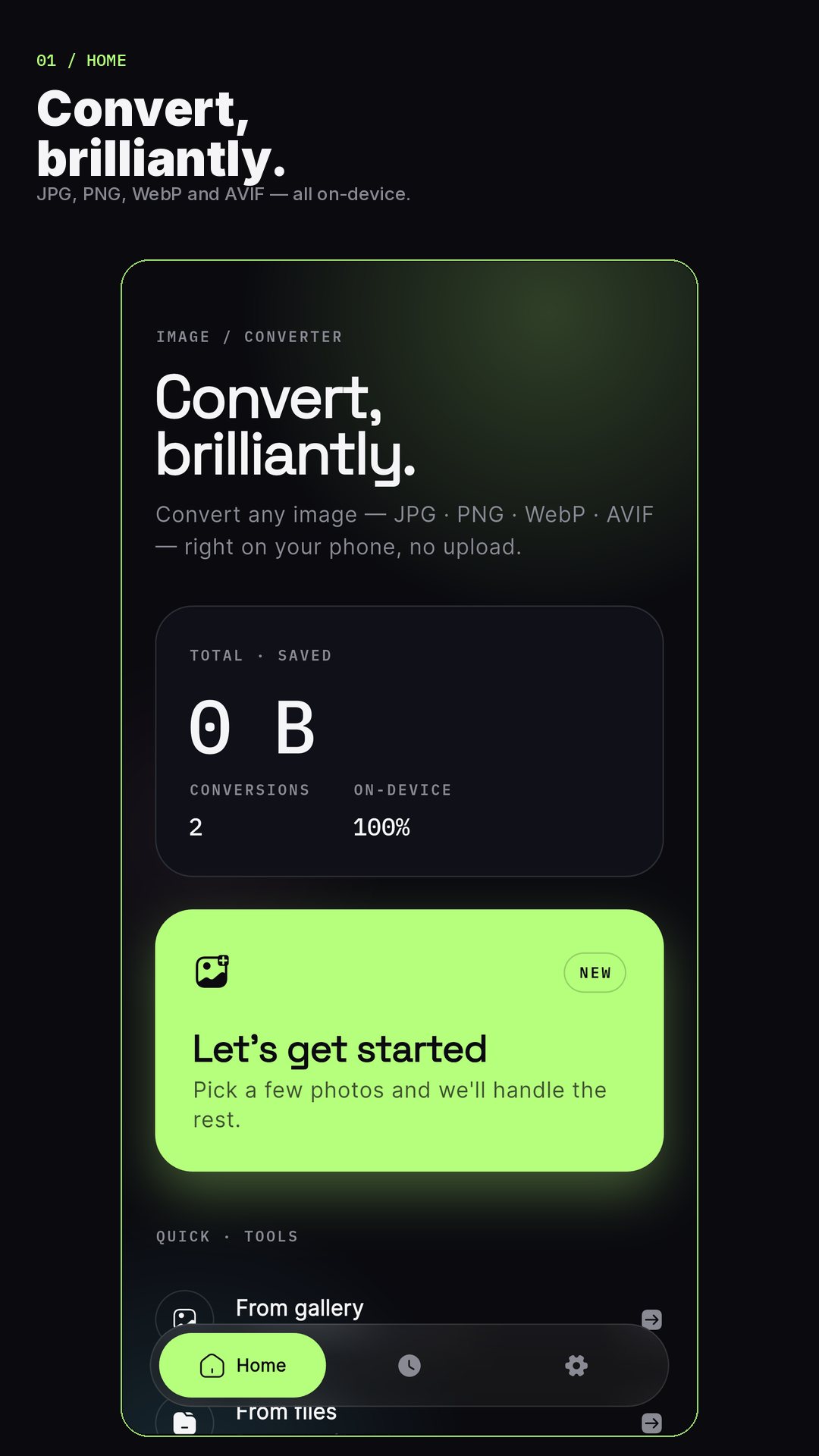
Pick a stack of photos from your gallery or files and Image Converter runs them through the same settings in one pass, working on up to three conversions at once and posting progress in your notification shade so you can leave the screen. Every image in the batch gets the format, quality, resize and watermark you chose — no repeating yourself.
Resize, crop and finish before you export
- Resize — keep the original size, scale by a percentage, or set exact pixel dimensions, with aspect ratio locked by default.
- Crop & rotate — trim and straighten an image before it is converted.
- Watermark — drop a text or image watermark into any of nine positions, with opacity and size you control.
- Filters — apply a quick look: B&W, Sepia, Vintage, Vivid, Cool or Warm, or leave it on Original.
Private by default
Because everything happens on your phone, your photos never leave it. Image Converter also strips EXIF metadata before saving — the camera model, timestamps and GPS location baked into a photo — so what you share does not quietly carry where and when it was taken. That option is on by default and labelled plainly as "Hide camera & location info." Results save straight to your gallery, or to a folder you pick, and a Share button sends them on.
How to batch-convert images with Image Converter
- Tap Pick images and select one photo or a whole batch from your gallery or files.
- Choose your output format — JPG, PNG, WebP or AVIF.
- Set the quality, or switch to target size and type a kilobyte budget.
- Optionally resize, crop, add a watermark or a filter, and confirm EXIF is being stripped.
- Tap Convert and let the batch finish — results land in your gallery or chosen folder, ready to share.
Free, with a one-time upgrade
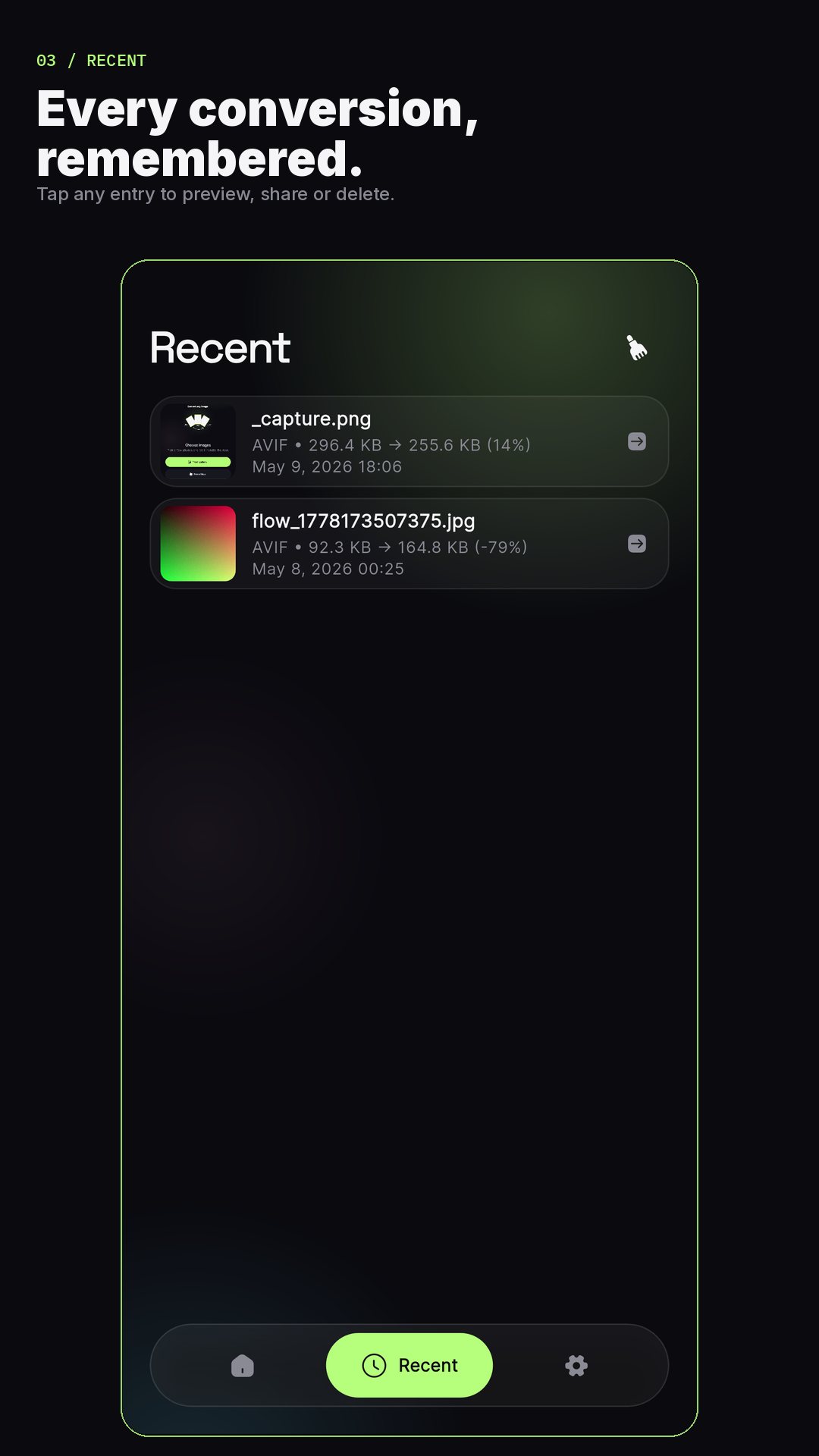
Image Converter is free to use, supported by ads. A single one-time purchase removes the ads, unlocks unlimited batch conversions and opens up every output format. There is no subscription and no sign-in — and the Recent list keeps your last conversions one tap away.
Good to know
AVIF gives the smallest files for modern photos, while JPG stays the most universally accepted. Target-size mode finds the closest fit under your budget rather than an exact byte count. The free app contains ads, with an optional one-time purchase to remove them.
Frequently asked questions
Does Image Converter upload my photos?
No. Every conversion runs on your device, so your images are never sent to a server and the app works with no connection.
Which formats can it convert?
It reads JPG, PNG, WebP, AVIF, BMP and GIF, and writes JPG, PNG, WebP or AVIF.
Can I convert many images at once?
Yes. Select a whole batch and the app applies your settings to all of them, processing up to three at a time; the one-time upgrade removes any batch limit.
Will it remove the location data from my photos?
Yes. EXIF stripping is on by default, so camera, timestamp and GPS details are removed before the converted file is saved.