Fake GPS Location: set, walk and simulate your position on Android
 By the NAXTECH team · Published 20 Apr 2026 · Updated 24 Aug 2026 · Hands-on with v1.0

Fake GPS Location at a glance
- What it is
- An Android app that sets your phone's GPS to any point you choose on the map.
- Platform
- Android · uses Developer Options as the mock location app · no account needed.
- Price
- Free, supported by ads.
- Core tools
- Map pin · movement joystick · Route mode · Advanced Route · Favorites & History.
- Best for
- Location-based games, app testing, and privacy when sharing your position.
A game wants you to walk across town to reach the next stop, but you are sitting on the couch — and sharing your real location with every app that asks has started to feel like too much. The honest fix is to decide for yourself what location your phone reports. That is the entire job of Fake GPS Location.
Fake GPS Location registers as Android's mock location app, so once you point it at a spot the rest of your phone reads that spot as your real GPS fix. You pick a place on a live map, tap Start, and apps that read your location see the coordinates you chose — complete with altitude, accuracy and bearing, not just a bare latitude and longitude.
Drop a pin, or search the whole world
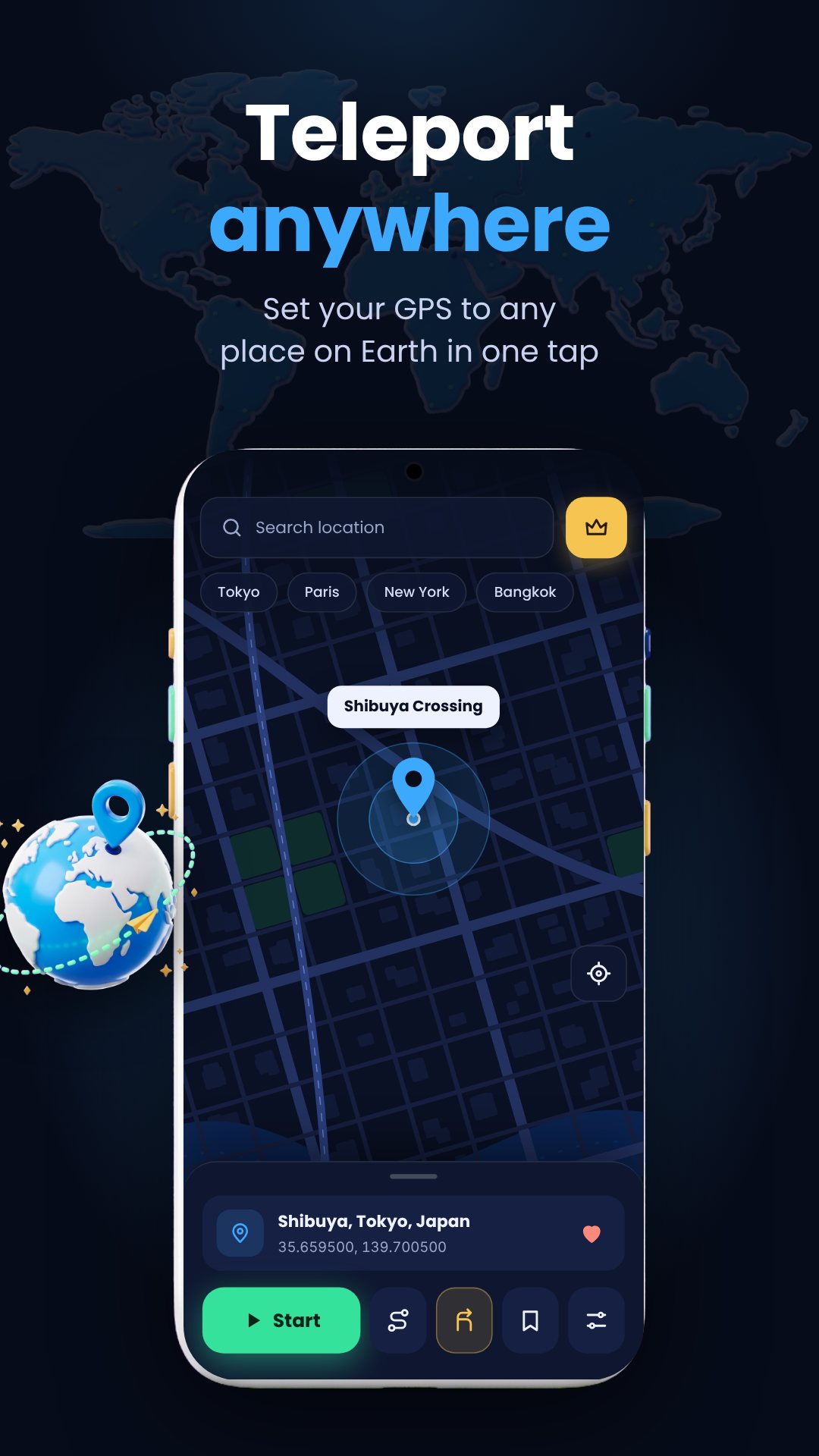
The home screen is a full map. Tap anywhere to drop the red pin, or use the search bar to find a place by name — addresses, landmarks and cities all work, and results appear as you type. Search is powered by OpenStreetMap, and the app also reverse-geocodes your pin so you can see the address of the point you landed on. Turn on the coordinate readout in Settings and the search bar shows your live latitude and longitude while mocking is active.
A joystick for walking, not teleporting
A static pin is fine for check-ins, but games that reward movement need you to actually move. While mocking is active, an on-screen joystick appears: drag it in any direction to stroll, and a speed slider sets your pace anywhere from 1 to 50 m/s. It is built for games that expect you to walk, so you can cover ground naturally without the obvious jump of a teleport.
Route mode: follow a path at a set speed
When you want hands-free movement, switch to Route mode. Tap the map to drop waypoints — two or more — then set a speed from 5 to 120 km/h and press Start to travel the path automatically. Undo removes the last point, Clear starts over, and you can save a route to reload it later.
Advanced Route: make the movement believable
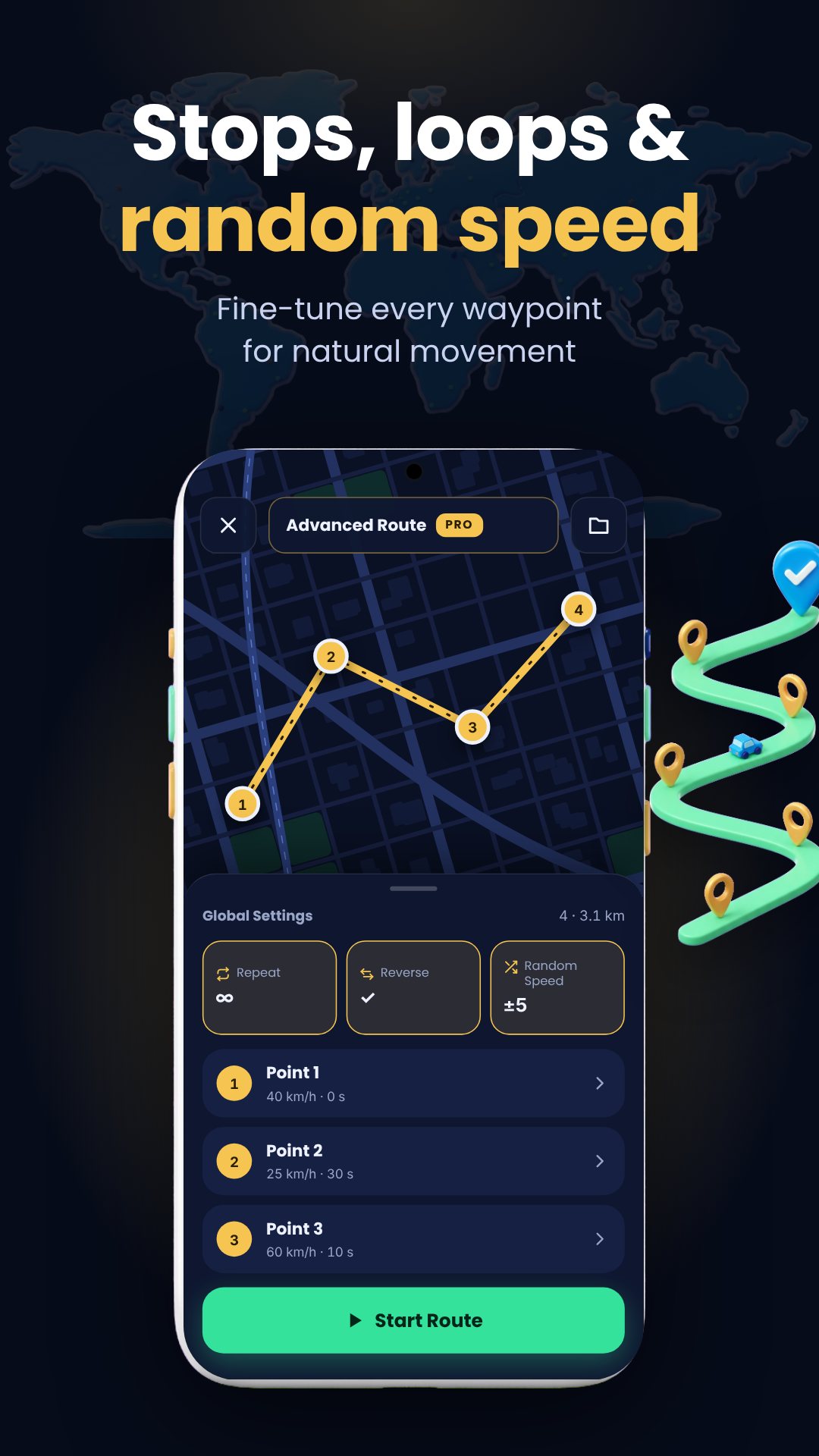
Advanced Route is where the app earns its name. Every waypoint can carry its own speed (5–120 km/h), a stop delay of 0 to 300 seconds to imitate traffic lights and pauses, and a random speed variation of ±1 to 20 km/h so the pace is never robotically constant. On top of that you can:
- Repeat the whole route 1x, 2x, 3x, 5x, 10x — or set it to loop infinitely (∞).
- Reverse on repeat, so the trip runs forward then backward like a ping-pong.
- Pause, resume and stop mid-run, with live progress as you go.
Favorites, history and setup
Save any spot to Favorites with your own name, and the app keeps a History of recently used locations — tap either to recenter the map instantly. A built-in setup guide walks you through enabling Developer Options and choosing Fake GPS Location as the mock location app, so first-time users are not left guessing. You can also tune the joystick size and a default route speed in Settings.
How to set a fake GPS location
- Open Android Settings → Developer options → Select mock location app and choose Fake GPS Location (the in-app guide shows each step).
- Back in the app, search for a place or tap the map to drop the pin.
- Press Start to begin reporting that location to the rest of your phone.
- Use the joystick to walk, or open Route mode to travel a path automatically.
- Press Stop when you are done to hand control back to your real GPS.
Good to know
Setting a mock location needs Developer Options enabled on your device, which is a standard Android feature. Searching for places and loading the map use OpenStreetMap, so those need an internet connection. The app is free and contains ads. Use it responsibly and within the terms of the apps and games you connect it to.
Frequently asked questions
Do I need to root my phone?
No. Fake GPS Location works through Android's built-in Developer Options as the system mock location app, with no root required.
Can I walk around instead of standing still?
Yes. A movement joystick lets you walk in any direction at 1–50 m/s, and Route mode travels a path of waypoints at a speed you set.
Can I make a route look realistic?
Yes. Advanced Route adds per-point speed, stop delays up to 300 seconds, random speed variation and looping, so movement does not run at one flat, obvious pace.
Is it free?
Yes, the app is free to download and is supported by ads.