Senior Launcher: Pill Reminder — a big-button phone built for older parents
 By the NAXTECH team · Published 22 Aug 2026 · Updated 8 Oct 2026 · Hands-on with v1.0
Senior Launcher at a glance
- What it is
- A simplified home screen for older people, with photo-based pill reminders and an SOS button.
- Platform
- Android · works 100% offline, no account needed.
- Price
- Free, with ads; one-time Premium unlocks SOS and removes ads.
- Core tools
- Big-button home · Photo pill alarms · Magnifier + flashlight · One-tap calling · Hold-to-send SOS.
- Set up by
- A family member, behind a 4-digit PIN; the older person just taps.
- Best for
- Seniors and the adult children who help manage their phone.
You set up a reminder on your mother's phone, and a week later you find three missed doses and a notification she never saw. The medicine names are tiny, the buttons are small, and one wrong tap buries the app she actually needs. Senior Launcher: Pill Reminder was built to remove that friction — for the parent using the phone, and for the family looking after them.
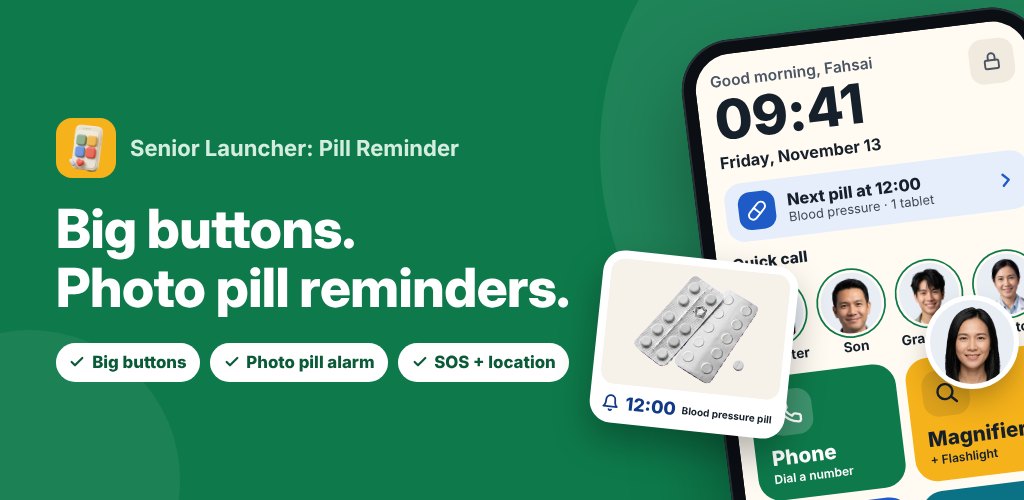
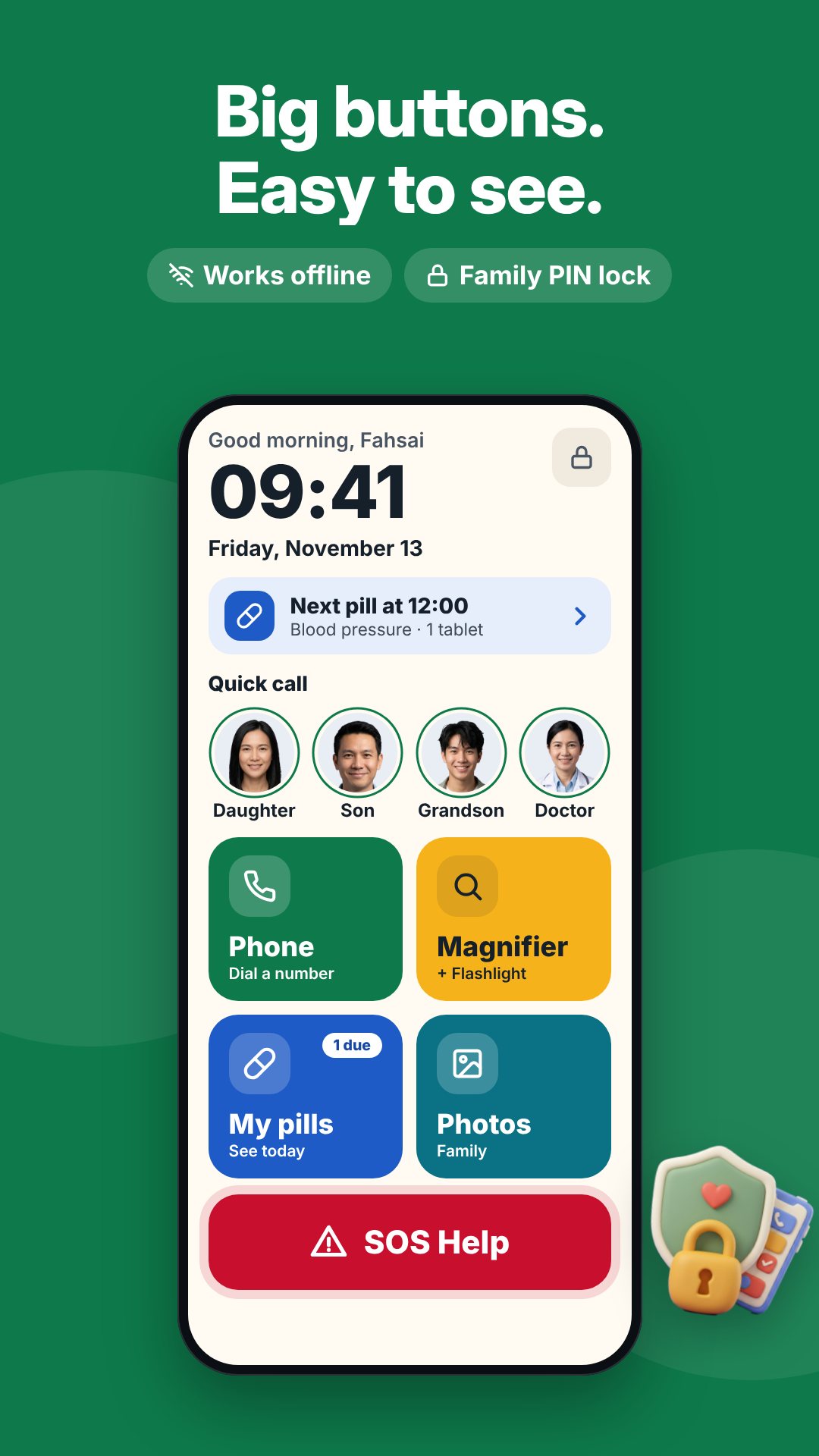
It is not a widget you add to a cluttered home screen. Senior Launcher can become the phone's default home screen, so the first thing your parent sees is a handful of large, clearly labelled tiles — Phone, Magnifier, My pills, Photos, Apps — plus their family's faces and an SOS button. Everything a family member configures sits behind a PIN, so nothing gets deleted or rearranged by accident.
Pill reminders that show the real pill, not a small name
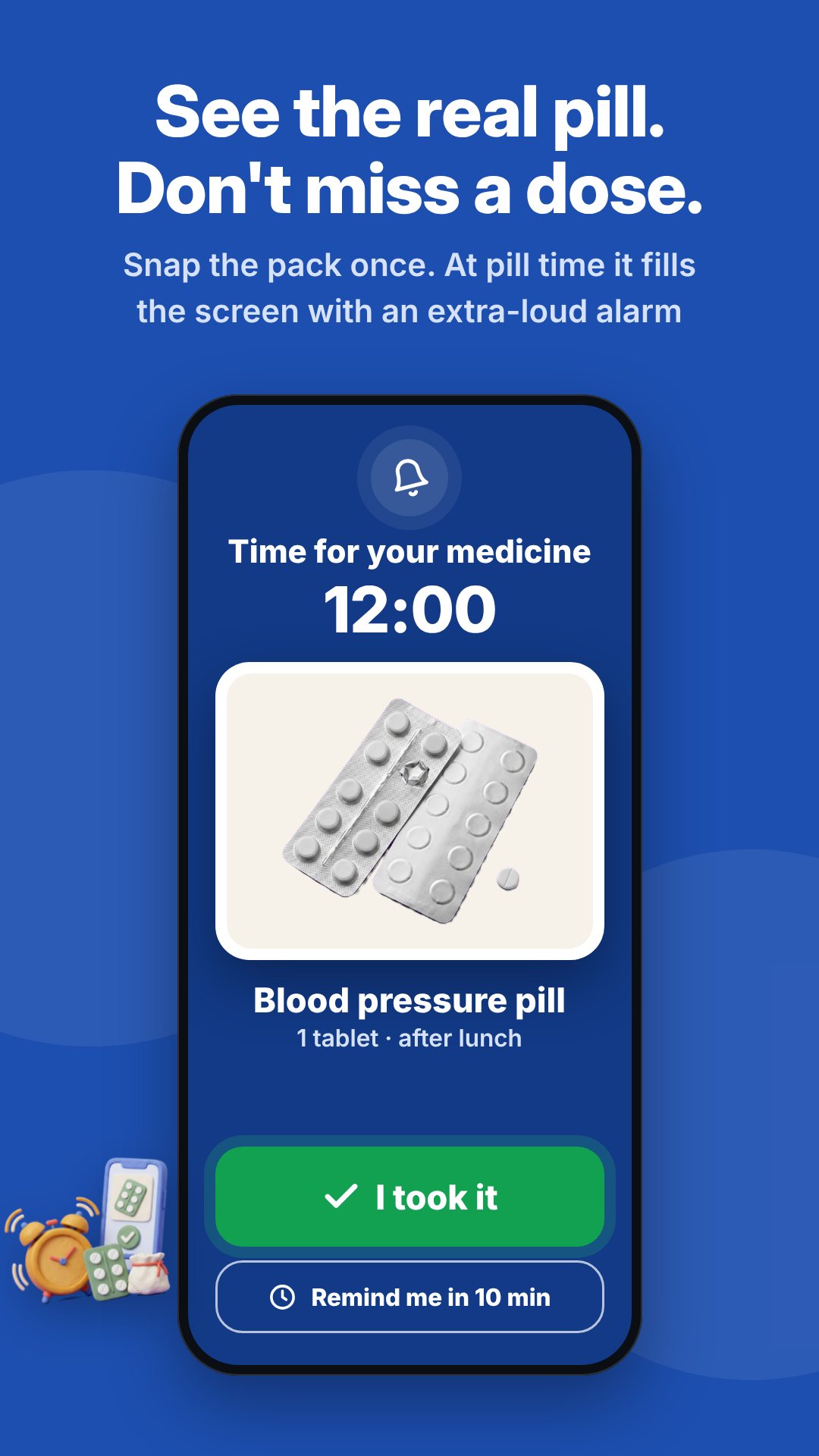
Instead of asking an older person to read "Amlodipine 5mg," the family photographs the actual pill pack when adding a medicine. When it is time, the reminder takes over the full screen — even over the lock screen — with that real photo, an extra-loud looping alarm and a heavy haptic buzz, so it is hard to miss. One big button says "I took it"; another snoozes for 10 minutes. Each medicine stores how many tablets to take and whether it is before or after a meal, and reminder times drop onto sensible presets: morning (08:00), noon (12:00), evening (18:00) and bedtime (21:00). Because the alarms are scheduled on the device and re-armed after a reboot, they keep firing without any internet connection.
A magnifier and flashlight for small print
Tucked into the home screen is a live camera magnifier for reading prescription labels, bills and menus. It steps through 2×, 4×, 6× and 8× zoom, keeps the flashlight on for dim rooms, and has a freeze button so a shaky hand can hold the image still to read it. It runs on the back camera with no audio and no stored photos.
Calling made as simple as a tap
The family adds quick-call contacts with clear face photos; on the home screen your parent taps a face to ring that person straight away. There is also a full-size dialer keypad with oversized digits and spoken-feedback key presses for numbers that aren't saved.
An SOS button that works through the normal messages app
The press-and-hold SOS gives one beep and buzz per second while held, so a panicked tap won't trigger it by accident — release early and it cancels. When the hold completes, it opens the phone's own messages app with an emergency SMS and a location link pre-filled for the family contacts, and can optionally auto-call the first contact afterwards. It deliberately routes through the user's messages app rather than sending in the background, so no blanket SMS permission is needed. SOS is part of the one-time Premium unlock, which also removes ads and enables missed-dose alerts to family.
Built for the family, friendly to the user
Behind the 4-digit family PIN is a caregiver panel where you edit the home layout, pills and times, quick-call contacts, SOS settings, display and sound, and language. You can pick a comfortable text size (Normal to Largest) and a high-contrast colour scheme, lock the layout so long-press does nothing, and whitelist a few allowed apps — a chat app, say — that appear as big icons. A medicine history and an on-time streak let you check at a glance how the week went.
How to add a pill reminder
- Open the family panel and enter the 4-digit PIN, then choose Pills and reminders.
- Tap Add pill and photograph the pack in good light so the pill and colours are clear.
- Set the number of tablets per dose and whether it is before or after a meal.
- Pick the reminder times from the morning, noon, evening and bedtime presets.
- Save, lock the panel, and hand the phone back — the full-screen alarm will fire at each time.
Good to know
Everything stays on the phone — nothing is uploaded, and the core features work with no internet. Senior Launcher is a reminder and accessibility aid, not a medical device, and the SOS feature depends on the phone having signal and the user pressing send in the messages app. The app is free with ads, with an optional one-time in-app purchase.
Frequently asked questions
Does Senior Launcher work without internet?
Yes. Pill alarms, the magnifier, calling and the home screen all run on the device, and nothing is uploaded.
Do pill reminders show over the lock screen?
Yes. The reminder takes over the full screen with the real pill photo, a loud looping alarm and a buzz, even when the phone is locked.
Is the SOS button free?
SOS is part of the one-time Premium unlock, which also removes ads and turns on missed-dose alerts to family.
Can the older person accidentally change the settings?
No. All settings sit behind a 4-digit family PIN, and the home layout can be locked so nothing moves.