 By the NAXTECH team · Published 18 Sept 2026 · Updated 28 Oct 2026 · Hands-on with v1.0
Your panels are on the roof, the battery is full, and the only way to see any of it is a slow cloud portal that logs you out and shows numbers five minutes late. If you own a home solar system, you know that gap between the inverter in your garage and the app that is meant to tell you what it is doing. SunPulse is a local solar inverter monitor that closes it: it connects to the inverter over your Wi-Fi or a cable, reads the live power flow, logs it on the phone, and keeps working whether or not the manufacturer's servers are up — no account, nothing sent to a cloud you do not control.
Most monitoring apps only speak to one brand's cloud. SunPulse speaks the protocols the hardware uses. It reads Solarman Wi-Fi logger sticks (the ones that answer on port 8899), plain Modbus TCP inverters and dongles on port 502, and auto-detects SunSpec devices (inverter models 101/102/103 and SunSpec meters). For gear with only a serial port, it does Modbus RTU over an RS485 or USB-RS485 adapter — CH340, FTDI and CP210x cables over USB OTG — at the usual 9600 baud. Not near your inverter yet? A built-in Demo mode plays back sunny, cloudy, grid-outage and fault scenarios so you can try everything first.
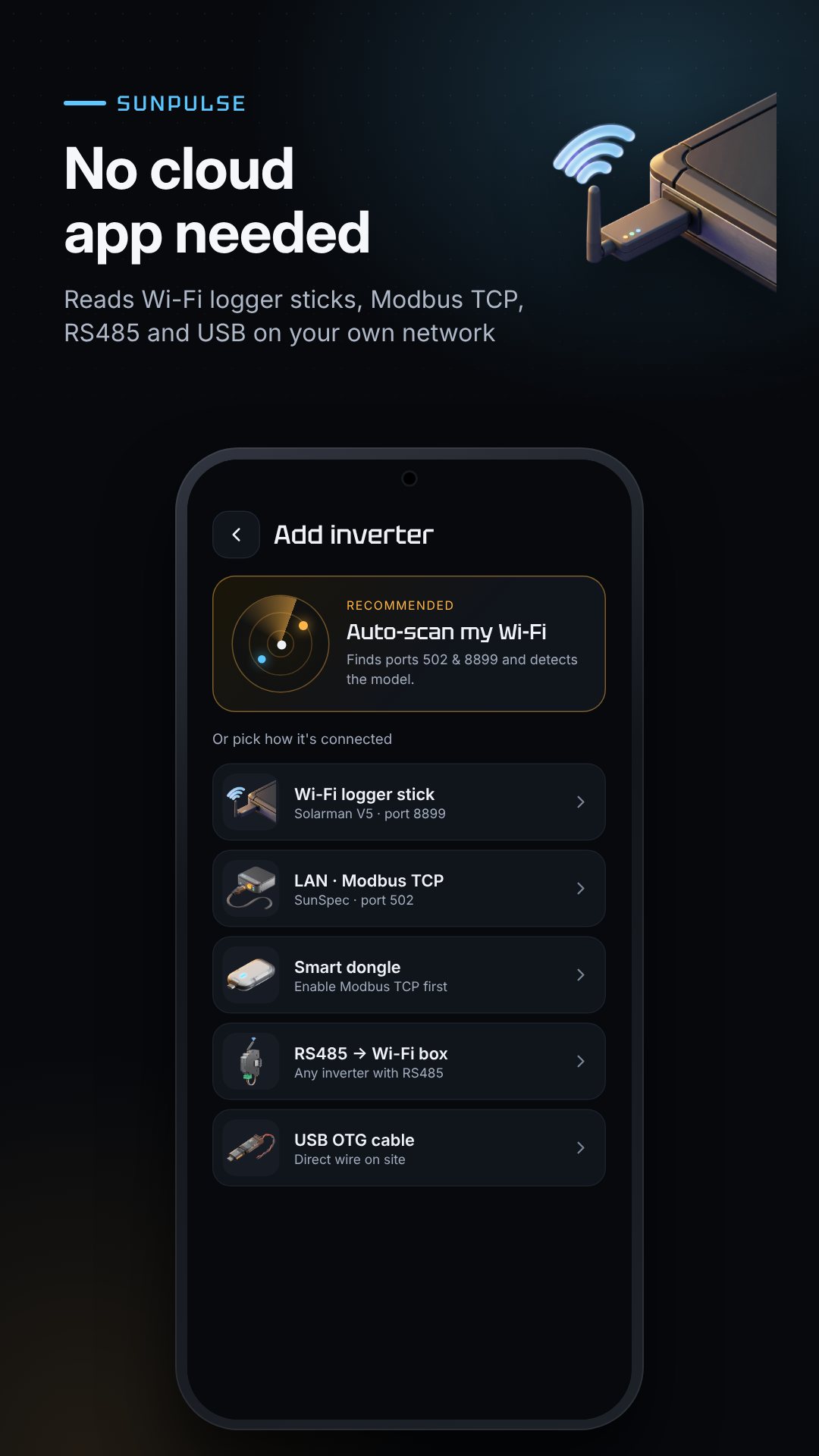
Open auto-scan and SunPulse sends a UDP discovery ping (Solarman sticks answer on port 48899), sweeps the local subnet for the Modbus ports, and identifies what it finds. You can also scan the QR code on a logger stick with the camera, or type the address by hand — and each inverter is saved so the next launch reconnects on its own.
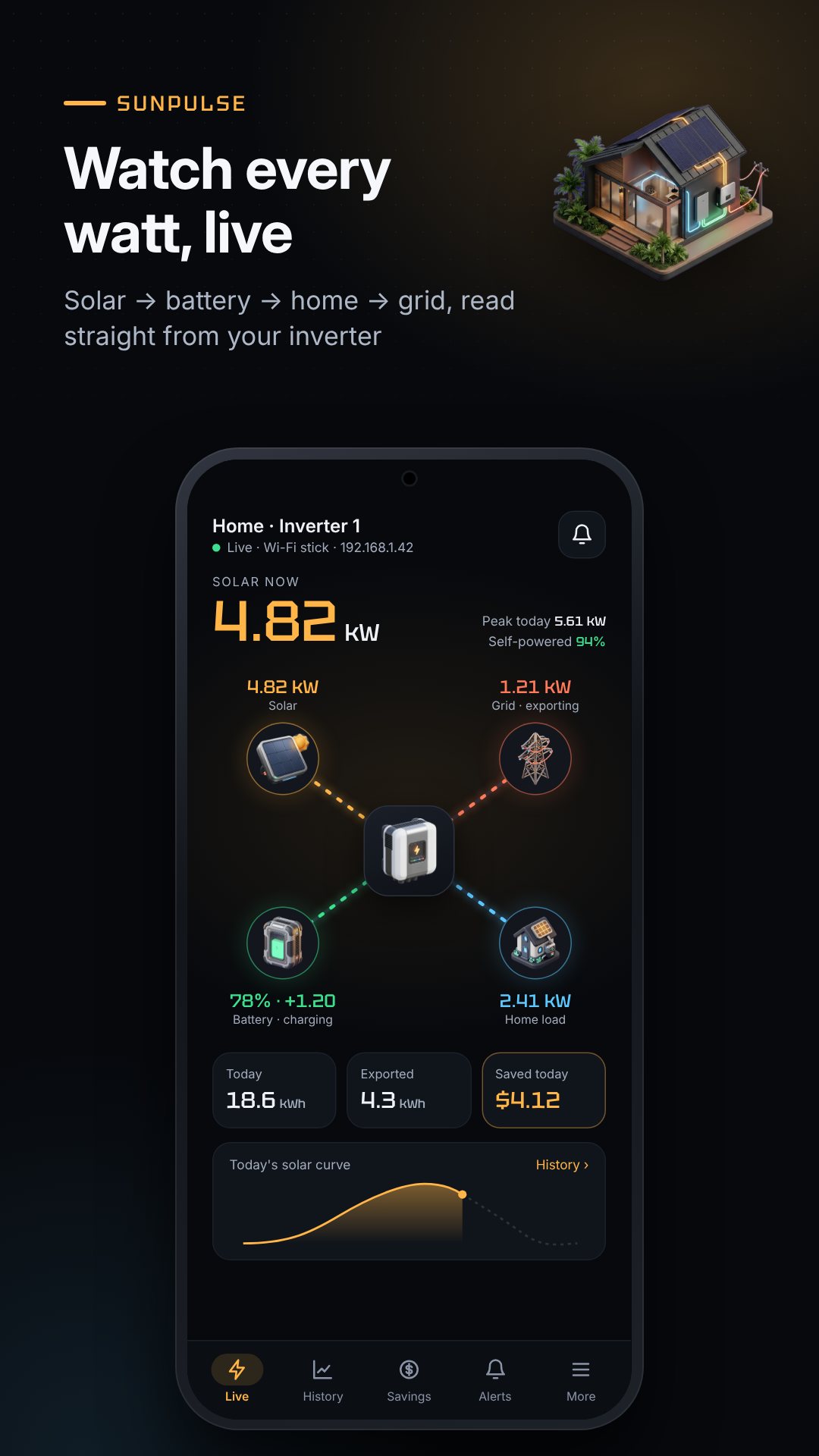
The dashboard shows an animated power-flow diagram — solar, battery, grid and home — with battery state of charge, temperatures and grid voltage and frequency, refreshed every few seconds. History rolls the readings up by day, week, month and year. The Savings screen is the part owners keep coming back to: set a time-of-use tariff with peak and off-peak rates and an export (feed-in) rate, and SunPulse separates what you saved by using your own solar from what you earned exporting, for both this month and the lifetime of the system.
The alert engine turns readings into notifications: grid lost and grid back (confirmed over two readings so a blip does not spam you), battery low at a percentage you choose, battery full, inverter fault codes with readable labels, and a low-yield warning that compares midday output against the best of your last seven days.
Everything SunPulse records stays on the phone in a local database, with no account and no manufacturer server in the loop. The interface is available in English, Thai, Filipino, Vietnamese and Urdu.
With Pro, SunPulse can write inverter settings — the register-write and console tools are meant for installers, so change a register only if you know what it does, as a wrong value can affect how your inverter runs. The app is free with ads and offers an optional one-time Pro purchase; the free tier covers one inverter and seven days of history.
No. It talks to your inverter over your local Wi-Fi or a cable, with no account and no cloud portal, so it keeps working even when the manufacturer's servers are down.
Solarman Wi-Fi sticks, Modbus TCP devices, auto-detected SunSpec inverters, and Modbus RTU over an RS485 or USB-RS485 adapter; a Demo mode lets you try it with no hardware.
Yes, with Pro. The MQTT bridge publishes 14 sensors with Home Assistant auto-discovery, so they show up without manual YAML.
Yes, it is free to download with ads, and offers an optional one-time Pro purchase that unlocks unlimited history, alerts, the widget, MQTT, CSV export and more.